![tradable-bits-long-logo-for-download.png]](https://resources.tradablebits.com/hs-fs/hubfs/tradable-bits-long-logo-for-download.png?height=40&name=tradable-bits-long-logo-for-download.png)
Our partners rely on the Fan CRM Search to help them achieve their goals and answer questions around:
- Segmentation, targeting, and advertising to relevant leads
- Analysis, forecasting future fan behaviour and uncovering insights
- Reporting (for internal teams and sponsors)
There are endless ways to reveal the information that you are looking for in Search. The Fan CRM Search helps you act on all the data that the Fan CRM holds and organizes. This is where you go to pull out the exact information that you're looking for about your fans.
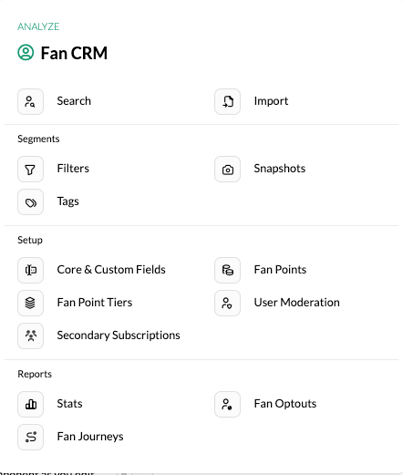
From the Tradable Bits Homepage, begin by hovering over the Top Navigation Bar and clicking Search under the Fan CRM section.
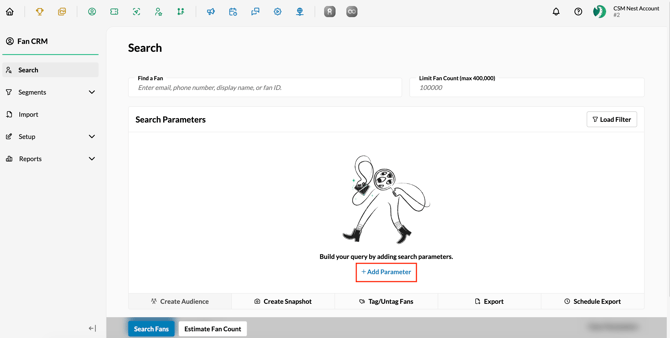
Begin your search by applying a few parameters. You can generate a detailed profile view of a single fan if you know their name or email, or cast a wide net and narrow down your audience by using parameters.
For a full breakdown of every FanCRM field and filter, see our guide here.
Click +Add Parameter and select from the menus to search by things like Locations, various Fan Metrics, Campaign Activities, Purchases, Trackers, Registration fields, and more. You can choose just one parameter to focus in on, or you can stack multiple parameters to get even more specific.
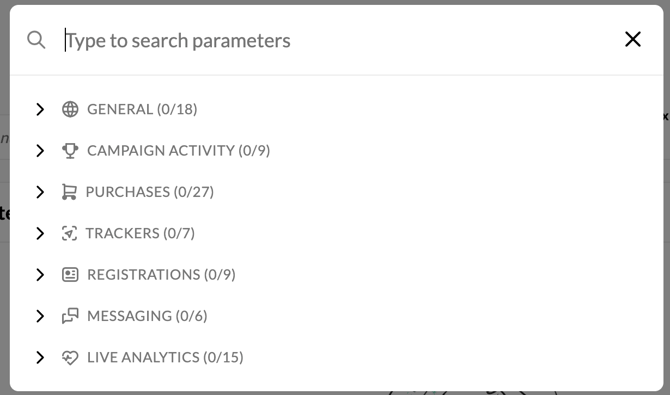
You can also type in the parameter you wish to search by, such as “location,” and this will display all the granular search options you have with that parameter.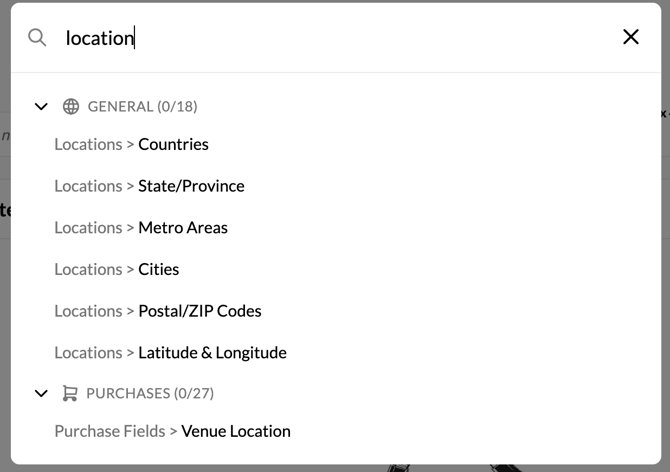
If you have already created a filter, you can use it to search with as well. To do this, select Load Filter and search for your desired filter.
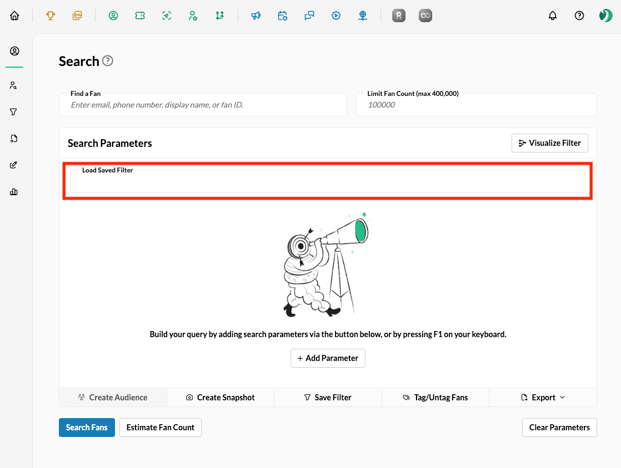
Once you’ve chosen what you’d like to search, there are two buttons at the bottom left side that will generate results, depending on what you're after. Hitting Search will give you a very comprehensive look at your fans, while Estimate Fan Count will give you just the high-level numbers on your fans for quick reporting.
Search: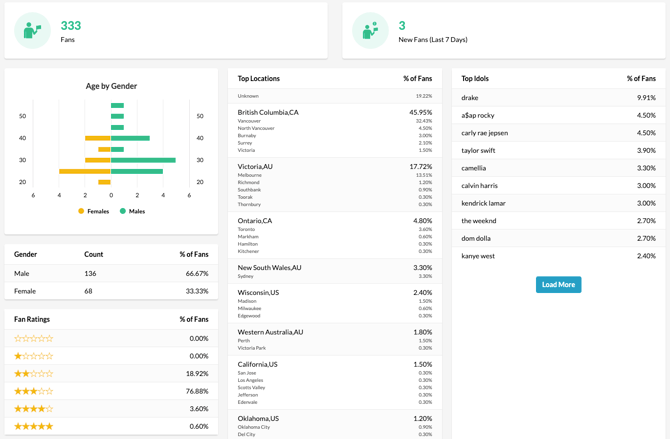
Pro Tip: To run a search to return all fans, navigate to the Fan CRM. On the bottom left of the platform, click Search and all fans will be searched.
If your Fan CRM contains over 100,000 fans, you can view the total number in the "Stats" report. Navigate to Fan CRM > Reports > Stats. Click the Apply button. The page will display the stats for your entire database, including total number of fans.
Estimate Fan Count:
Export Log: Where you can see all previous CSV exports & keep track of who exported and when
Filters
Filters are the bread & butter of Fan CRM search. At their core, they are saved searches that help you organize fans into audiences that you can then analyze and/or target for your communications and promotions. Filters are created by using one or stacking many of the Fan CRM Search parameters.
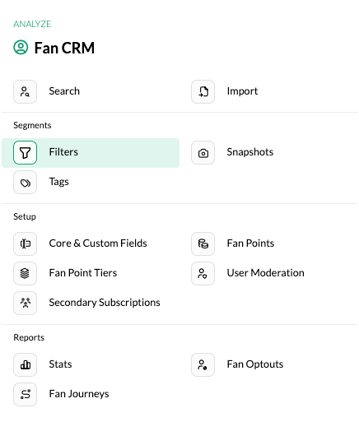
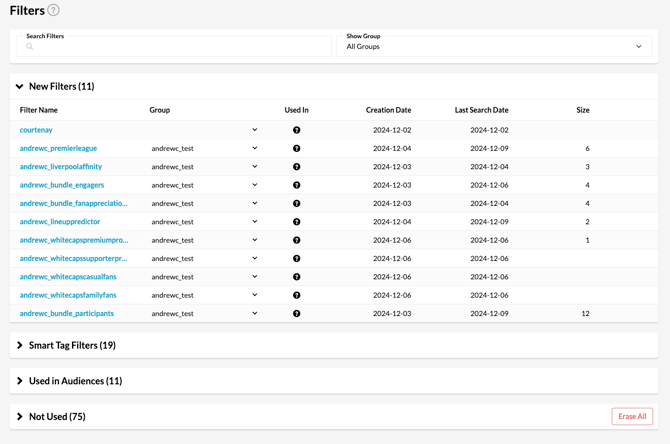
Note: Filters are dynamic, which means that new (or existing) fans who satisfy the set filter parameters will automatically fall in/out of filters as their behaviour changes.
To learn more about filters, check out this guide here.
Snapshots
Like its namesake, a snapshot is your way to save a clear “picture” of stats from a filter you have created for that moment in time. Snapshots can be used to compare the same filter but at two different periods, or to analyze the overlap between different filters at the same time.

Example Use-Case: They are an excellent way to provide value to a sponsor by showing fan data before your event or contest and then compare it to a snapshot from after your event or contest.
To learn more about snapshots, check out this guide here.
Tags
Tags are a powerful tool for segmenting your fans & customers into audiences for future retargeting. Essentially, they're a very efficient "sticky note" that helps you keep track of what your fans are doing, so you can understand their habits, motivations and interests.
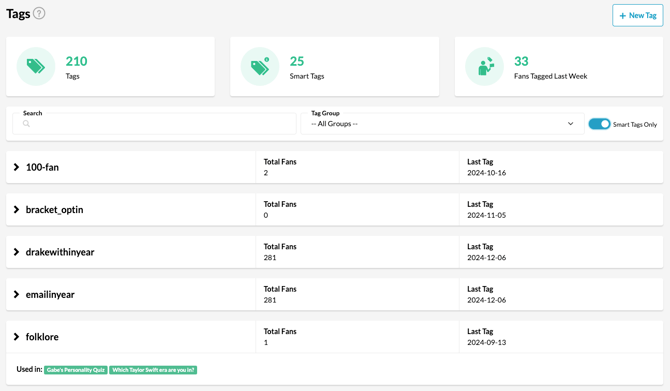
Example Use Case: Search by tags to understand exactly which fans entered your sponsor campaigns so that you can effectively report on the ‘fruit’ of your relationship.
To learn more about tags, check out this guide here.
Audience
As marketers, we usually understand “audience” in the context of “consumers that likely want your product or service.” Fan CRM is built on the premise of identifying subgroups within your target audience to deliver more tailored messaging for stronger connections. With Search, you can create audiences based on search parameters that you can then push directly to our “Market Smarter” section.
What's the Difference Between an Audience & a Filter? An audience is what you push externally to your associated ad networks, while a filter stays within the Tradable Bits Platform. You can create an audience from a filter (or multiple filters) to target your desired segment on Facebook, Google, Twitter, etc.
Still need assistance? Please reach out to your Customer Success Team or contact support@tradablebits.com