![tradable-bits-long-logo-for-download.png]](https://resources.tradablebits.com/hs-fs/hubfs/tradable-bits-long-logo-for-download.png?height=40&name=tradable-bits-long-logo-for-download.png)
The Entry Form campaign makes it easy for you to connect with your fans and quickly gather the information you need.
More importantly, it is the core template for nearly every Tradable Bits engagement campaign. Once you understand how to build, configure, and design an Entry Form, you effectively know how to manage 95% of our other activation types. The other campaigns follow this same foundational process—they simply add unique mechanics (like a game, quiz, or bracket) on top of it.
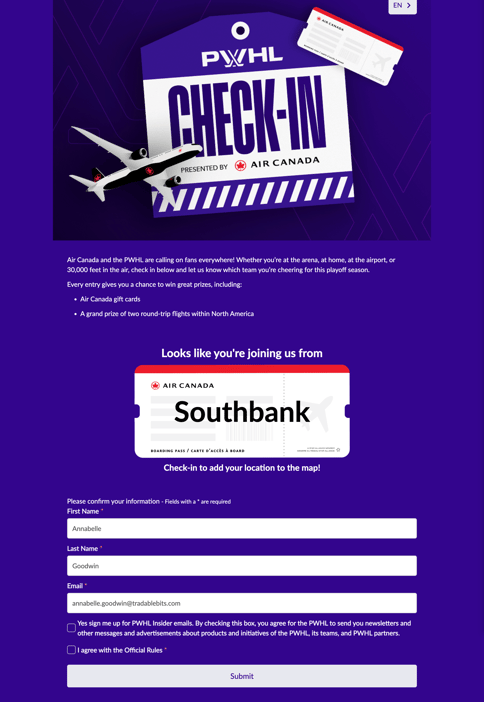
When to use an Entry Form
You might want to consider using an Entry Form for:
- Pre-sales
- Ticket giveaways
- Email sign-ups
- Waitlists
Getting Started
- In the Tradable Bits Homepage, hover over Campaigns in the top navigation bar, select your desired business, and click on Dashboard.
- Click on New Campaign in the top right corner.
- The Entry Form Campaign lives under the Other category. You can click it from the list or type "Entry Form" directly into the search bar.
- Complete the required fields in the pop-up window to create your draft.
Once inside, use the sidebar on the left to navigate through the two core building sections: Setup and Design.
General Setup
Take your time to go through the General Setup section, where you will determine:
- Campaign Name
- Start and End Time
- Authentication
- Entry Form Fields
Entry Form Fields
As this campaign type relies entirely on data entry to connect with your fans, configuring your data capture fields is your most important step.
By default, an email or phone number must be present on the entry form.
Adding Fields
To expand and enrich the fan data you collect, click Additional Fields to add more fields.
- Standard Field: Select from our default structured data points (e.g., Phone Number, City).
- Custom Field: Highly specific, brand-aligned marketing questions tailored to your activation goals. For more information on how to set up custom fields, visit this guide here.
- Subscription Field: capture specific Email or SMS opt-ins for your business or sponsors that you can later segment and export via FanCRM. To create a subscription/opt-in field, check out our guide.
Create New Custom Field
When creating a custom field, you will define a Field Key (the internal reference key used for tracking) and select from the following Field Types:- Single Line Text: A small input box for short answers.
- Multiple Line Text: A larger text box meant for paragraphs, feedback, or long-form descriptions.
- Select (dropdown): A dropdown menu that allows users to select from a list.
- Checkbox: Allows fans to opt-in to specific marketing or communications.
- Radio: A group of answer options that forces the user to choose only one option from the list.
- Date: A formatted field split into DD/MM/YYYY for calendar entries like dates of birth.
- Validation: A single-line text field where you set a list of approved words, and the user must type one of them exactly right to submit the form.
Customise field titles as they appear on the campaign under Design > Localise Language.
Reordering Your Fields
You have complete control over the fan experience. You can easily click, drag, and drop your active fields to reorder the sequence in which they appear on the page.
Optimising Opt-In Language & Legal Compliance
Data governance is built right into your form configuration. Use the General Setup > Legal Setup section to pull in your standard legal texts, or apply a Custom URL linking out to your external website/documents.
- Always require new legal consent: Toggle this ON if fans must explicitly accept your Official Rules or Privacy Policy on every single submission. If left OFF, returning fans will only see and accept the legal prompt on their very first entry.
- Personalising Opt-In Phrases: To replace generic compliance checkboxes with brand-aligned language, navigate to Design > Localise Language. Here, you can rewrite default platform phrases (such as changing "Allow me to be contacted by email" to something more customised to your brand's voice).
Looking for more advanced configurations?
Since the Entry Form is just the baseline, it shares many backend features with our other activations. For a deep dive into platform-wide settings like Password Protection, Regional Restrictions, Automated Messaging, or Embed codes, check out our comprehensive Getting Started with Campaigns Guide.
Before publishing your campaign, be sure to review our Campaign Publishing Checklist for a smooth launch.
Still need assistance? Please reach out to your Customer Success Team or contact support@tradablebits.com