![tradable-bits-long-logo-for-download.png]](https://resources.tradablebits.com/hs-fs/hubfs/tradable-bits-long-logo-for-download.png?height=40&name=tradable-bits-long-logo-for-download.png)
Planning an engagement campaign for a specific city, state, or country? Setting regional restrictions can help you reach the right fans without creating headaches down the road. Here are some reasons why you might want to limit entries to a geographical region:
- Staying on the right side of the rules: Sweepstakes laws, age limits (like alcohol or tobacco), and privacy rules can vary depending on where a fan lives.
- Avoiding shipping surprises: If you’re sending out physical merch, tickets, or prizes, or only offering local pickup, limiting entry prevents disappointment when shipping gets tricky (like trying to ship a US-only prize to Alaska or Hawaii).
- Focusing on local action: If you want people walking through your doors, booking a local service, or grabbing tickets to a nearby show, it makes sense to only show the campaign to the people who can actually make it.
- Matching sponsors and tour stops: Sometimes a partner or tour sponsor only backs a promotion in certain cities or venues.
- Cutting out noise and suspicious entries: Narrowing your region saves budget on wasted impressions and helps keep out bots, prize hunters, and entry farms outside your target area.
How to Set Regional Restrictions
Open your campaign and, from the Setup tab in the Tradable Bits campaign editor, open Access Restrictions in the left sidebar, and scroll down to Regional Restrictions. Keep in mind that you can only use one restriction type at a time.
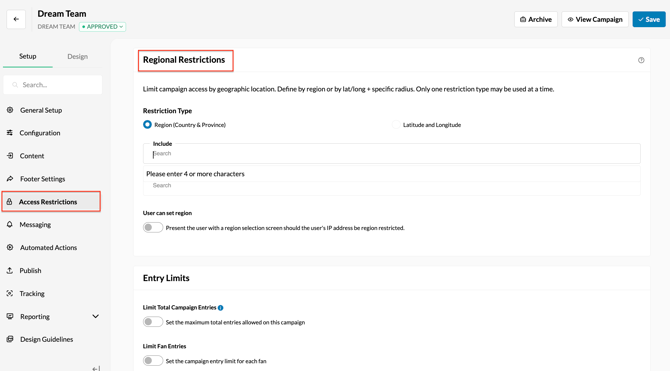
1. Choose your Restriction Type
Start by selecting which type of restriction you'd like to use for your campaign. Here are the differences:
-
- Region (Country & Province): Best when you want to allow or block broader areas like countries, states, or provinces.
- Latitude and Longitude: Best when you want to target or exclude a hyper-local area using exact coordinates and a radius (in km).
2. Set who gets in (and who doesn't)
-
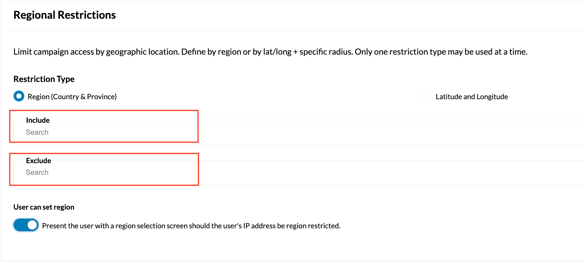
- If you pick Region (Country & Province): Use the Include search bar to pick the locations that can enter, and use Exclude to block specific regions you don't want in the mix.
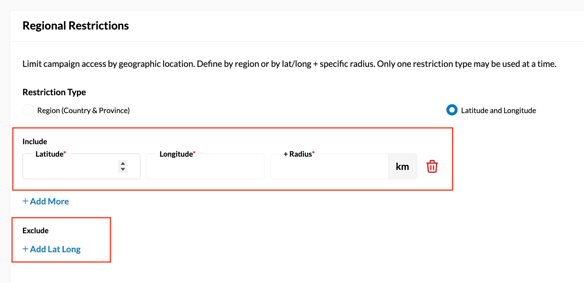
- If you pick Latitude and Longitude: Click + Add Lat Long under Include to enter your Latitude, Longitude, and + Radius (in km), then use + Add More if you need extra spots. You can also click + Add Lat Long under Exclude if you want to carve out specific coordinates. (And if you need to remove an added coordinate row, hit the trash icon next to it.)
- If you pick Region (Country & Province): Use the Include search bar to pick the locations that can enter, and use Exclude to block specific regions you don't want in the mix.
3. Decide what happens if someone's IP is restricted (Region mode only)
-
- Under "User can set region", toggle the switch on if you want restricted visitors to see a region selection screen rather than hitting a dead-end "blocked" message right away.

- Under "User can set region", toggle the switch on if you want restricted visitors to see a region selection screen rather than hitting a dead-end "blocked" message right away.
What Fans See When Restricted
How the campaign appears depends on whether the "User can set region" toggle is turned on or off in Region (Country & Province) mode:
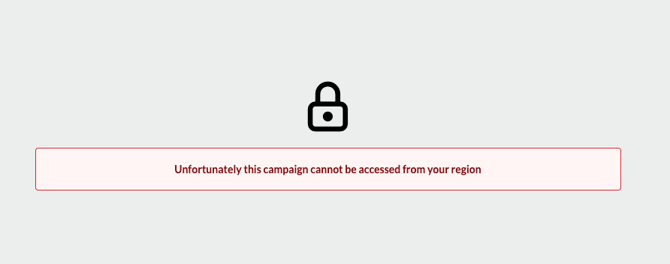
- When "User can set region" is off (or you're using Latitude and Longitude): Fans outside your allowed area or inside a blocked region see a lock icon and the message "Unfortunately this campaign cannot be accessed from your region".
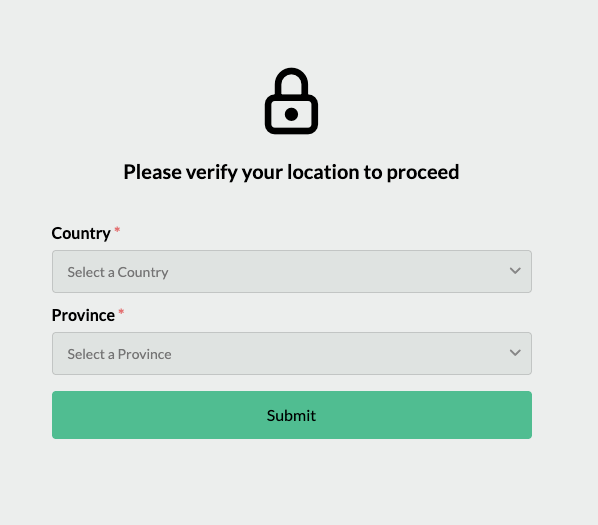
- When "User can set region" is on: Instead of hitting the block, fans see a lock icon with "Please verify your location to proceed", dropdown menus to pick their Country and Province, and a Submit button so they can confirm an eligible location.
Best Practices: Choosing the Right Restriction Type
Not sure whether to pick Region (Country & Province) or Latitude and Longitude? A quick rule of thumb is to use regions for borders and broader territories, and coordinates when physical proximity to a specific spot is what really matters.
When to Restrict by Country or Province
Choose the Region (Country & Province) option when your eligibility rules, shipping boundaries, or marketing goals line up clearly with political borders or wider regional markets:
- National or provincial sweepstakes: Great for contests open only to residents of a country (like Canada) or specific provinces (like Ontario and British Columbia) where contest laws or shipping limits apply.
- Regional tour or market pushes: Ideal for promoting a multi-city tour leg, a regional broadcast or streaming push, or a statewide/provincial retail rollout where fans across a wider territory are fair game.
- Regulatory or partner territory alignment: Helpful when you're tailoring a campaign to jurisdictions with specific legal rules, age gates, or regional sponsor/partner territories.
When to Use Latitude and Longitude (with a Radius)
Opt for Latitude and Longitude, using Include and/or Exclude, when being right next to a specific point on the map matters most:
- In-venue or event-day activations: Best for unlocking a contest, VIP perk, or QR/mobile entry only for people physically inside or right around a stadium, arena, festival grounds, or conference center.
Tip: Since high-density venues like a stadium or arena often have many fans sharing connections, be sure to check your Spam Protection and Bot Protection settings so that your real attendees aren't accidentally blocked. You can also set IP rules using this guide.
- Storefront or pop-up foot traffic: Useful for driving walk-ins to a flagship store, restaurant launch, or street-level pop-up within a tight walking or short-drive radius.
- Hyper-local neighbourhood or campus targeting: Great for focusing an offer on a specific campus, entertainment district, or delivery zone, and using Exclude coordinates to keep entries out of an off-limits spot or rival venue.
Still need assistance? Please reach out to your Customer Success Team or contact support@tradablebits.com