![tradable-bits-long-logo-for-download.png]](https://resources.tradablebits.com/hs-fs/hubfs/tradable-bits-long-logo-for-download.png?height=40&name=tradable-bits-long-logo-for-download.png)
User Access Management is where you can allow specific IP addresses, block others and remove specific fan accounts for poor conduct at an account level. This section can be found in the FanCRM section under 'User Access Management.'
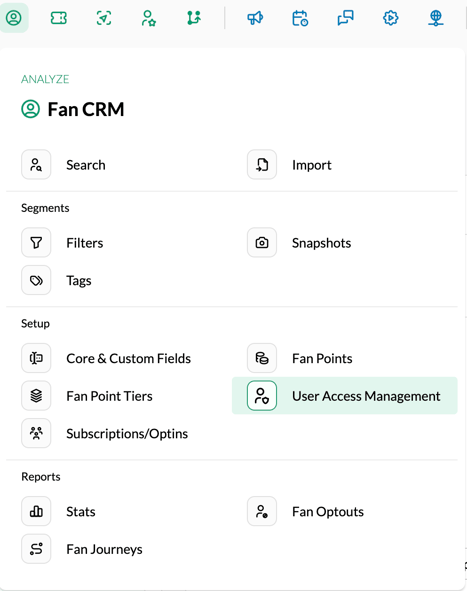
Let's go through each section in more detail:
User Management:
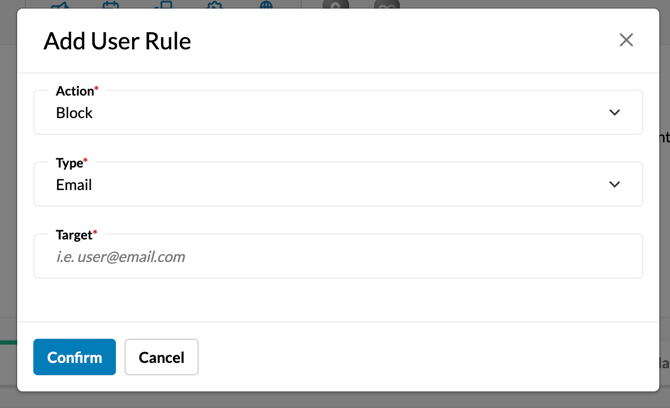
If you need to ban or block a user for poor conduct, select the 'Add Rule' button under the 'User Management' tab. Next, under the Action menu, choose 'Block.' You can block the user by selecting either their email address, phone number or domain from the 'Type' menu. Finally, enter the email address, phone number, or domain, then click 'Confirm'.
IP Management:
You can block a single IP address or an entire network using CIDR notation. Under the 'IP Management' tab, create a new Rule by clicking on the 'Add Rule'. Select the 'Block' action, paste the IP address or CIDR notation into the required field, and then click 'Confirm'. 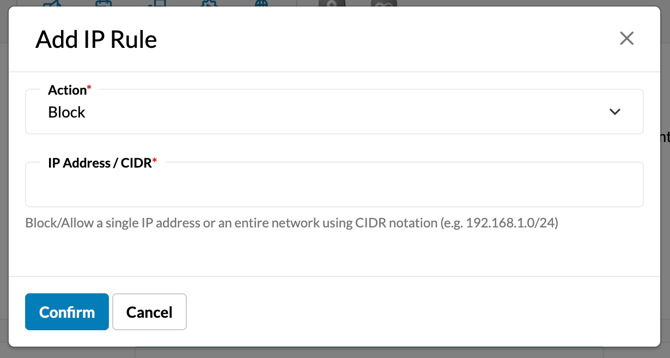
To approve or allow a single IP address or entire network using CIDR notation (ie, your Stadium/Venue), from the 'IP Management' tab and create a new rule by clicking 'Add Rule'. Select 'Allow', paste the IP address or CIDR notation into the required field, and then click 'Confirm'. If you are running a campaign within a venue, we recommend allowing the venue's IP address so fans aren't blocked from entering while using the venue's Wi-Fi and the same IP.
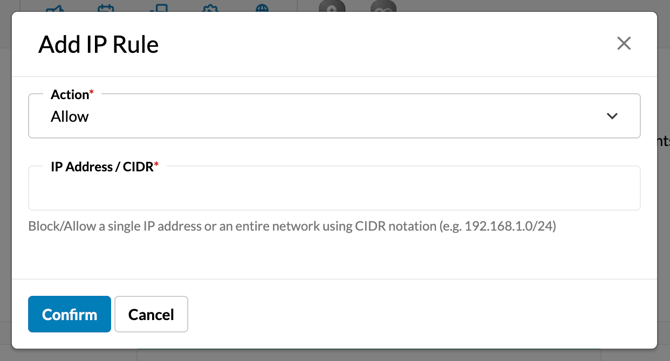
Extra Tip: We recommend allowing your workplace/office IP address so that you and your colleagues' testing campaigns don't get flagged for submitting multiple campaign form entries within a short period of time.
SMS Markets:
This section enables you to allow or block countries you want to send SMS messages to, and lets you set daily caps for these countries. This feature was created to help mitigate bot attacks and manage costs so you aren't spending money on bots instead of fans. This is especially important if you are using the Tradable Bits Auth feature on any of your campaigns and SMS Authentication is enabled.
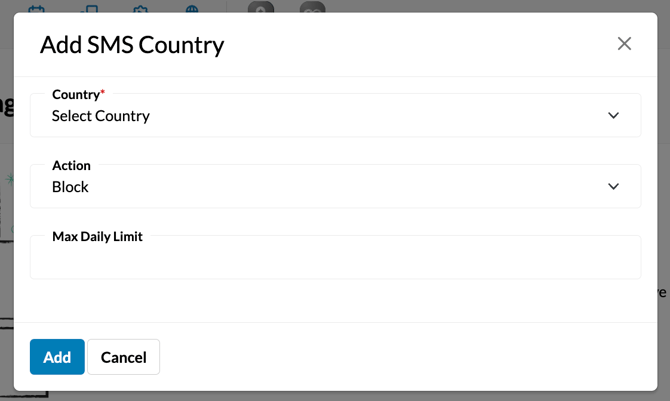
To get started, go to the 'SMS Markets' tab under User Access Management and select 'Add Country'. From here, you can select a Country from the drop-down menu and choose your action to either 'Block' or 'Allow' from the drop-down menu. If you are allowing, but want to set a daily max limit, you can indicate so here in the 'Max Daily Limit' amount.
If you have further questions about allowing, blocking or bot protection for your campaigns, please reach out to your Customer Success Manager or contact support@tradablebits.com