![tradable-bits-long-logo-for-download.png]](https://resources.tradablebits.com/hs-fs/hubfs/tradable-bits-long-logo-for-download.png?height=40&name=tradable-bits-long-logo-for-download.png)
UGC Contests allow you to easily gather user generated posts across Instagram, Facebook, & X (Twitter) while also allowing fans to upload their photos directly to your campaign as well. Collect fan posts, moderate and approve entries and collect fan information with an optional voting option. This engagement campaign is optimized for mobile and easy to embed on your website or screen display.
When to use a UGC Contest:
You might want to consider using a UGC contest to:
- connect directly to a UGC stream
- collect UGC photos and comments from fans
- display UGC for a live activation at a game or event
We're outlining some campaign-specific details below. Follow this guide for more info on General Setup and other campaign basics.
Configuration
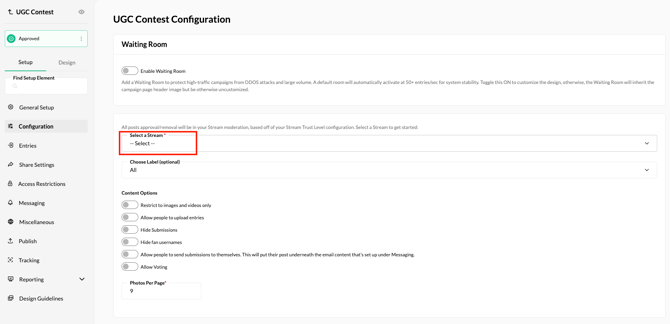
Under the Configuration tab you can select a stream, as well as set your content options, such as if you want to allow fans to upload entries (instead of sharing on social). If you'd prefer not to display any entries on the campaign page, toggle on the Hide Submissions option.
For more information on how to connect your UGC Contest to a stream, use this guide here.
Entries
To manage and moderate entries from fans, navigate to your UGC Stream.
Before publishing your campaign, be sure to review our Campaign Publishing Checklist for a smooth launch.
Still need assistance? Please reach out to your Customer Success Team or contact support@tradablebits.com