![tradable-bits-long-logo-for-download.png]](https://resources.tradablebits.com/hs-fs/hubfs/tradable-bits-long-logo-for-download.png?height=40&name=tradable-bits-long-logo-for-download.png)
The TuneLink campaign helps you turn hype into data. It's your all-in-one pre-save campaign that automatically evolves into a smart, post-release landing page once your track or album drops.
Use it to:
- Drive pre-saves and streams
- Collect fan data and opt-ins
- Keep momentum rolling from singles to album releases
- Centralize all streaming and merch links post-release to drive auxiliary revenue moments
TuneLink Features
- Pre-song Pre-save: You can launch your pre-save before you know the Spotify or Apple Music URL. Just make sure to add your ISRC ID or UPC before you release your track or album.
- Waterfall Pre-save: It's become industry standard for label and artist teams to release albums in "waterfalls" - dropping a few tracks at a time before the album lands. With a Waterfall Album Release pre-save, fans save once and will automatically get every new track associated with that album - even if they're released weeks apart.
- Pre-save functions: Save your album or track directly to each entrant’s Spotify/Apple Music library on release day in addition to adding them as a follower of your artist profile.
- Song landing page: In addition to the pre-save functionality, you can configure post-save links and create a song landing page. The campaign automatically becomes a centralized place for fans to access your album or track once it has been formally released. You can add YouTube videos, a prompt for where to listen, and even display merchandise!
- Data collection: In addition to the Spotify/Apple Music authentication required, you can also collect email and SMS opt-ins, which is an effective way to bring more of your listening community in-house for direct communication.
When to use TuneLink?
Use TuneLink when you're:
- Dropping a new single, EP or album and want to enrich your data collection while driving more streams
- Running a multi-single rollout leading to an album
- Linking out to merch, tour tickets or other fan actions post-release
Tradable Bits' fan ecosystem means every pre-save can connect to broader insights - like which fans later joined your fan community, bought merch, or purchased tickets.
We're outlining some campaign-specific details below. Follow this guide for more info on General Setup and other campaign basics.
⚙️ How to configure a TuneLink campaign?
TuneLink campaigns have two main parts:
1. Setup (general setup + configuration)
2. Design (visuals + copy)
You'll find both in the left sidebar. Follow it top-to-bottom because each section builds upon the last.
How to Configure Your Pre-save
Under the Configuration tab, you'll see four sections:
- Waiting Room
For massive campaigns (20K+ entries expected within minutes). Leave this off unless you're expecting heavy traffic. It adds a short waiting queue to balance system load. - Release Identification
Where you set up your release details. Paste a Spotify or Apple Music link, and we'll pull the release details in for you. Here you will also set the initial release date. - Quick Save Networks
Select the platforms (Spotify or Apple Music) where fans can pre-save your song or album ahead of release day. - Post-Save Links
Configure the DSPs (digital service providers), media embeds (Spotify, Apple Music, YouTube), and custom links (merch, tickets) shown to fans after they save, as well as on your post-release page.
Step 1: Waiting Room (Optional)
Add a Waiting Room if you are expecting massive traffic to the campaign (e.g., 20K+ entries at launch).
- Toggle ON to customize the queue page design.
Note: A default waiting room automatically activates at 50+ entries/second for system stability regardless of this setting.
Step 1: Release Identification
Configure your track or album metadata to drive the automated release logic.
- Smart Import (Optional): Paste a public Spotify or Apple Music track or album URL to auto-populate release metadata (Artist and ISRC ID or UPC ID).
Note: The track/album must be publicly available on Spotify or Apple Music for Smart Import
- Release Type: Select either Track or Album.
- Spotify Artist ID: This is required for follower actions and continuous query functions.
- ISRC / UPC ID: You can manually enter your release code. If you do not have these codes at launch, leave this field blank.
You must add your ISRC / UPC ID code before release day for pre-saves to trigger.
- Initial Release Date: Required. TuneLink logic relies on this exact date and time to trigger the automatic transition from pre-release to post-release phase. If this is set to a past date, and the track or album has already been released, we'll automatically save it to the fan's library instead.
Step 2: Quick Save Networks
Select the platforms where fans can pre-save your content.
- Click Add Network and choose your network (currently supporting Spotify and Apple Music; Deezer and Amazon Music integrations will be coming soon).
- At least 1 Quick Save Network is required.
- Drag the network modals to change the display order.
Step 3: Post-Save & Post-Release Links
Post-Save Links are what fans see once they've saved. Nothing here is auto-populated; you enter the links directly, and what you enter is exactly what shows.
- Default Post-Save Links: Click Add Link to add DSPs (Spotify, Apple Music, YouTube, Amazon Music, Deezer, Tidal, Napster, TikTok) or Custom Links (merch, tour tickets).
- Post-Save Destination URL: Add the URL fans will end up on after saving the content.
- Post-Save Button Text: Add copy to appear on the button.
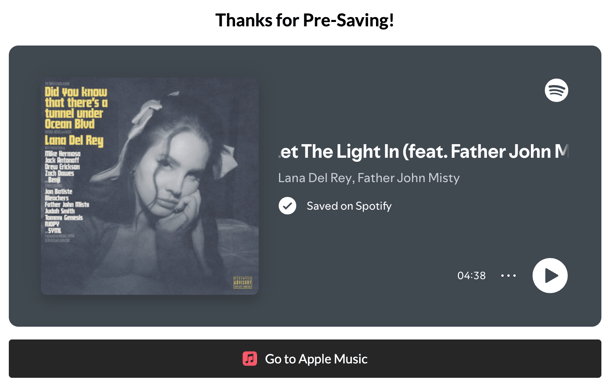
- Use Embed: Toggle on to ensure the embed modal displays instead of a standard button.
In the example image below, "Use Embed" is toggled on for the Spotify link, whereas Apple Music uses the standard format.

- Query Song Links: Click this button to automatically locate and fill DSP links across platforms using your ISRC/UPC.
- Embeds: Enrich DSP links by embedding interactive audio/video players for Spotify, Apple Music, or YouTube.
- Add your desired links as usual.
- These links will display based on the Initial Release Date specified under Release Identification.
If the release date is in the past, the button text will say “Save to Spotify” or "Save to Apple"
How to set up a Waterfall Album Release
If you want to set up an Album pre-save and know that singles will be shared ahead of the full album drop, use the Waterfall Album Release feature:
- Under Release Identification, set Release Type to Album.
- Toggle Waterfall Album Release to ON.
- Ensure your Spotify Artist ID is entered. TuneLink will query Spotify and automatically add new tracks to your pre-saved fans' libraries as each single drops.
✅ Before you publish
Run through this quick checklist:
- You've either Smart Imported the Spotify/Apple Music URLs or have manually added the ISRC/UPCs (before release)
- Spotify + Apple Music URLs are tested
- Waterfall is toggled correctly (if applicable)
- Post-Save Links are added (optional but recommended)
- Design and copy have been double-checked
When everything looks good, you're good to publish.
And with that, you've launched a TuneLink campaign 🎉
Every fan that pre-saves brings you one step closer to owning your audience data, boosting streams, and converting casual listeners into real fans.
Before publishing your campaign, be sure to review our Campaign Publishing Checklist for a smooth launch.
Still need assistance? Please reach out to your Customer Success Team or contact support@tradablebits.com