![tradable-bits-long-logo-for-download.png]](https://resources.tradablebits.com/hs-fs/hubfs/tradable-bits-long-logo-for-download.png?height=40&name=tradable-bits-long-logo-for-download.png)
Our Personalized Playlist Campaign is a Spotify-integrated campaign that lets you deliver custom playlists straight into your fans’ Spotify accounts. These playlists can be set up to include songs from artists on your label or your label as a whole. You can also include or exclude certain songs in the generated playlist.
We're outlining some campaign-specific details below. Follow this guide for more info on General Setup and other campaign basics.
When to use Personalized Playlist
Consider personalized playlists to engage your fans in the music space. This campaign is easy to set up and offers a simple deliverable. Plus, the Spotify integration helps pull your fans’ artist affinity data to your database once they authenticate (login with) their Spotify accounts.
When your artist releases a new song, you can create a custom playlist featuring popular songs of the same genre and include your artist's song. This campaign is also useful for creating themed playlists to promote festival lineups or run holiday campaigns.
Two ways to set up your first Personalized Playlist campaign
Let’s dive into the steps to creating and setting up your first personalized playlist campaign.
- In the Tradable Bits Homepage, hover over the Campaigns section in the Top Navigation Bar, select your desired business and click Dashboard.
- Go to the “Campaigns” section and click “New Campaign”.
- Scroll down or search to find and select “Personalized Playlist” from the list.

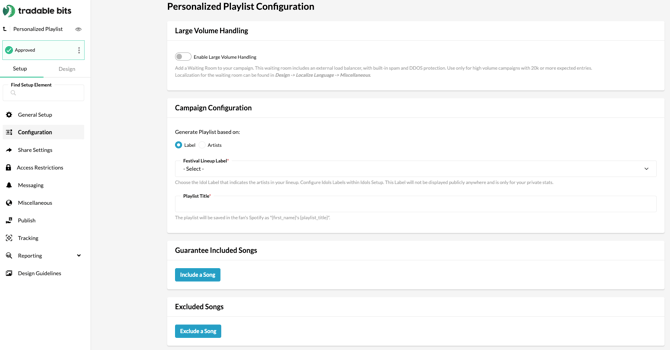
From here on, you can set up your campaign in two ways.
1. Label-based Playlist (great for creating themed playlists to promote festival lineups)
a) Select your label from the dropdown menu. If you haven’t set up a label, refer to this guide. The playlist will include songs from all of the artists on that label
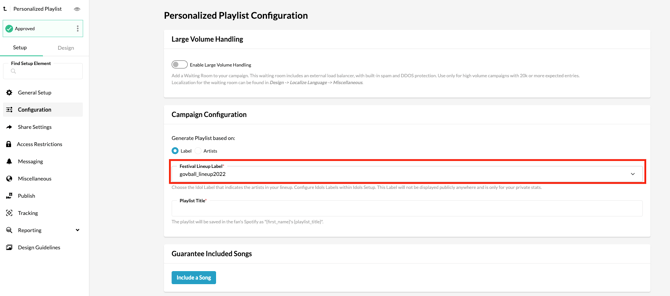
b) Give your playlist a title. The playlist will be saved in the fan's Spotify as {first_name}'s {playlist_title}
c) Click on the “Guarantee Include Songs” configuration to search for and select songs that you want as must-haves on the generated playlist.
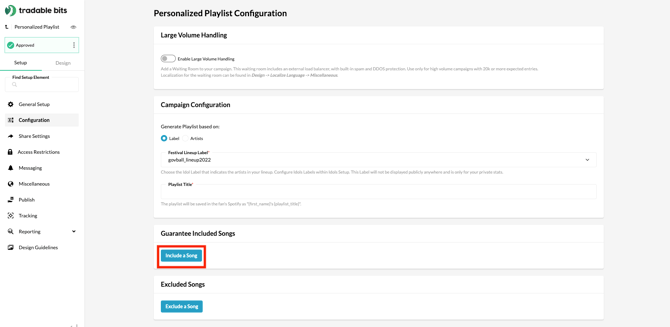
d) You can also select songs to exclude from the playlist
2. Artist-based Playlist (great for releasing as part of your marketing plan around a new album or single drop)
a) Select “Artist” under Campaign Configuration to generate a playlist based on artists
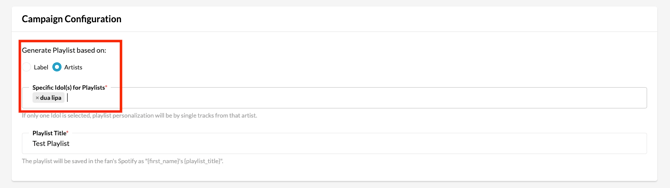
b) In the bar, you can search for and select as many artists as you want, as long as they are input as Idols within Tradable Bits. For more information on how to add an artist as an idol in Tradable Bits, refer to this guide.
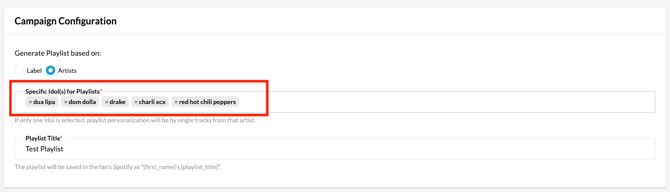
c) Artist-based configuration helps you create playlists with various artists from different labels and does not restrict you to artists from one premade label!
Spotify Song Search & Database Limitations
When configuring the "Guarantee Include Songs" or "Exclude Songs" sections, you may notice that certain tracks (like deep cuts or brand-new releases) do not always appear in the search results.
Why is this happening? Due to Spotify API limitations and system performance optimization, the search bar does not scan Spotify's entire live global catalogue. Instead, Tradable Bits utilizes an automated background process:
- The system pulls roughly 50 tracks for an artist from Spotify.
- It sorts those tracks by popularity
- It saves the top 10 most popular songs per artist to our internal database, where your search results come from.
This database cache refreshes roughly every hour, meaning the artist's current top 10 tracks may change over time.
Tip: If there's a specific song you want highlighted that isn't returned in the search results, you can still get it to your fans:
- Create an official playlist directly on your brand's or artist's native Spotify account that includes all of your desired tracks.
- Embed this official Spotify playlist directly onto the Thank You page of your Tradable Bits campaign, accompanied by a Call-to-Action (CTA) prompting fans to save and listen.
And that’s it! You have successfully configured your first Personalized Playlist Campaign and explored two ways to set it up.
Before publishing your campaign, be sure to review our Campaign Publishing Checklist for a smooth launch.
Still need assistance? Please reach out to your Customer Success Team or contact support@tradablebits.com