![tradable-bits-long-logo-for-download.png]](https://resources.tradablebits.com/hs-fs/hubfs/tradable-bits-long-logo-for-download.png?height=40&name=tradable-bits-long-logo-for-download.png)
Live Trivia allows you to engage your fans with real-time questions. Unlike a standard quiz, Live Trivia is controlled by a "host" or a preset schedule to ensure everyone plays at once.
Please note: Someone will need to manage and send the trivia questions live to your fans in real-time.
To get started with the setup, head to your Tradable Bits Homepage, hover over the Campaigns section in the Top Navigation Bar, select your desired business and click Dashboard.
Click on New Campaign > Live Trivia to get started.
We're outlining some campaign-specific details below. Follow this guide for more info on General Setup and other campaign basics.
Configuration Options
Here you can configure how long Question results will remain displayed on the Live campaign page. Enter a custom length of time, or select 'Enable manual clear mode', to have the results remain visible until you manually clear them from the producer console.
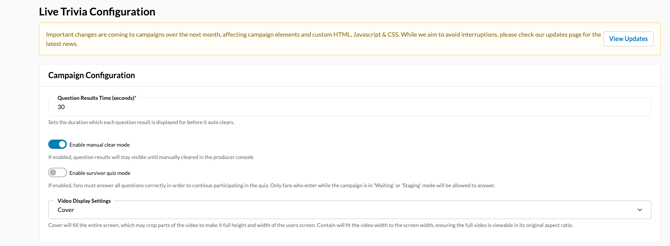
You can also enable 'Survivor Quiz Mode'. If enabled, fans must answer all questions correctly in order to continue participating in the quiz. Only fans who enter while the campaign is in 'Waiting' or 'Staging' mode will be allowed to answer.
Content
This is where you will create your trivia questions and answers: 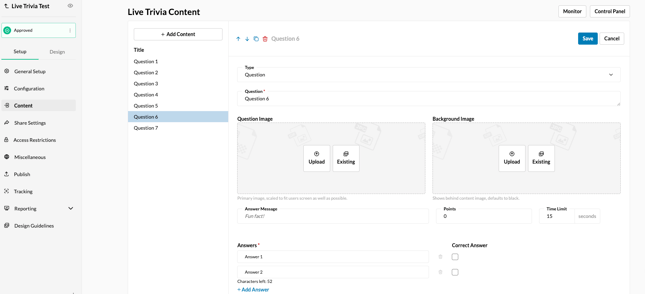
- Click + Add Content to add more questions to your campaign
- Select the question type
- List the possible answers and determine the correct answer
- Set the time limit for the question.
- You can also add an optional Answer Message to add some additional education or fun facts to each question after a fan makes their selection
Control panel
Once your questions are finalized and you are ready for the Trivia questions to go live, click on the Control Panel in the top right corner of the content section.
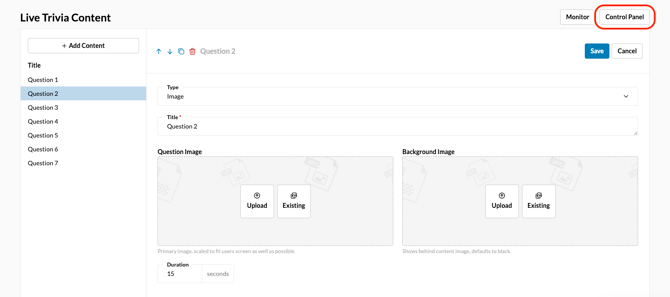
From the top right corner of the Control Panel, you can cycle through the different stages of your Live Trivia Campaign.
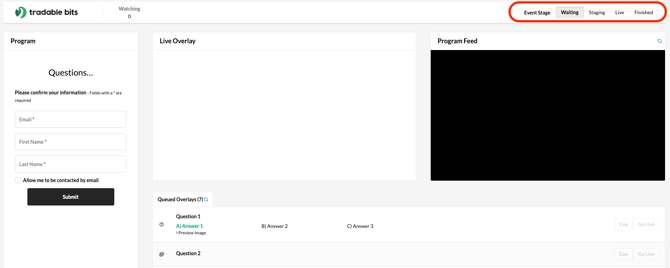
Event Stage:
- Waiting: Event has not started yet
- Staging: Event will start soon
- Live: Event in progress
- Finished: Event has ended
By default, the Live Trivia campaign starts in the Waiting stage. You may optionally switch to the Staging stage to let participants know the trivia will begin shortly.
When you’re ready to start, select the Live stage from the Control Panel. Once the campaign is live, you can choose which questions are shown to participants by clicking Go Live next to the desired question.
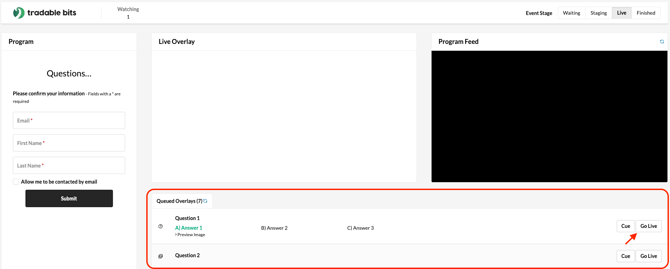
Once a question has been pushed to Go Live, it can then be cleared once you are ready to move on to the next Question.

To end your Live Trivia session, select the Finished event stage in the top-right corner. You can do this at any point, regardless of whether all queued questions have been presented.
Before publishing your campaign, be sure to review our Campaign Publishing Checklist for a smooth launch.
Still need assistance? Please reach out to your Customer Success Team or contact support@tradablebits.com