---
title: How do I set up an Instant Win campaign?
description: Here's a quick step by step guide to set up an Instant Win Campaign.
---
[Skip to content](https://resources.tradablebits.com/support/instant-win-campaign#main-content)
English
Show submenu for translations
![tradable-bits-long-logo-for-download.png\]](https://resources.tradablebits.com/hs-fs/hubfs/tradable-bits-long-logo-for-download.png?height=40&name=tradable-bits-long-logo-for-download.png)
Open main navigation
Close main navigation
- English
Show submenu for translations
How can we help?
- There are no suggestions because the search field is empty.
1. [Resources](https://resources.tradablebits.com/support?hsLang=en)
2. [Engagement Campaigns](https://resources.tradablebits.com/support/engagement-campaigns?hsLang=en)
3. [Creating Campaigns](https://resources.tradablebits.com/support/engagement-campaigns?hsLang=en#creating-campaigns)
# How do I set up an Instant Win campaign?
## Here's a quick step by step guide to set up an Instant Win Campaign.
The Instant Win campaign rewards fans for daily engagement and sharing by entering them into an instant prize draw. You can also award a grand prize at the end of the campaign, giving preference to fans who shared your contest. This mobile-friendly campaign allows you to collects first-party data and organically bring awareness to your brand.

**We're outlining some campaign-specific details below. Follow [this guide](https://resources.tradablebits.com/support/getting-started-with-campaigns?hsLang=en) for more info on General Setup and other campaign basics.**
### Configuration
This section enables you to set up the fan wallet, draw configuration, scratchboard, and out-of-prizes configuration.
#### Fan Wallet
- **Enable Add to Wallet**: Allows fans to save campaign rewards to Apple Wallet or Google Wallet.
- **Design:** Passes use your chosen Wallet Background Colour. Apple Wallet supports custom font colours; Google Wallet does not.
- **Force NFC Scan Only:** Hides the QR code on Google Wallet, requiring an NFC "Smart Tap" to redeem.
**Note:** Only enable this if your venue has specific terminals that support Smart Tap.
- **Wallet Pass Link:** Adds a hyperlink to the pass for extra event info (e.g., maps or schedules).
- Appears on the back of the pass in Apple Wallet and in the "Details" section in Google Wallet.
#### Draw Configuration
- **Show email button**: Toggle on to display a "Send to Email" button to allow fans to send their prize details directly to their email (as submitted in the entry form).
- **Skill-Based Test by Region**: Toggle on to enable skill-based testing questions for campaign winners (by region).
- **Graphic Prize Code:** Choose between QRCode, Data Matrix, or none (displays just the prize code).
#### Scratchboard
- **Add "scratch and win"**: Toggle on to enable the scratch-and-win interactivity and specify your desired scratchboard percentage to reveal the prize. Remember to add a scratchboard image.
#### Out of Prizes Configuration
If you wish to display an "Out of Prizes" message when you run out of prizes, here are the optional settings you'll need to configure:
- Title
- Out of Prizes Image
- Out of Prizes Description
- Out of Prizes Image URL
### Content
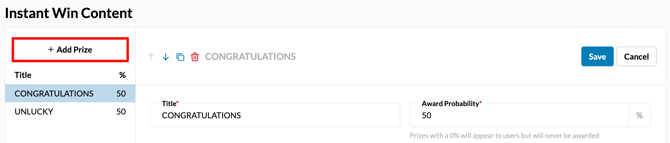
The Content section is where you configure the deals and opportunities for your instant win campaign. Click **+ Add Prize** to begin setting up your content.
**Required Settings:**
- Title
- Award Probability
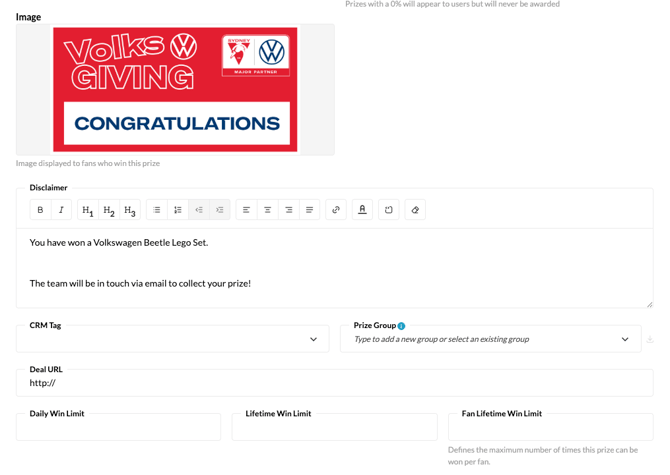
**Optional Settings:**
- Image
- Disclaimer
- CRM Tag
- Prize Group
- Deal URL
- Daily Win Limit: The maximum number of times this prize can be won per day.
- Lifetime Win Limit: The total number of prizes available for this campaign.
- Fan Lifetime Win Limit: The maximum number of times a single fan can win this prize.
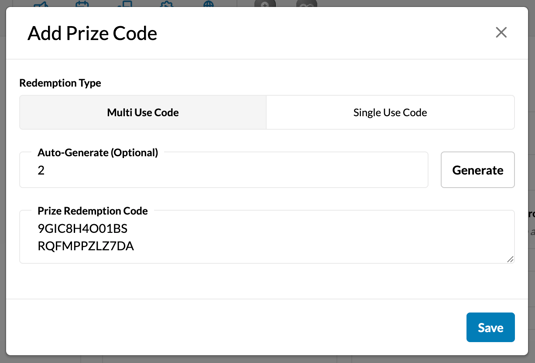
**To add a Prize Redemption Code:**
1. Click **+ Add New Prize Code**
2. Choose between a multi-use code or a single-use code
3. Either enter your prize redemption code(s) or add your desired number of codes to be auto-generated.
**Before publishing your campaign, be sure to review our[Campaign Publishing Checklist](https://resources.tradablebits.com/support/campaign-publishing-checklist?hsLang=en)for a smooth launch.**
**Still need assistance? Please reach out to your Customer Success Team or contact** [**support@tradablebits.com**](mailto:support@tradablebits.com)
- [Getting started](https://resources.tradablebits.com/support/getting-started?hsLang=en)
- [Account](https://resources.tradablebits.com/support/account?hsLang=en#main-content)
- [Security](https://resources.tradablebits.com/support/account?hsLang=en#security)
- [Integrations](https://resources.tradablebits.com/support/integrations?hsLang=en#main-content)
- [Outgoing Integrations](https://resources.tradablebits.com/support/integrations?hsLang=en#outgoing-integrations)
- [Incoming Integrations](https://resources.tradablebits.com/support/integrations?hsLang=en#incoming-integrations)
- [Salesforce Marketing Cloud](https://resources.tradablebits.com/support/integrations?hsLang=en#salesforce-marketing-cloud)
- [FAQs](https://resources.tradablebits.com/support/faqs?hsLang=en)
- [Troubleshooting](https://resources.tradablebits.com/support/troubleshooting?hsLang=en#main-content)
- [CSS/JS](https://resources.tradablebits.com/support/troubleshooting?hsLang=en#css-js)
- [Reports](https://resources.tradablebits.com/support/reports?hsLang=en)
- [Engagement Campaigns](https://resources.tradablebits.com/support/engagement-campaigns?hsLang=en#main-content)
- [Campaign Basics](https://resources.tradablebits.com/support/engagement-campaigns?hsLang=en#campaign-basics)
- [Campaign Management](https://resources.tradablebits.com/support/engagement-campaigns?hsLang=en#campaign-management)
- [Creating Campaigns](https://resources.tradablebits.com/support/engagement-campaigns?hsLang=en#creating-campaigns)
- [Best Practices and Troubleshooting](https://resources.tradablebits.com/support/engagement-campaigns?hsLang=en#best-practices-and-troubleshooting)
- [UGC](https://resources.tradablebits.com/support/ugc?hsLang=en)
- [Fan CRM](https://resources.tradablebits.com/support/fan-crm?hsLang=en)
- [Sales](https://resources.tradablebits.com/support/sales?hsLang=en)
- [Idols](https://resources.tradablebits.com/support/idols?hsLang=en)
- [Trackers](https://resources.tradablebits.com/support/trackers?hsLang=en)
- [Messaging](https://resources.tradablebits.com/support/messaging?hsLang=en#main-content)
- [SMS](https://resources.tradablebits.com/support/messaging?hsLang=en#sms)
- [Email](https://resources.tradablebits.com/support/messaging?hsLang=en#email)
- [Push Notifications](https://resources.tradablebits.com/support/messaging?hsLang=en#push-notifications)
- [Instagram](https://resources.tradablebits.com/support/messaging?hsLang=en#instagram)
- [Ads](https://resources.tradablebits.com/support/ads?hsLang=en)
- [Octane](https://resources.tradablebits.com/support/octane?hsLang=en)
- [Product Updates](https://resources.tradablebits.com/support/product-updates?hsLang=en)
[](https://tradablebits.com/)
Copyright © 2026, Tradable Bits