![tradable-bits-long-logo-for-download.png]](https://resources.tradablebits.com/hs-fs/hubfs/tradable-bits-long-logo-for-download.png?height=40&name=tradable-bits-long-logo-for-download.png)
Automations allow you to instantly connect fan intent to brand response by setting simple "If X, then Y" rules. You can now trigger up to three automated actions—like sending emails or awarding points—based on campaign entries, purchases, or ticket scans.
The Automations Dashboard
The dashboard comprises Active, Draft, and Archived automations.
-
Active: limited editing capabilities because they are already running
-
You can open them to view the trigger and corresponding action; you will not be able to edit in the RHS bar.
-
Active automations offer limited editing; to fix an error, archive the live version and start a new draft.
- Draft: can edit everything
- Archived: Non-editable
To create a new automation
- On your Tradable Bits Homepage, go to the Top Navigation Bar and hover over the Messaging icon and select Automations.
- Click + New Automation
- In the Automation settings, fill in the required fields
-
- Automation Name: Input a specific title for the automation
- Group Name: Add a name that your automation will be categorised under
- Max Reach: Maximum number of total actions
-
Frequency: Choose how often the automation triggers for a single user:
- Once per fan: Sends the action only the first time a fan triggers the automation (e.g., sending a welcome email on their initial campaign entry, but not on repeat entries).
- On every trigger: Sends the action every single time a fan meets the trigger conditions.
4. Select your trigger
-
- Ticket Purchase: when a fan purchases a ticket
- POS/Merch Purchase: when a fan purchases a merch item
- Activity: campaign entry or activity
- Scans (Front Gate or Ticketmaster): when a successful scan is detected
- SMS Reply: when an SMS reply is detected
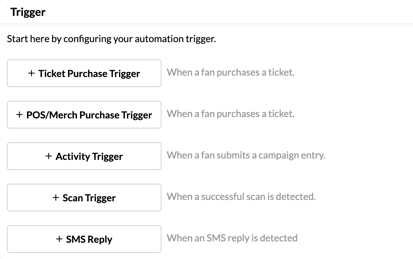
5. Input your trigger conditions based on your chosen trigger
6. Select your action
-
- Email: send an email
- SMS: send an SMS
- Points: assign points to the fan
- Promotion: assign a promotion to the fan (through BestRing or AtVenu)
Each trigger can fire up to three actions. The trigger count will go up as the action fires.
Trigger Conditions
Purchase Trigger
- Min/Max Trigger Date: Time period in which automation can be triggered (eg, campaign entry, SMS reply, etc.)
- Event Name: Select a pre-configured event.
- Venue Name: Select a pre-configured venue.
- Country/State/Province: Set the fan location needed to trigger the automation
Campaign Entry Trigger
- Min/Max Trigger Date: Time period in which automation can be triggered (eg, campaign entry, SMS reply, etc.)
- Campaign Name: Select your campaign through searching by business, campaign name or ID.
- Country/State/Province: Set the fan location needed to trigger the automation
Scan Trigger
- Min/Max Trigger Date: Time period in which automation can be triggered (eg, campaign entry, SMS reply, etc.)
- Network: Select the external system identifier/social authentication network that will register the scan
- Site Name: Select a pre-configured venue.
- Scan Group Name: Enter a group name for the scan automation
- Country/State/Province: Set the fan location needed to trigger the automation
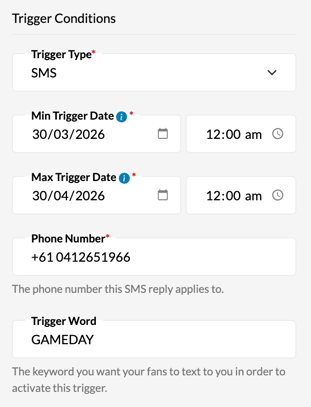
SMS Trigger
- Min/Max Trigger Date: Time period in which automation can be triggered (eg, campaign entry, SMS reply, etc.)
- Phone Number: Enter a valid phone number (that our Twilio supports) that the SMS reply applies to.
- Trigger Word: Enter the keyword you want your fans to text to you to activate this trigger.
- If a fan texts the number with the trigger word, then the action will be queued to complete.
- Country/State/Province: Set the fan location needed to trigger the automation
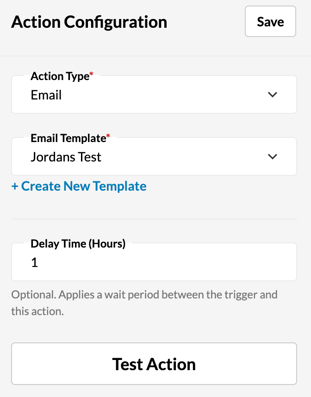
Action Configuration
- Email Template: Select an email template or create a new template.
- Delay Time (Hours): Period between automation being triggered and action being completed.
Check out our guide for tips on setting up your own email template.
SMS
- SMS Template: Select an SMS template or create a new template.
- Delay Time (Hours): Period between automation being triggered and action being completed.
Points
- Amount of Points: Input the number of points to assign to the fan
- Point Category: Assign a point category for the automation
Point and Promotion actions will be awarded immediately upon trigger completion.
Promotion
- Point Category: Assign a point category for the promotion
- Reward Type: Choose between atVenue and Bestring
- Event: Select a pre-configured event.
- Promotion: Select a pre-configured promotion.
- Filter by Event: Select an event to ensure promotions are pushed only to wristbands tied to that event, keeping this selection separate from the Trigger-based filter.
- Filter by Venue: Select a venue to ensure promotions are pushed only to wristbands tied to that venue, keeping this selection separate from the Trigger-based filter.
POS promotion actions will only work if there is a properly integrated connection between Tradable Bits and the POS system, including the use of RFID wristbands on which to load the promo.
Still need assistance? Please reach out to your Customer Success Team or contact support@tradablebits.com