---
title: Can I use different fonts in my campaigns?
description: This guide will walk you through how to add custom fonts to your campaigns for a branded look.
---
[Skip to content](https://resources.tradablebits.com/support/can-i-use-different-fonts-in-my-campaigns#main-content)
English
Show submenu for translations
![tradable-bits-long-logo-for-download.png\]](https://resources.tradablebits.com/hs-fs/hubfs/tradable-bits-long-logo-for-download.png?height=40&name=tradable-bits-long-logo-for-download.png)
Open main navigation
Close main navigation
- English
Show submenu for translations
How can we help?
- There are no suggestions because the search field is empty.
1. [Resources](https://resources.tradablebits.com/support?hsLang=en)
2. [Engagement Campaigns](https://resources.tradablebits.com/support/engagement-campaigns?hsLang=en)
3. [Campaign Styling & Design](https://resources.tradablebits.com/support/engagement-campaigns?hsLang=en#campaign-styling-design)
# Can I use different fonts in my campaigns?
## This guide will walk you through how to add custom fonts to your campaigns for a branded look.
### What you need:
- **Font files.** Upload your custom brand fonts (supported file formats: **OTF** or **TTF**) to the Tradable Bits backend to elevate your campaign design. Please ensure you **hold a valid license for every font file you upload.**
### 1. How to upload fonts:
Go to the top navigation bar and choose the business you would like to upload your fonts to.
To upload your fonts to your business:
1. Go to your desired business
2. Click on **Business Settings** \> **Custom Fonts**

3. Click on the **Upload** button and then choose your font file.
4. Give your font a name that is easy for you to recall
5. Repeat steps 1-4 until you have uploaded all of your desired fonts
### 2. How to set different default fonts for different presets:
Set it as your desired font in a preset you create for your business. Learn how to create a Theme Preset [here.](https://resources.tradablebits.com/support/how-do-i-create-default-themes-for-my-campaigns?hsLang=en)
### 3. How to use previously uploaded fonts in your campaigns:
1. Adding a custom font style using **Design Tab \> Custom CSS/JS:**
1. Go to your desired business
2. Click on **Business Settings \> Custom Fonts**
3. Click on the little **"i"** icon beside your font. This icon will give you all the information you need to apply that font to a different font style **using CSS in your campaign styling 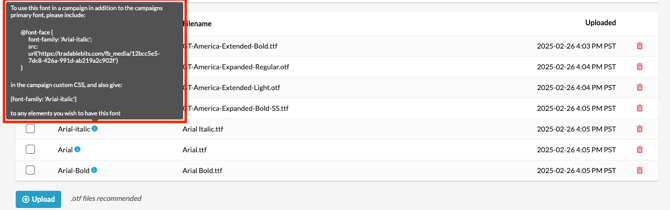**
4. Copy all of the information from inside the tooltip window and save it to apply later in your campaign.
5. Go to the campaign where you want to use **multiple** font styles, and click on **Design -\> Custom CSS/JS.**
6. In the **Custom CSS** section, paste the first block of text from your tooltip information (i.e., the section that starts with **@font-face**).
7. Then, choose the element you want to style (such as an **h1**, **h2**, or **label**) and place it right before the second part of your tooltip code. For example: **h1 { font-family: 'X'; }**
(where '**X**' is the name of your pre-saved custom font)
8. Click **Save**
9. Preview or refresh your campaign page to confirm that your custom font displays correctly.
2. Or you can apply a Custom Font to the entire campaign by using the **Design Tab \> Theme Settings** option**:**
1. Select your desired business profile.
2. Go to the campaign where you want to use the custom font.
3. Enter **Design \> Theme Settings** (this will open the **Global Styles** menu).
4. Under **Global Styles**, locate the **Font Family** dropdown menu.
5. Open the **Font Family** dropdown and choose your newly uploaded custom font from the list.
3. Check whether your font has been applied correctly by clicking on the "eye" icon and previewing your campaign.
**Still need assistance? Please reach out to your Customer Success Team or contact** [**support@tradablebits.com**](mailto:support@tradablebits.com)
- [Getting started](https://resources.tradablebits.com/support/getting-started?hsLang=en)
- [Account](https://resources.tradablebits.com/support/account?hsLang=en#main-content)
- [Account Admin](https://resources.tradablebits.com/support/account?hsLang=en#account-admin)
- [Security](https://resources.tradablebits.com/support/account?hsLang=en#security)
- [Engagement Campaigns](https://resources.tradablebits.com/support/engagement-campaigns?hsLang=en#main-content)
- [Campaign Basics](https://resources.tradablebits.com/support/engagement-campaigns?hsLang=en#campaign-basics)
- [Campaign Setup & Configuration](https://resources.tradablebits.com/support/engagement-campaigns?hsLang=en#campaign-setup-configuration)
- [Campaign Styling & Design](https://resources.tradablebits.com/support/engagement-campaigns?hsLang=en#campaign-styling-design)
- [Lead Generation Campaigns](https://resources.tradablebits.com/support/engagement-campaigns?hsLang=en#lead-generation-campaigns)
- [User-Generated Content Campaigns](https://resources.tradablebits.com/support/engagement-campaigns?hsLang=en#user-generated-content-campaigns)
- [Music Campaigns](https://resources.tradablebits.com/support/engagement-campaigns?hsLang=en#music-campaigns)
- [Quiz Campaigns](https://resources.tradablebits.com/support/engagement-campaigns?hsLang=en#quiz-campaigns)
- [Events/Ticketing Campaigns](https://resources.tradablebits.com/support/engagement-campaigns?hsLang=en#events-ticketing-campaigns)
- [Game Campaigns](https://resources.tradablebits.com/support/engagement-campaigns?hsLang=en#game-campaigns)
- [Voting/Polling Campaigns](https://resources.tradablebits.com/support/engagement-campaigns?hsLang=en#voting-polling-campaigns)
- [Prize Giveaway Campaigns](https://resources.tradablebits.com/support/engagement-campaigns?hsLang=en#prize-giveaway-campaigns)
- [Incentivize Campaigns](https://resources.tradablebits.com/support/engagement-campaigns?hsLang=en#incentivize-campaigns)
- [Best Practices for Campaigns](https://resources.tradablebits.com/support/engagement-campaigns?hsLang=en#best-practices-for-campaigns)
- [Campaign Reporting](https://resources.tradablebits.com/support/engagement-campaigns?hsLang=en#campaign-reporting)
- [User-Generated Content (UGC)](https://resources.tradablebits.com/support/user-generated-content-ugc?hsLang=en)
- [Fan CRM](https://resources.tradablebits.com/support/fan-crm?hsLang=en#main-content)
- [Tags](https://resources.tradablebits.com/support/fan-crm?hsLang=en#tags)
- [Filters](https://resources.tradablebits.com/support/fan-crm?hsLang=en#filters)
- [Exports](https://resources.tradablebits.com/support/fan-crm?hsLang=en#exports)
- [Fan Profiles](https://resources.tradablebits.com/support/fan-crm?hsLang=en#fan-profiles)
- [Sales](https://resources.tradablebits.com/support/sales?hsLang=en)
- [Trackers](https://resources.tradablebits.com/support/trackers?hsLang=en)
- [Idols](https://resources.tradablebits.com/support/idols?hsLang=en)
- [Integrations](https://resources.tradablebits.com/support/integrations?hsLang=en#main-content)
- [Outgoing Integrations](https://resources.tradablebits.com/support/integrations?hsLang=en#outgoing-integrations)
- [Incoming Integrations](https://resources.tradablebits.com/support/integrations?hsLang=en#incoming-integrations)
- [Salesforce Marketing Cloud](https://resources.tradablebits.com/support/integrations?hsLang=en#salesforce-marketing-cloud)
- [Ads](https://resources.tradablebits.com/support/ads?hsLang=en)
- [Messaging](https://resources.tradablebits.com/support/messaging?hsLang=en#main-content)
- [SMS](https://resources.tradablebits.com/support/messaging?hsLang=en#sms)
- [Email](https://resources.tradablebits.com/support/messaging?hsLang=en#email)
- [Push Notifications](https://resources.tradablebits.com/support/messaging?hsLang=en#push-notifications)
- [Instagram](https://resources.tradablebits.com/support/messaging?hsLang=en#instagram)
- [Automations](https://resources.tradablebits.com/support/messaging?hsLang=en#automations)
- [Custom Networks](https://resources.tradablebits.com/support/messaging?hsLang=en#custom-networks)
- [Octane](https://resources.tradablebits.com/support/octane?hsLang=en)
- [FAQs](https://resources.tradablebits.com/support/faqs?hsLang=en)
[](https://tradablebits.com/)
Copyright © 2026, Tradable Bits