![tradable-bits-long-logo-for-download.png]](https://resources.tradablebits.com/hs-fs/hubfs/tradable-bits-long-logo-for-download.png?height=40&name=tradable-bits-long-logo-for-download.png)
Before You Get Started
- Theme Presets are built at the business level and can only be applied to campaigns within that specific business.
- Updating an existing Theme Preset only affects newly created campaigns moving forward.
- Live or existing campaigns will not update automatically when a preset is modified; you must re-apply the preset manually inside the campaign Theme Settings.
How to Build a Theme Preset
- Go to Campaigns and select your desired business dashboard.
- Navigate to Business Settings > Theme Presets.
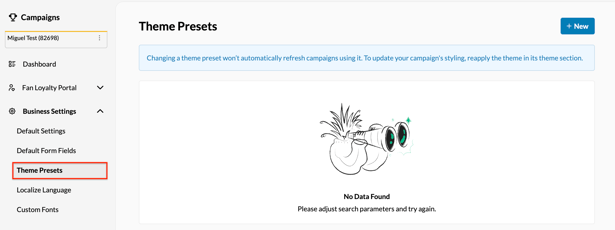
- Click "+ New" to create a new preset.
- Choose how to build your theme:
-
- Global Styles (Recommended): Select your Primary Colour, Typography, Button Style, and Background settings. The system automatically uses these core selections to generate a cohesive color palette, hover states, and accent shades across all campaign elements.
- Advanced Customization: Manually configure specific design fields for granular control over individual UI variables.
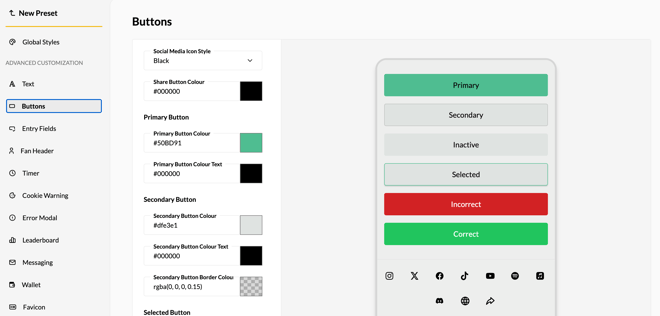
5. Click Save when you have finished configuring your preset. If you are editing a previously configured theme preset, you can choose to either "Overwrite" (saving over the previous iteration) or "Save as New" (saving as a new preset).
6. Review your changes in the real-time preview panel to see how your theme applies across individual components.
Note: From the Theme Presets dashboard, toggle on "Auto-Apply" to set this theme as the default for all new campaigns.
How to Apply a Theme Preset
To apply a preset, navigate to Design > Theme Settings > Global Styles, select your pre-configured theme and click "Apply Preset".
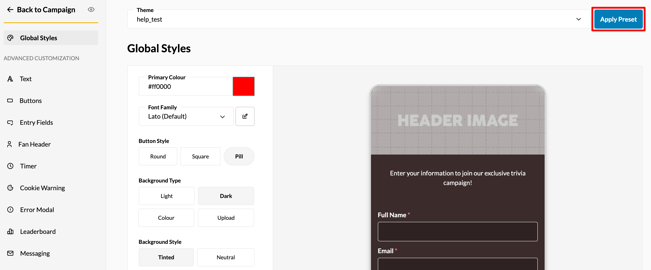
Note: By applying this preset, you will overwrite any customization currently applied by theme customization.
Still need assistance? Please reach out to your Customer Success Team or contact support@tradablebits.com