![tradable-bits-long-logo-for-download.png]](https://resources.tradablebits.com/hs-fs/hubfs/tradable-bits-long-logo-for-download.png?height=40&name=tradable-bits-long-logo-for-download.png)
Bundles are a great way to give your fans multiple ways to engage, all in one place, day after day. Easily organize and schedule a multi-part campaign for your fans. Simple configuration of advent calendars, "unlock" campaigns. Optimized for mobile, fully responsive and easy to embed on your website or Facebook Page.
When to use Bundle:
Bundle campaign can be used in variety of ways such as:
- bundling multiple campaigns for fans to return daily and enter for a chance to win
- developing a centralized fan hub for team updates and campaign information
- creating an advent calendar for fans to engage with during the holiday season

We're outlining some campaign-specific details below. Follow this guide for more info on General Setup and other campaign basics.
General Setup
In general setup, add your campaign name and set the start and end dates.
Note: these times are when the bundle landing page becomes accessible, not each individual embedded campaign, those dates are configured individually under "Content"
Configuration
Within the configuration settings, you have the option to open member profiles in the top browser window and to display inactive campaigns within bundles.
- open bundle tiles in new tab
- display inactive tiles
- activate flip animation

Content
Use the Content tab to select and add the specific campaigns you want to include in your bundle.
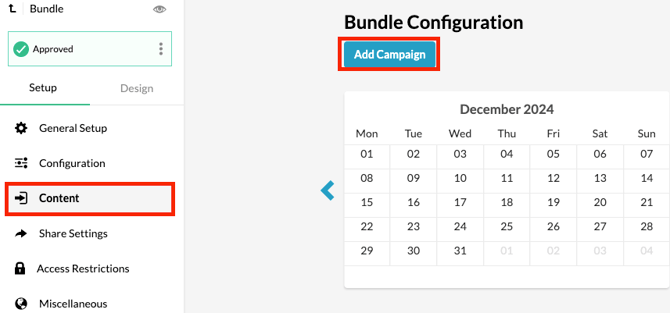
A campaign must already be built under the same business to be added to a bundle.
-
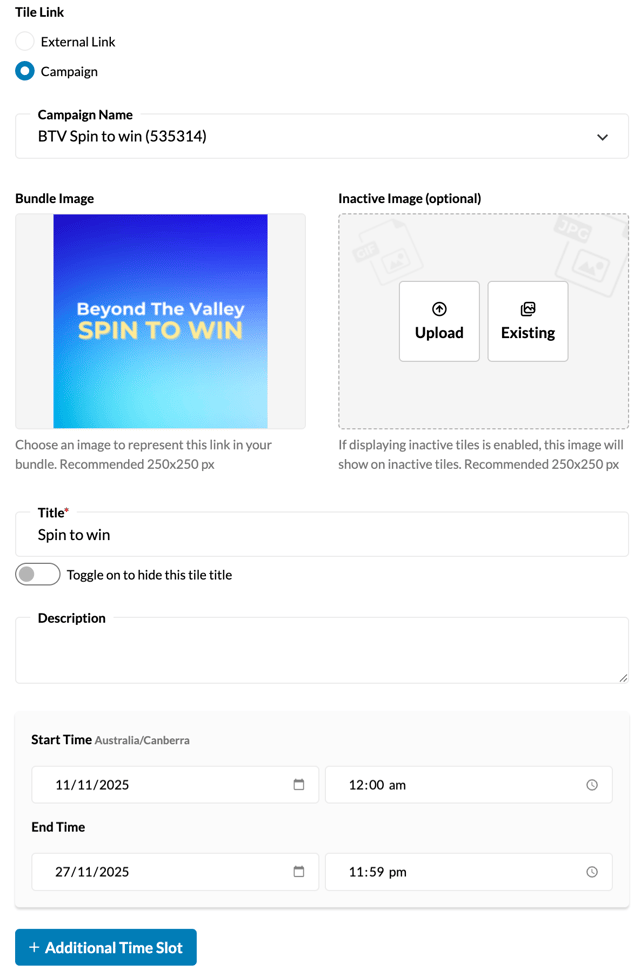
Select your campaigns from the drop-down menu OR populate with an external link. If you choose to select campaigns, the dropdown will show all configured campaigns under that business.
-
Upload your tile images — The Bundle Image will be displayed to fans when they arrive on the bundle campaign page for them to click on. The Inactive Image will display on campaign tiles where the campaign isn't live/available to enter.
- Input your campaign tile title. To hide this title from appearing under the tile, toggle on the field below.
- Add a short description to appear underneath the campaign title (optional).
-
Set your individual campaign run dates. Campaigns will be listed on the bundle in chronological order by their start date, and only then will they "unlock" for fans.
Before publishing your campaign, be sure to review our Campaign Publishing Checklist for a smooth launch.
Still need assistance? Please reach out to your Customer Success Team or contact support@tradablebits.com