![tradable-bits-long-logo-for-download.png]](https://resources.tradablebits.com/hs-fs/hubfs/tradable-bits-long-logo-for-download.png?height=40&name=tradable-bits-long-logo-for-download.png)
Bonus Actions are a great way to reward fans with extra entries for each action they complete.
Navigate to your desired Campaign > General Setup. Scroll to the bottom of the General Setup page, and you will find the Bonus Actions section. To enable, toggle on Bonus Entries.
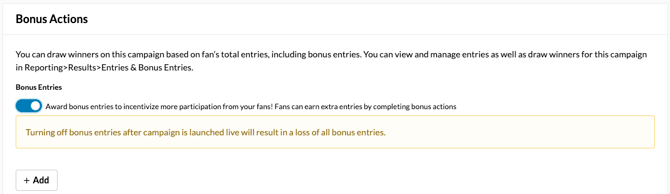
Once toggled on, click on +Add.
You will then be prompted to select whether you would like the fan to watch a video, click a link or opt in.
We currently offer three different bonus entry options:
Watch a YouTube Video
If you would like a fan to watch a YouTube video, you are required to provide the following information:
- Title
- Button Text
- Number of Bonus Entries Awarded
- YouTube Video ID (Your YouTube Video ID can be found in the video URL after ?v=, Ex. https://www.youtube/com/watch?v=abc123)
Click a Link
If you would like a fan to click a link to win bonus entries, you are required to provide the following information:
- Title
- Button Text
- Number of Bonus Entries Awarded
- Link URL
Opt In
If you would like a fan to opt to be awarded bonus entries, you are required to provide the following information:
- Title
- Button Text
- Number of Bonus Entries Awarded
- Opt-In Checkbox Disclaimer
Issue Fan Referral Code
Reward fans with bonus entries for generating a unique referral code to share with friends across your campaigns.
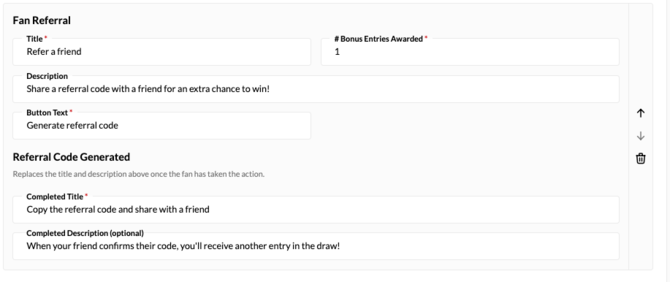
To set up a Referral Code Bonus Action, provide:
- Title & Description
- Button Text
- Number of Bonus Entries Awarded
- Completed Title & Description: This is what displays on the post-entry screen alongside the fan's unique 8-character referral code and a Copy Code button.
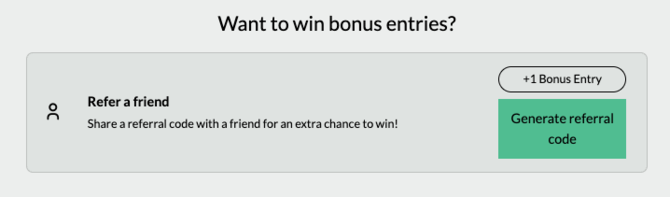
How Referral Codes Work:
- Once a fan clicks the referral button after submitting their entry, an 8-character alphanumeric referral code is generated and assigned to their account profile.
- Referral codes are persistent per fan. If the fan participates in other campaigns across your account, they keep the same unique referral code.
- Fans can share this code with friends to drive entries into other campaigns using
the Referral Code entry form field.
Collecting Referral Codes in Entry Forms
To let friends enter a campaign using a referred fan's code:
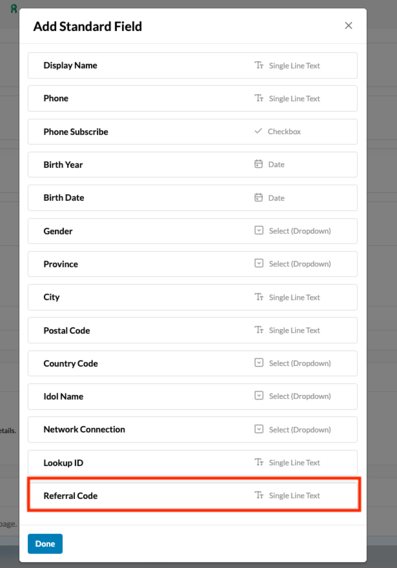
- Navigate to Campaign Setup > General > Entry Form Fields.
- Under Additional Fields > Standard Fields, click Referral Code to add it to your entry form.
-
Choose whether to make this field Optional or Required.
Reporting & Results
-
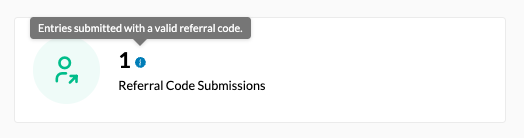
To view the referral code submission metrics, head to Setup, then choose Reporting from the left menu, and click Stats. From here, look for the Referral Code Submissions tile in your campaign reporting dashboard.
-
You can also export your campaign data from Setup, then choose Reporting from the left menu, and click Results, then click the Export button in the bottom left of the screen to review individual entries and see which referral codes were redeemed.
Managing Bonus Actions
You can manage these winners in the Reporting Section of this campaign. For more information on selecting winners who have taken multiple actions, follow this help guide here.
Still have questions? Please reach out to your Customer Success Manager or contact support@tradablebits.com