---
title: How do I set up a Sales Pixel in Ticketmaster?
description: This guide will walk you through how to set up your Ticketmaster Sales pixel, so you can track conversions.
---
[Skip to content](https://resources.tradablebits.com/support/setup-sales-pixel-in-ticketmaster#main-content)
English
Show submenu for translations
![tradable-bits-long-logo-for-download.png\]](https://resources.tradablebits.com/hs-fs/hubfs/tradable-bits-long-logo-for-download.png?height=40&name=tradable-bits-long-logo-for-download.png)
Open main navigation
Close main navigation
- English
Show submenu for translations
How can we help?
- There are no suggestions because the search field is empty.
1. [Resources](https://resources.tradablebits.com/support?hsLang=en)
2. [Trackers](https://resources.tradablebits.com/support/trackers?hsLang=en)
# How do I set up a Sales Pixel in Ticketmaster?
## This guide will walk you through how to set up your Ticketmaster Sales pixel, so you can track conversions.
### How to setup a Ticketmaster Sales Pixel
Let's setup your sales pixel!
Sales pixels allow us to **track conversions** and to **follow a fan's journey from the moment that they click a tracker link to the moment they purchase their tickets**. All the information gets linked to their Fan Profile and allows you to connect social data, ticketing data, and engagement data. The attribution window for the Ticketmaster Sales Pixel is **5 day, last click**.
#### Step 1: Copy and adjust the following code:
`https://tradablebits.com/pixels/[ACCOUNT #]/event?event_name=purchase`
Replace \[ACCOUNT #\] with the unique account number found on your Tradable Bits platform.
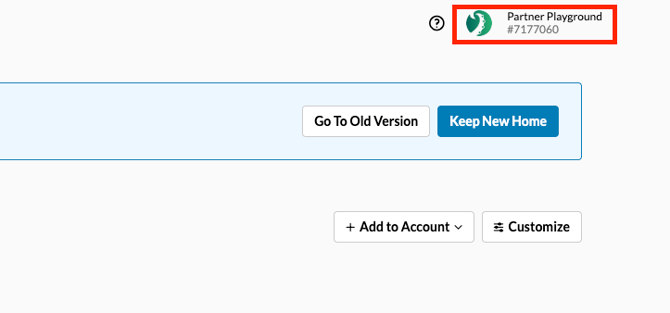
> The "#" sign does not need to be included.
Edited Code: `https://tradablebits.com/pixels/7177060/event?event_name=purchase`
#### Step 2: Log in to your TM One Account
Now log into your **Ticketmaster One** account and navigate to the **Marketing Tab.**
#### Step 3: Select the "Add New Pixel Tracking"
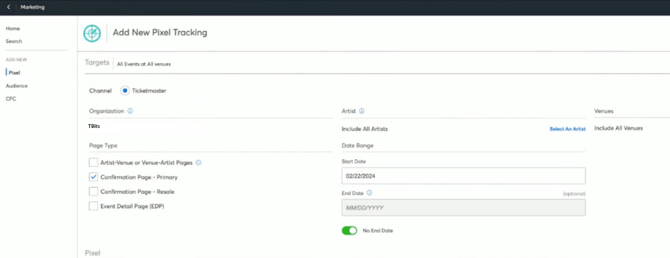
Select the 'Add New Pixel Tracking'. Select to add the new pixel to the ***Confirmation Page - Primary.***
> The setting will default to include all artists and venues
#### Step 4: Set your Date Range
Select today as the start date with no end date
#### Step 5: Select your Pixel Vendor
Select 'Custom Pixel' as the pixel vendor.
#### Step 6: Paste the Pixel Code
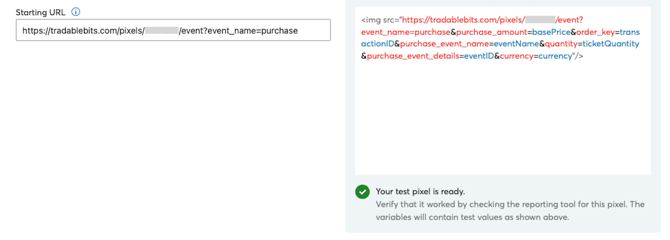
Paste the following into the 'Starting URL' text box [https://tradablebits.com/pixels/\[ACCOUNTNUMBER\]/event?event\_name=purchase](https://tradablebits.com/pixels/%5BACCOUNTNUMBER%5D/event?event_name=purchase) (this is the same URL from Step 1).
A Preview of the code will then appear in the **Pixel Code Preview**.
#### Step 7: Set Custom Parameters
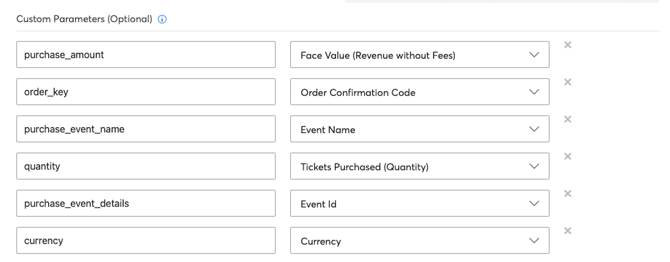
In the Custom Parameters section below, enter the following parameters and make the corresponding selections from the dropdown menu:
- **purchase\_event\_name** \> Select **Event Name \***
***(\* This is the most important parameter for filtering events.)***
- **purchase\_amount** \> Select **Face Value (Revenue without Fees)**
- **order\_key** \> Select **Order Confirmation Code**
- **quantity** \> Select **Tickets Purchased (Quantity)**
- **purchase\_event\_details** \> Select **Event ID (or Artist ID)**
- **currency** \> Select **Currency**
#### Step 8: Click " Save " to add the Pixel
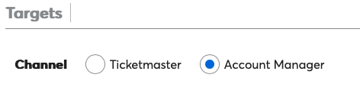
> **Note:** If you have an **Account Manager** channel, select Account Manager in targets and repeat these steps for that channel as well.
**Important:** Please ensure all domains/websites on which the sales pixel will be placed are allow listed.
**Still need assistance? Please reach out to your Customer Success Team or contact [support@tradablebits.com](mailto:support@tradablebits.com)**
- [Getting started](https://resources.tradablebits.com/support/getting-started?hsLang=en)
- [Account](https://resources.tradablebits.com/support/account?hsLang=en#main-content)
- [Account Admin](https://resources.tradablebits.com/support/account?hsLang=en#account-admin)
- [Security & Data Practices](https://resources.tradablebits.com/support/account?hsLang=en#security-data-practices)
- [Engagement Campaigns](https://resources.tradablebits.com/support/engagement-campaigns?hsLang=en#main-content)
- [Campaign Basics](https://resources.tradablebits.com/support/engagement-campaigns?hsLang=en#campaign-basics)
- [Campaign Setup & Configuration](https://resources.tradablebits.com/support/engagement-campaigns?hsLang=en#campaign-setup-configuration)
- [Campaign Styling & Design](https://resources.tradablebits.com/support/engagement-campaigns?hsLang=en#campaign-styling-design)
- [Lead Generation Campaigns](https://resources.tradablebits.com/support/engagement-campaigns?hsLang=en#lead-generation-campaigns)
- [User-Generated Content Campaigns](https://resources.tradablebits.com/support/engagement-campaigns?hsLang=en#user-generated-content-campaigns)
- [Music Campaigns](https://resources.tradablebits.com/support/engagement-campaigns?hsLang=en#music-campaigns)
- [Quiz Campaigns](https://resources.tradablebits.com/support/engagement-campaigns?hsLang=en#quiz-campaigns)
- [Events/Ticketing Campaigns](https://resources.tradablebits.com/support/engagement-campaigns?hsLang=en#events-ticketing-campaigns)
- [Game Campaigns](https://resources.tradablebits.com/support/engagement-campaigns?hsLang=en#game-campaigns)
- [Voting/Polling Campaigns](https://resources.tradablebits.com/support/engagement-campaigns?hsLang=en#voting-polling-campaigns)
- [Prize Giveaway Campaigns](https://resources.tradablebits.com/support/engagement-campaigns?hsLang=en#prize-giveaway-campaigns)
- [Incentivize Campaigns](https://resources.tradablebits.com/support/engagement-campaigns?hsLang=en#incentivize-campaigns)
- [Best Practices for Campaigns](https://resources.tradablebits.com/support/engagement-campaigns?hsLang=en#best-practices-for-campaigns)
- [Campaign Reporting](https://resources.tradablebits.com/support/engagement-campaigns?hsLang=en#campaign-reporting)
- [User-Generated Content (UGC)](https://resources.tradablebits.com/support/user-generated-content-ugc?hsLang=en)
- [Fan CRM](https://resources.tradablebits.com/support/fan-crm?hsLang=en#main-content)
- [Tags](https://resources.tradablebits.com/support/fan-crm?hsLang=en#tags)
- [Filters](https://resources.tradablebits.com/support/fan-crm?hsLang=en#filters)
- [Exports](https://resources.tradablebits.com/support/fan-crm?hsLang=en#exports)
- [Fan Profiles](https://resources.tradablebits.com/support/fan-crm?hsLang=en#fan-profiles)
- [Sales](https://resources.tradablebits.com/support/sales?hsLang=en#main-content)
- [Data Library](https://resources.tradablebits.com/support/sales?hsLang=en#data-library)
- [Trackers](https://resources.tradablebits.com/support/trackers?hsLang=en)
- [Idols](https://resources.tradablebits.com/support/idols?hsLang=en)
- [Integrations](https://resources.tradablebits.com/support/integrations?hsLang=en#main-content)
- [Outgoing Integrations](https://resources.tradablebits.com/support/integrations?hsLang=en#outgoing-integrations)
- [Incoming Integrations](https://resources.tradablebits.com/support/integrations?hsLang=en#incoming-integrations)
- [Salesforce Marketing Cloud](https://resources.tradablebits.com/support/integrations?hsLang=en#salesforce-marketing-cloud)
- [Ads](https://resources.tradablebits.com/support/ads?hsLang=en#main-content)
- [Meta (Facebook & Instagram)](https://resources.tradablebits.com/support/ads?hsLang=en#meta-facebook-instagram)
- [Google Ads](https://resources.tradablebits.com/support/ads?hsLang=en#google-ads)
- [Snapchat](https://resources.tradablebits.com/support/ads?hsLang=en#snapchat)
- [TikTok](https://resources.tradablebits.com/support/ads?hsLang=en#tiktok)
- [Spotify & Reddit](https://resources.tradablebits.com/support/ads?hsLang=en#spotify-reddit)
- [Messaging](https://resources.tradablebits.com/support/messaging?hsLang=en#main-content)
- [SMS](https://resources.tradablebits.com/support/messaging?hsLang=en#sms)
- [Email](https://resources.tradablebits.com/support/messaging?hsLang=en#email)
- [Push Notifications](https://resources.tradablebits.com/support/messaging?hsLang=en#push-notifications)
- [Instagram](https://resources.tradablebits.com/support/messaging?hsLang=en#instagram)
- [Automations](https://resources.tradablebits.com/support/messaging?hsLang=en#automations)
- [Custom Networks](https://resources.tradablebits.com/support/messaging?hsLang=en#custom-networks)
- [Octane](https://resources.tradablebits.com/support/octane?hsLang=en)
- [FAQs](https://resources.tradablebits.com/support/faqs?hsLang=en)
[](https://tradablebits.com/)
Copyright © 2026, Tradable Bits