---
title: How do I set up Custom Fields in the Fan CRM?
description: Here's a quick guide on setting up and adding custom fields in your Fan CRM to learn more about your fans.
---
[Skip to content](https://resources.tradablebits.com/support/set-up-custom-fields#main-content)
English
Show submenu for translations
![tradable-bits-long-logo-for-download.png\]](https://resources.tradablebits.com/hs-fs/hubfs/tradable-bits-long-logo-for-download.png?height=40&name=tradable-bits-long-logo-for-download.png)
Open main navigation
Close main navigation
- English
Show submenu for translations
How can we help?
- There are no suggestions because the search field is empty.
1. [Resources](https://resources.tradablebits.com/support?hsLang=en)
2. [Engagement Campaigns](https://resources.tradablebits.com/support/engagement-campaigns?hsLang=en)
3. [Campaign Management](https://resources.tradablebits.com/support/engagement-campaigns?hsLang=en#campaign-management)
# How do I set up Custom Fields in the Fan CRM?
## Here's a quick guide on setting up and managing custom fields from the Fan CRM so you can learn more about your fans.
While names, emails, and phone numbers are essential, custom form fields let you get creative and learn even more about your fans from an entry form in an engagement campaign . For example, knowing a fan's likelihood to buy a car in the next 3 years is a great asset for sponsors, while knowing their favourite song from your recent album helps you send them targeted swag.
### Creating Custom Fields
Custom fields can either be created in the campaign setup as shown [here](https://resources.tradablebits.com/support/add-custom-field-campaign?hsLang=en) or within the Core and Custom Fields section of the Fan CRM.
1. Hover over the **Fan CRM** section in the Top Navigation Bar and click on **Core and Custom Fields**.
2. Click on **+ New Custom Field**.
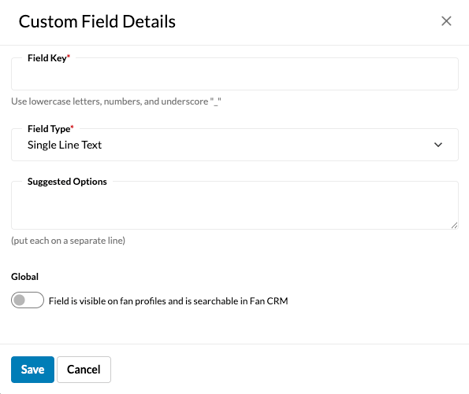
3. In the "Custom Fields Details" modal, select a **Field Key** (Note: Use only lowercase letters, numbers, and underscores).
4. Choose a **Field Type** from the dropdown menu.
5. Enter **Suggested Options** if required by your field type (e.g., dropdowns or checkboxes). Enter each option on a separate line.
6. Toggle the **Global** option if you want the field available platform-wide rather than just at the campaign level.

↓
### Editing Custom Fields
To edit an existing custom field, simply click on the pencil icon next to the corresponding custom field and make the desired changes.
Make sure to save your edits, and the updates will be reflected in all past and future campaigns that include the custom field.
Custom fields can be deleted by clicking on the trash icon next to the respective fields.
### Managing Custom Fields
In order to view and manage the custom fields you've created so far, you can do so by hovering over the **Fan CRM** section in the **Top Navigation Bar** and clicking on **Core and Custom Fields**.
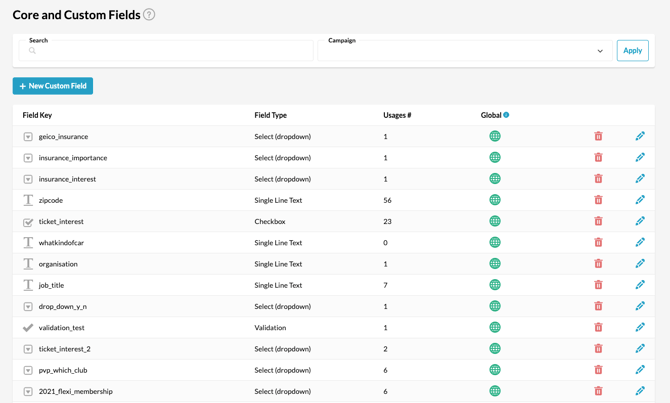
If you would like to view only the fields that are used in any particular campaign, you can choose the campaign from the dropdown at the top and click "Apply" to view only the custom fields used in that campaign.
For each custom field, the field key is listed alongside the field type, the number of times the field has been used across campaigns, and whether the field is a global field. Global Fields are visible on fan profiles and are searchable within the Fan CRM.
### Searching Custom Fields by Campaign
In the Fan CRM, you can also search custom fields by campaign, even if those fields weren’t marked as global. Whether it’s fans answering their “fav team” in a dream team campaign. “Preferred artist” or “first-time attendee,” you can find it and then add it to a segment or workflow retroactively.
1. Go to FanCRM Search
2. Click on **+Add Parameter**
3. Expand Campaign Activity

4. Select Campaigns\> Campaign Specific Custom Field
5. Search for the Custom Field or Field Key and, if necessary, select the answer you wish to see results for
#### 
### Create a Field group
Multiple Checkbox fields can be combined into a **Field Group,** so that fans can see them presented as a unified question and select all applicable options.
1. Hover over the **Fan CRM** section in the Top Navigation Bar and click on **Core and Custom Fields**.
2. Click on **+ New Field Group.**

3. select a **Group Key** (Note: Use only lowercase letters, numbers, and underscores).
4. Select which Checkbox Fields to include (\**The order of the checkbox fields can be set in the business or campaign entry form settings.*)

**Still need assistance? Please reach out to your Customer Success Team or contact [support@tradablebits.com](mailto:support@tradablebits.com)**
- [Getting started](https://resources.tradablebits.com/support/getting-started?hsLang=en)
- [Account](https://resources.tradablebits.com/support/account?hsLang=en#main-content)
- [Security](https://resources.tradablebits.com/support/account?hsLang=en#security)
- [Engagement Campaigns](https://resources.tradablebits.com/support/engagement-campaigns?hsLang=en#main-content)
- [Campaign Basics](https://resources.tradablebits.com/support/engagement-campaigns?hsLang=en#campaign-basics)
- [Campaign Management](https://resources.tradablebits.com/support/engagement-campaigns?hsLang=en#campaign-management)
- [Creating Campaigns](https://resources.tradablebits.com/support/engagement-campaigns?hsLang=en#creating-campaigns)
- [Best Practices and Troubleshooting](https://resources.tradablebits.com/support/engagement-campaigns?hsLang=en#best-practices-and-troubleshooting)
- [Fan CRM](https://resources.tradablebits.com/support/fan-crm?hsLang=en)
- [UGC](https://resources.tradablebits.com/support/ugc?hsLang=en)
- [Sales](https://resources.tradablebits.com/support/sales?hsLang=en)
- [Trackers](https://resources.tradablebits.com/support/trackers?hsLang=en)
- [Idols](https://resources.tradablebits.com/support/idols?hsLang=en)
- [Integrations](https://resources.tradablebits.com/support/integrations?hsLang=en#main-content)
- [Outgoing Integrations](https://resources.tradablebits.com/support/integrations?hsLang=en#outgoing-integrations)
- [Incoming Integrations](https://resources.tradablebits.com/support/integrations?hsLang=en#incoming-integrations)
- [Salesforce Marketing Cloud](https://resources.tradablebits.com/support/integrations?hsLang=en#salesforce-marketing-cloud)
- [Ads](https://resources.tradablebits.com/support/ads?hsLang=en)
- [Messaging](https://resources.tradablebits.com/support/messaging?hsLang=en#main-content)
- [SMS](https://resources.tradablebits.com/support/messaging?hsLang=en#sms)
- [Email](https://resources.tradablebits.com/support/messaging?hsLang=en#email)
- [Push Notifications](https://resources.tradablebits.com/support/messaging?hsLang=en#push-notifications)
- [Instagram](https://resources.tradablebits.com/support/messaging?hsLang=en#instagram)
- [Octane](https://resources.tradablebits.com/support/octane?hsLang=en)
- [FAQs](https://resources.tradablebits.com/support/faqs?hsLang=en)
- [Troubleshooting](https://resources.tradablebits.com/support/troubleshooting?hsLang=en#main-content)
- [CSS/JS](https://resources.tradablebits.com/support/troubleshooting?hsLang=en#css-js)
- [Reports](https://resources.tradablebits.com/support/reports?hsLang=en)
- [Product Updates](https://resources.tradablebits.com/support/product-updates?hsLang=en)
[](https://tradablebits.com/)
Copyright © 2026, Tradable Bits