---
title: How do I connect a Salesforce CRM integration?
description: This guide will provide step by step instructions on connecting your existing Salesforce CRM to your Tradable Bits account.
---
[Skip to content](https://resources.tradablebits.com/support/salesforce-crm-integration#main-content)
English
Show submenu for translations
![tradable-bits-long-logo-for-download.png\]](https://resources.tradablebits.com/hs-fs/hubfs/tradable-bits-long-logo-for-download.png?height=40&name=tradable-bits-long-logo-for-download.png)
Open main navigation
Close main navigation
- English
Show submenu for translations
How can we help?
- There are no suggestions because the search field is empty.
1. [Resources](https://resources.tradablebits.com/support?hsLang=en)
2. [Integrations](https://resources.tradablebits.com/support/integrations?hsLang=en)
3. [Outgoing Integrations](https://resources.tradablebits.com/support/integrations?hsLang=en#outgoing-integrations)
# How do I connect a Salesforce CRM integration?
## This guide will provide step by step instructions on connecting your existing Salesforce CRM to your Tradable Bits account.
The Tradable Bits Salesforce CRM integration allows you to *push* all of your FanCRM data directly to your Salesforce CRM, so you can streamline your workflow **while** ensuring that you are continuing to action targeted information about your fans. Let your BI team do their best work, with a complete picture that includes sales, affinity, and fan behaviour.
**Tradable Bits pushes all fan data to Salesforce CRM as person accounts. A Person account is a combination of an Account Object, and a Contact Object.**
### **STEP 1: Configure Basic Connected App Settings**
In Setup, go to **Apps \> App Manager**. Once you click on App Manager, you will see a button labelled “**New Connected App**” at the top-right of the screen. Select this button.
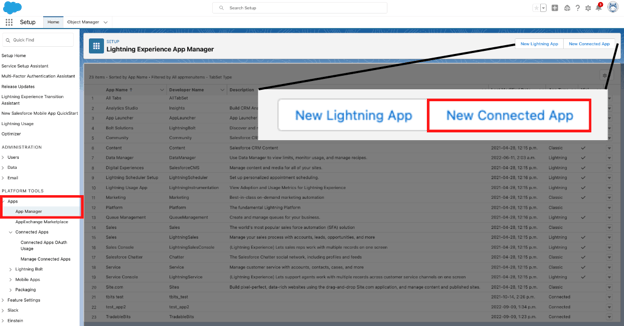
Once you’ve selected a new app, fill in the following information:
1. **Give your app a name.** No spaces, no dashes
2. **Input your contact email**
3. Click the checkbox **“Enable OAuth Settings”**
4. **Fill in the callback URL.** (Please note, this is a necessary step but not one used in our app connection. You can input [https://tradablebits.com/](https://tradablebits.com/) as a placeholder)
5. In the section labelled “Available OAuth Scopes” scroll down until you see **“Full Access (full).” Select this and click the “Add” arrow button to your right**
6. Hit **Save**
**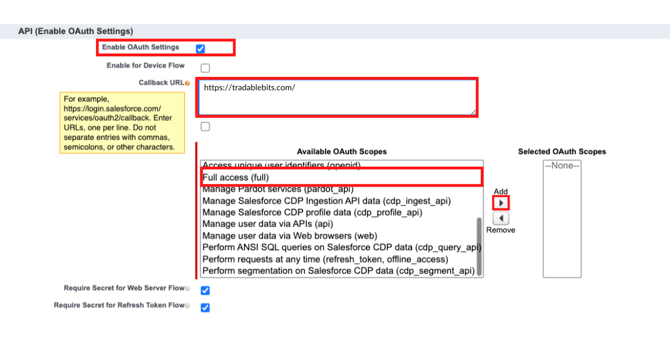Next you will edit permitted users:**
1. Go back to your Setup Homepage.
2. Select **Apps \> Connected Apps \> Manage Connected apps**.
3. Click on the “**Edit**” button. You should see something similar to the page below.
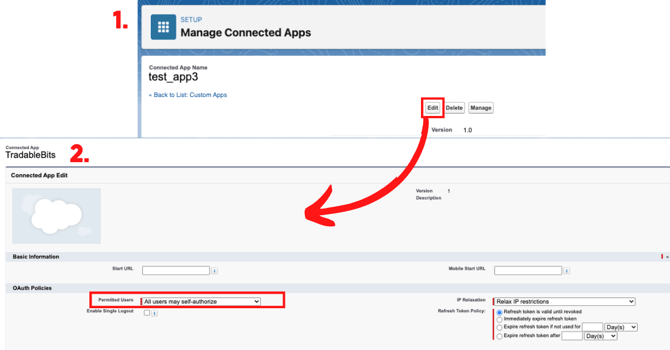
4. Under OAuth Policies, choose “**All users may self-authorize**” from the Permitted Users Dropdown
5. Save
**Allowing OAuth Username - Password Flows**
1. Scroll down to the section labelled **Identity** and then click on **OAuth and OpenID Connect Settings.**
2. Toggle on the section labelled "**Allow OAuth Username-Password Flows**"
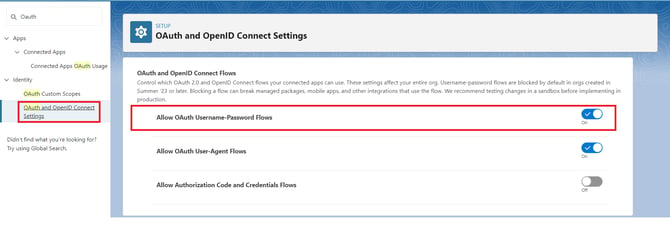
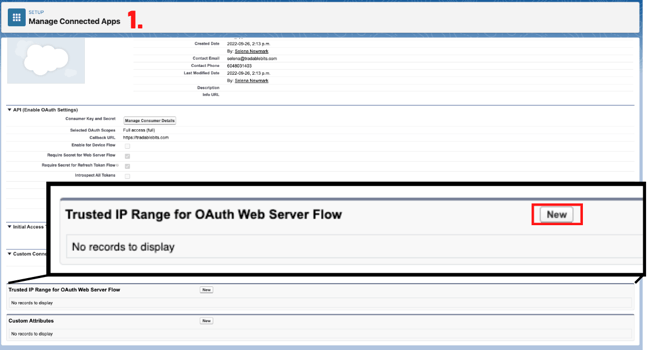
**Selecting your Trusted IP Range**
1. Use the sidebar to navigate to **Security \> Network Access**
2. Create a New Trusted IP Range by clicking the New button
3. Click the “**New**” button.
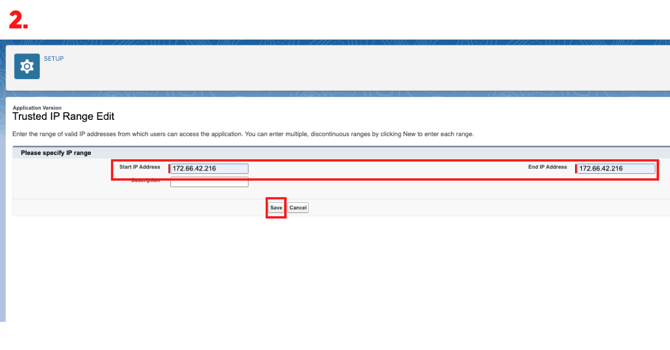
4. Specify Tradable Bits’ IP Range as a trusted range:
- Fill in the **Start IP Address with 172.66.42.216**
- Fill in the **End IP Address with 172.66.42.216**
5. **Save**
****
****
**Consumer Key & Consumer Secret**
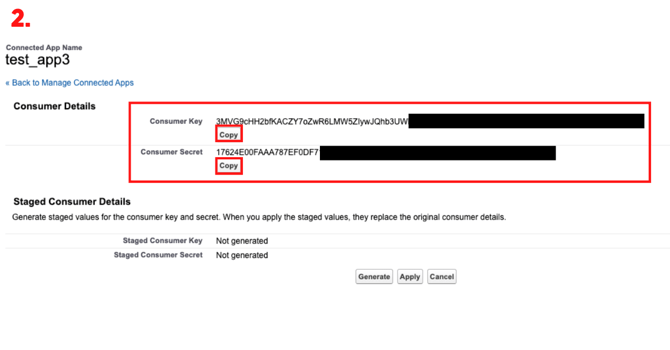
*Important Note:* **You** **need to keep your consumer key & consumer secret for following set up on the Tradable Bits side.**
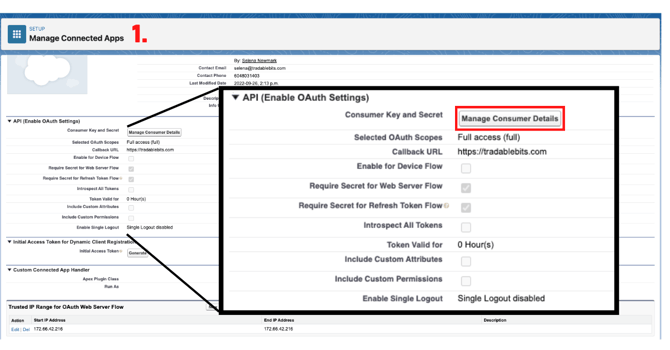
1. Navigate to the App Manager menu
2. Under the **Connected Apps** section look for your connected app name
3. Click the drop down arrow at the far right of your app’s row and select **View**
1. Click the “**Manage Consumer Details**” button in that row.
2. You will see both your Consumer Key and Consumer Secret. **Copy these save these details for later steps.**
****
****
### **STEP 2: Customize Object Fields**
1. Navigate to the setup page after logging in to your Salesforce account
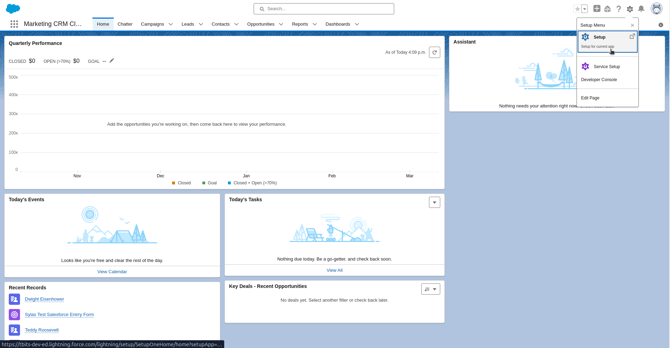
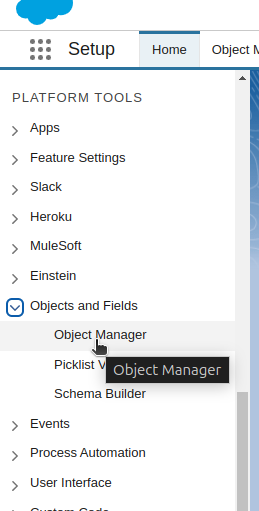
1. Once you have created your app, navigate to **Objects and Fields \> Object Manager** from the sidebar menu
1. In the the Object Manager, You will see a list of Salesforce objects. We are going to be editing **Account, Campaign Member,** and **Campaign**
2. Click on the name of the object, and then navigate to the **Fields & Relationships** menu
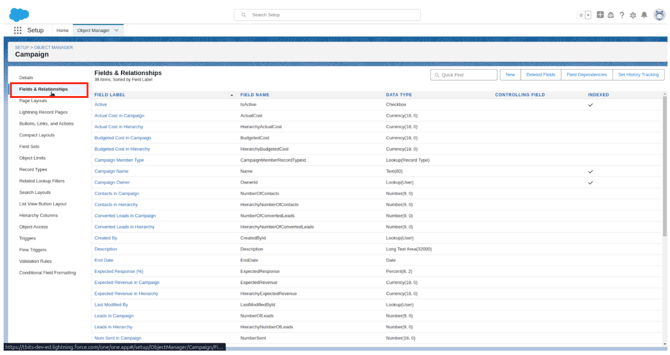
**Campaign**
**You are going to create a new custom field on the Campaign Object**
1. Click **New** in the upper left corner
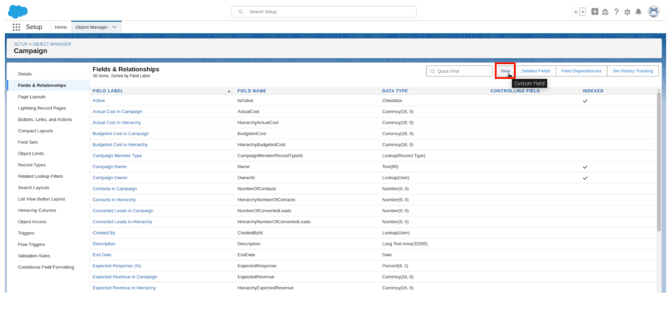
2. Choose the **Number** data type from the list and click next.
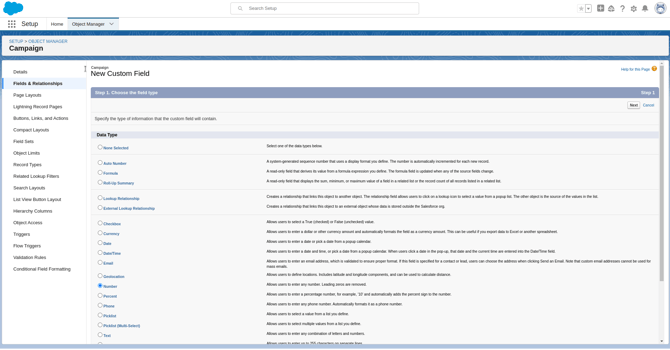
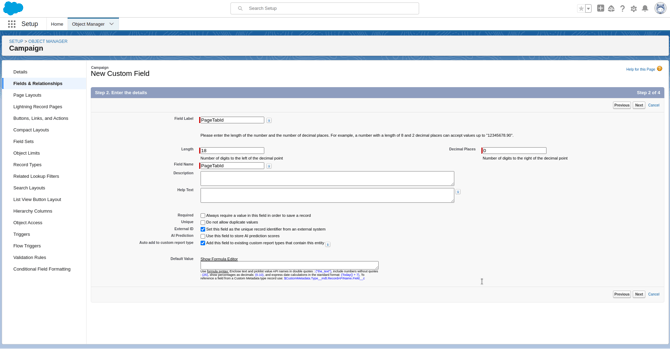
1. On the next page, enter the field label **Page TabId**, and tick the checkbox next to **External ID**. The page should look like this. Click next.
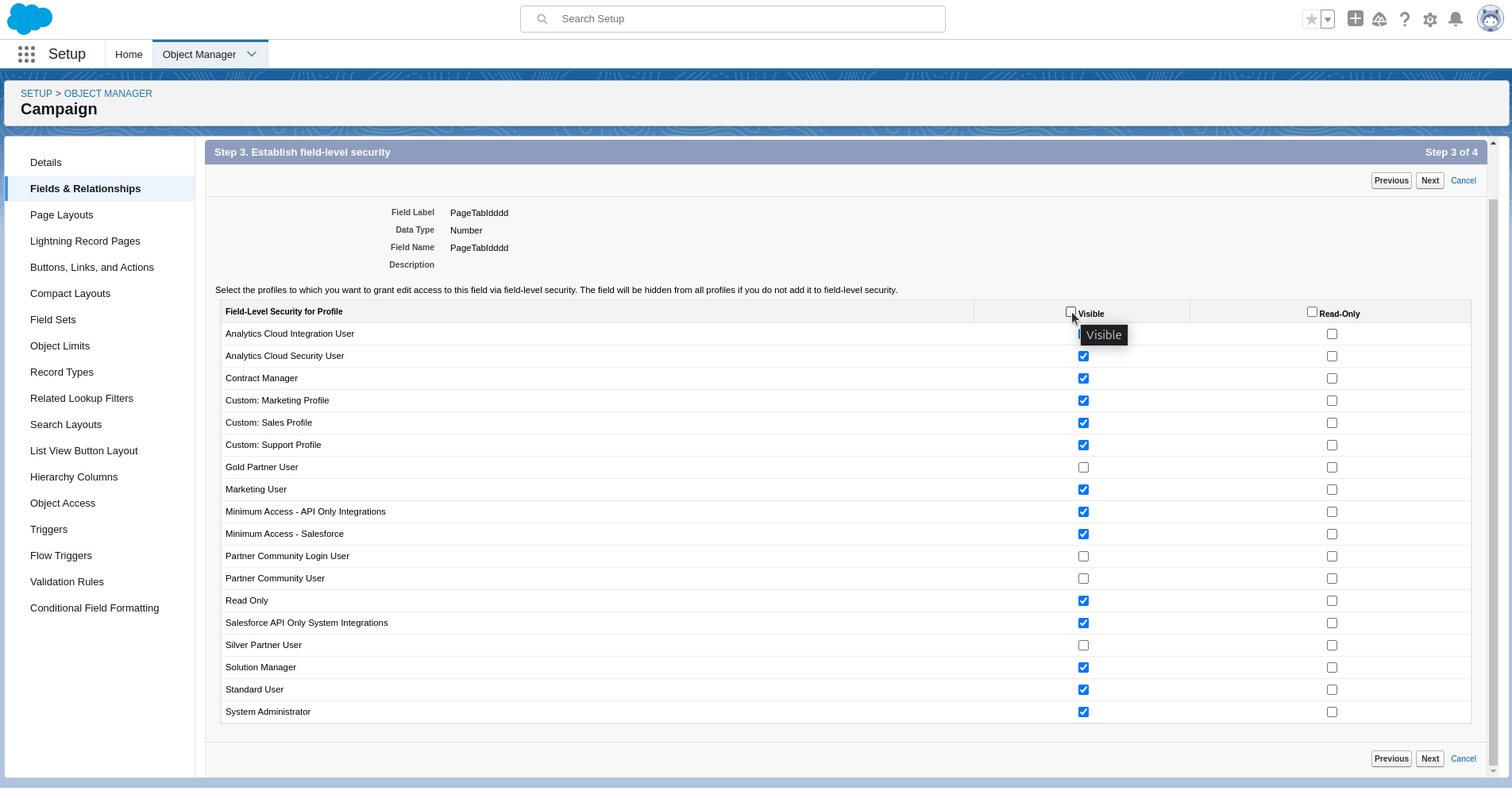
1. On the next page, make sure that field is visible to the profile of **API Only Integrations**– if you are not deeply familiar with Salesforce, it’s fine to just click the Visible box. If Salesforce CRM Security is a priority for your company, be sure to reach out to your Salesforce CRM administrator. Click Next.
1. Click **Save.** Now, navigate back to the Object Manager to select a different **Salesforce Object**
**Campaign Member**
1. Navigate to the **Campaign Member Object** **\>Fields and Relationships,** just as you did for campaign.
2. Create a new custom field as you did for campaign, but call it **ActivityId.**
**Account**
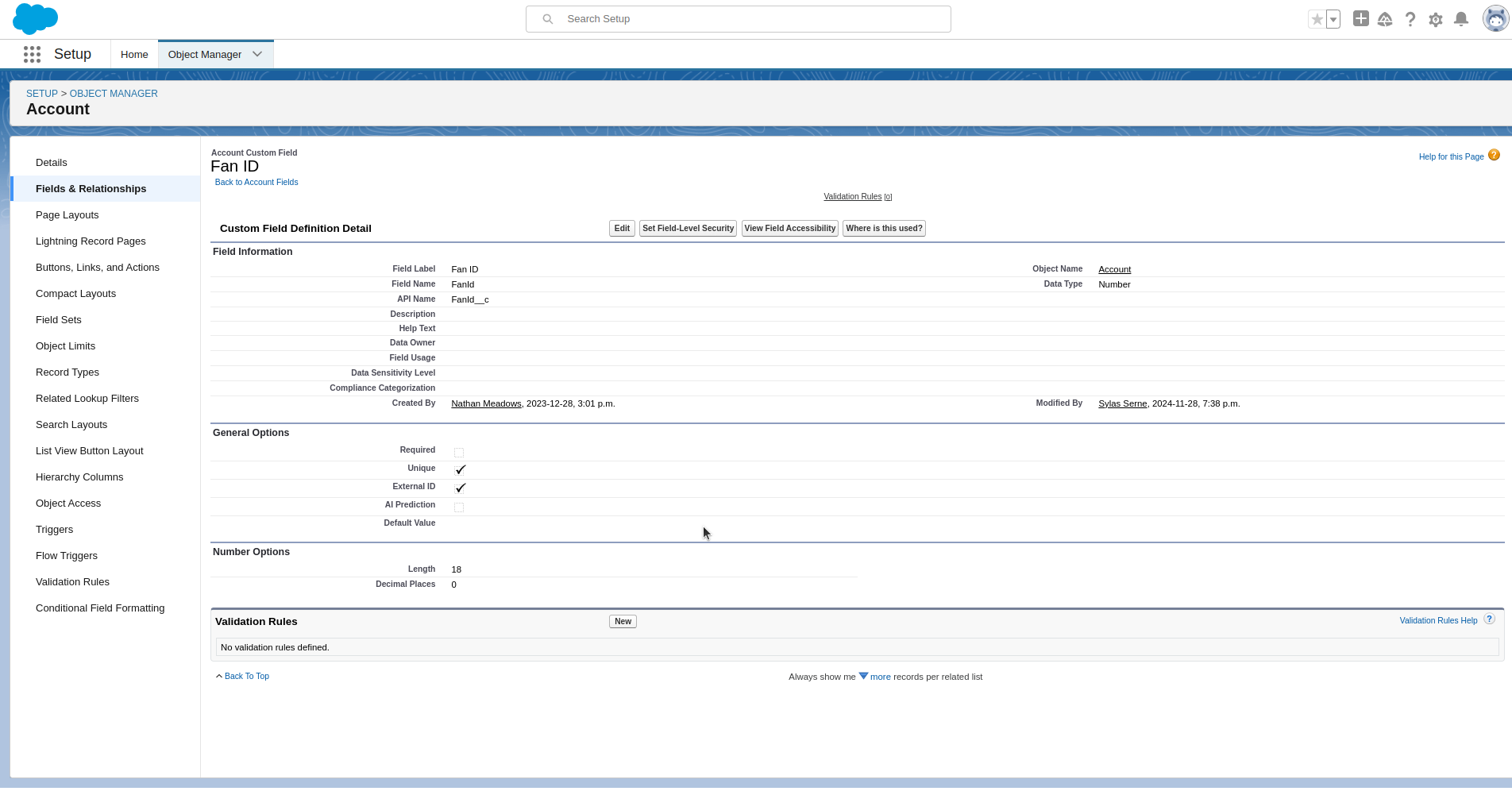
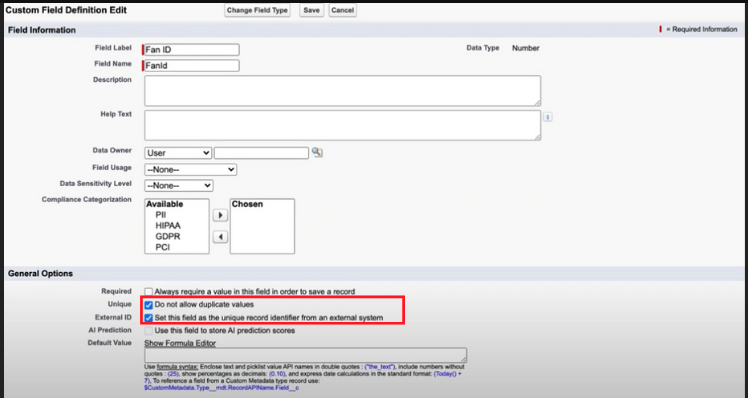
1. Navigate to the **Account** object and create a new custom field for **FanId.** Make sure the **General** **Options** for **Unique** and **External ID** are checked.
It should look like this once created:
### **STEP 3: Ensure that Person Accounts are Enabled**
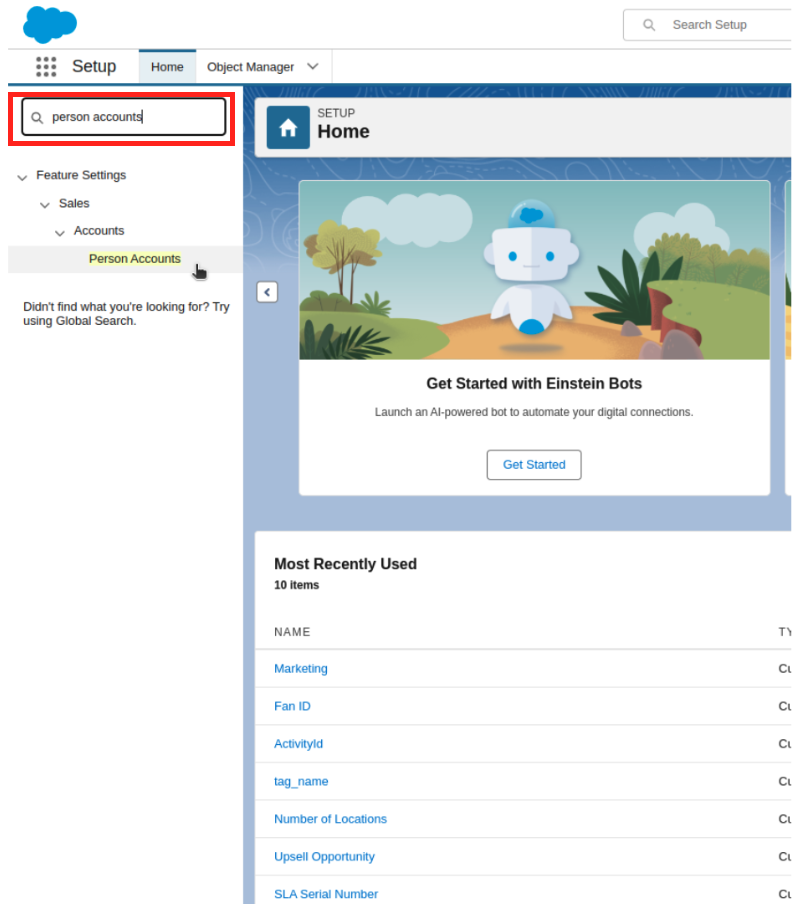
1. From the sidebar menu, in the Salesforce Settings Home, **type in “person accounts”** in the quick find menu, or navigate to feature settings \> sales \> accounts \> person accounts. Click on your newly enabled "Person Accounts".
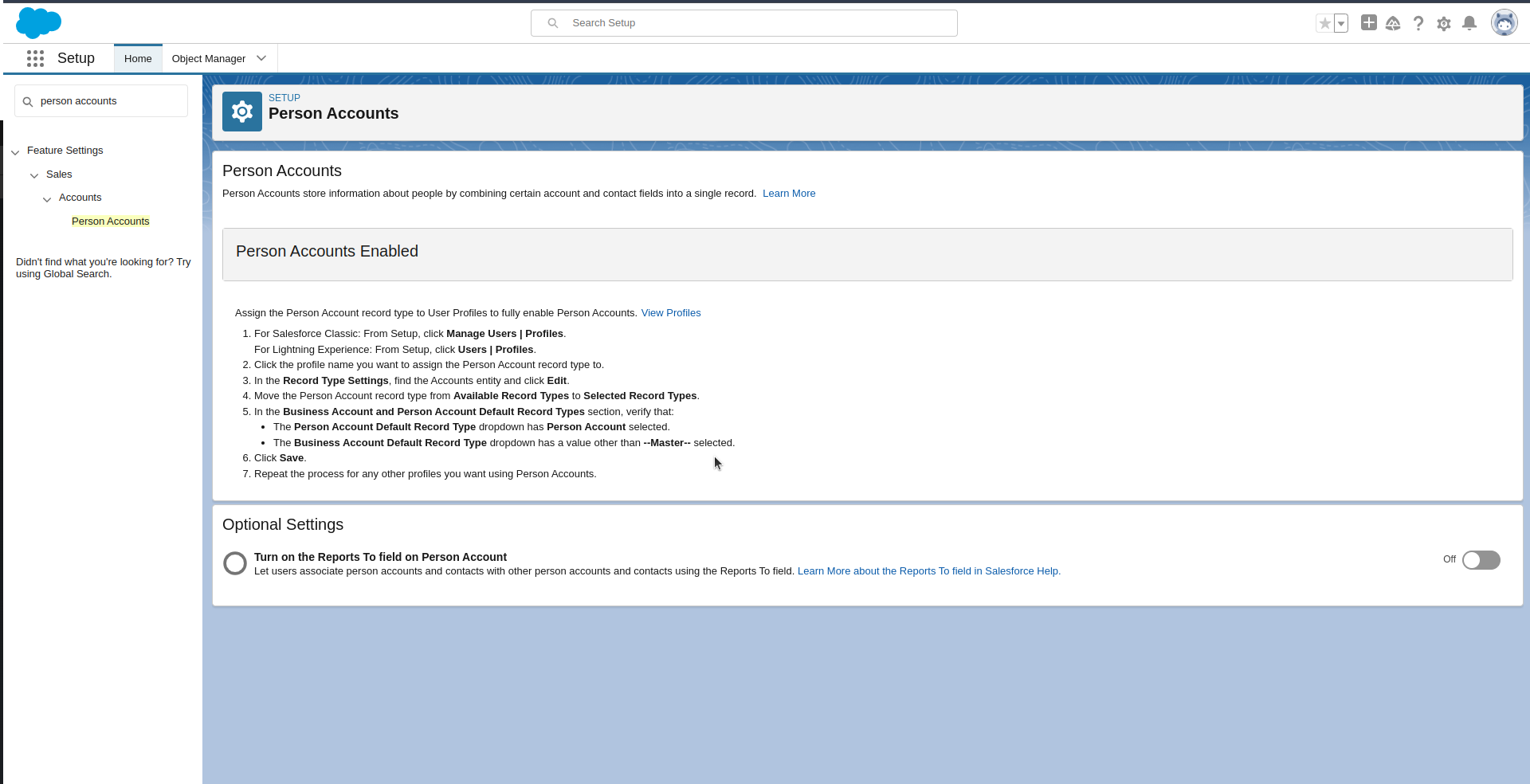
2\. Salesforce will prompt you with a brief final checklist. Follow all steps on the page to complete the set up and enable **Person Accounts**
**Be sure to review these final steps before moving on as Salesforce can update them from time to time)**
****
### **STEP 4: Manage Users**
The last thing that you will need to do within your Salesforce CRM is to give your users the correct permissions required.
1. To do this, you will go to **Administer\> Manage Users \> Users\>User Details.**
2. When you click into an account, ensure that your users have the
"**Marketing User**" checkbox marked off:
### **STEP 5: Connecting with Tradable Bits**
Congrats! You're finished setting up your app on the Salesforce CRM side. The next priority is building it out on the Tradable Bits side. This requires the following:
- A **login email + password** to your Salesforce Account
- Your **consumer key**
- Your **consumer secret**
Pass this information to your Customer Success Manager who will use it to connect the final step on the Tradable Bits side.
You can now enjoy Tradable Bits data within your Salesforce CRM account! We will push data in near-real time.
**Still need assistance? Please reach out to your Customer Success Team or contact support@tradablebits.com**
- [Getting started](https://resources.tradablebits.com/support/getting-started?hsLang=en)
- [Account](https://resources.tradablebits.com/support/account?hsLang=en#main-content)
- [Account Admin](https://resources.tradablebits.com/support/account?hsLang=en#account-admin)
- [Security & Data Practices](https://resources.tradablebits.com/support/account?hsLang=en#security-data-practices)
- [Engagement Campaigns](https://resources.tradablebits.com/support/engagement-campaigns?hsLang=en#main-content)
- [Campaign Basics](https://resources.tradablebits.com/support/engagement-campaigns?hsLang=en#campaign-basics)
- [Campaign Setup & Configuration](https://resources.tradablebits.com/support/engagement-campaigns?hsLang=en#campaign-setup-configuration)
- [Campaign Styling & Design](https://resources.tradablebits.com/support/engagement-campaigns?hsLang=en#campaign-styling-design)
- [Lead Generation Campaigns](https://resources.tradablebits.com/support/engagement-campaigns?hsLang=en#lead-generation-campaigns)
- [User-Generated Content Campaigns](https://resources.tradablebits.com/support/engagement-campaigns?hsLang=en#user-generated-content-campaigns)
- [Music Campaigns](https://resources.tradablebits.com/support/engagement-campaigns?hsLang=en#music-campaigns)
- [Quiz Campaigns](https://resources.tradablebits.com/support/engagement-campaigns?hsLang=en#quiz-campaigns)
- [Events/Ticketing Campaigns](https://resources.tradablebits.com/support/engagement-campaigns?hsLang=en#events-ticketing-campaigns)
- [Game Campaigns](https://resources.tradablebits.com/support/engagement-campaigns?hsLang=en#game-campaigns)
- [Voting/Polling Campaigns](https://resources.tradablebits.com/support/engagement-campaigns?hsLang=en#voting-polling-campaigns)
- [Prize Giveaway Campaigns](https://resources.tradablebits.com/support/engagement-campaigns?hsLang=en#prize-giveaway-campaigns)
- [Incentivize Campaigns](https://resources.tradablebits.com/support/engagement-campaigns?hsLang=en#incentivize-campaigns)
- [Best Practices for Campaigns](https://resources.tradablebits.com/support/engagement-campaigns?hsLang=en#best-practices-for-campaigns)
- [Campaign Reporting](https://resources.tradablebits.com/support/engagement-campaigns?hsLang=en#campaign-reporting)
- [User-Generated Content (UGC)](https://resources.tradablebits.com/support/user-generated-content-ugc?hsLang=en)
- [Fan CRM](https://resources.tradablebits.com/support/fan-crm?hsLang=en#main-content)
- [Tags](https://resources.tradablebits.com/support/fan-crm?hsLang=en#tags)
- [Filters](https://resources.tradablebits.com/support/fan-crm?hsLang=en#filters)
- [Exports](https://resources.tradablebits.com/support/fan-crm?hsLang=en#exports)
- [Fan Profiles](https://resources.tradablebits.com/support/fan-crm?hsLang=en#fan-profiles)
- [Sales](https://resources.tradablebits.com/support/sales?hsLang=en#main-content)
- [Data Library](https://resources.tradablebits.com/support/sales?hsLang=en#data-library)
- [Trackers](https://resources.tradablebits.com/support/trackers?hsLang=en)
- [Idols](https://resources.tradablebits.com/support/idols?hsLang=en)
- [Integrations](https://resources.tradablebits.com/support/integrations?hsLang=en#main-content)
- [Outgoing Integrations](https://resources.tradablebits.com/support/integrations?hsLang=en#outgoing-integrations)
- [Incoming Integrations](https://resources.tradablebits.com/support/integrations?hsLang=en#incoming-integrations)
- [Salesforce Marketing Cloud](https://resources.tradablebits.com/support/integrations?hsLang=en#salesforce-marketing-cloud)
- [Ads](https://resources.tradablebits.com/support/ads?hsLang=en#main-content)
- [Meta (Facebook & Instagram)](https://resources.tradablebits.com/support/ads?hsLang=en#meta-facebook-instagram)
- [Google Ads](https://resources.tradablebits.com/support/ads?hsLang=en#google-ads)
- [Snapchat](https://resources.tradablebits.com/support/ads?hsLang=en#snapchat)
- [TikTok](https://resources.tradablebits.com/support/ads?hsLang=en#tiktok)
- [Spotify & Reddit](https://resources.tradablebits.com/support/ads?hsLang=en#spotify-reddit)
- [Messaging](https://resources.tradablebits.com/support/messaging?hsLang=en#main-content)
- [SMS](https://resources.tradablebits.com/support/messaging?hsLang=en#sms)
- [Email](https://resources.tradablebits.com/support/messaging?hsLang=en#email)
- [Push Notifications](https://resources.tradablebits.com/support/messaging?hsLang=en#push-notifications)
- [Instagram](https://resources.tradablebits.com/support/messaging?hsLang=en#instagram)
- [Automations](https://resources.tradablebits.com/support/messaging?hsLang=en#automations)
- [Custom Networks](https://resources.tradablebits.com/support/messaging?hsLang=en#custom-networks)
- [Octane](https://resources.tradablebits.com/support/octane?hsLang=en)
- [FAQs](https://resources.tradablebits.com/support/faqs?hsLang=en)
[](https://tradablebits.com/)
Copyright © 2026, Tradable Bits