![tradable-bits-long-logo-for-download.png]](https://resources.tradablebits.com/hs-fs/hubfs/tradable-bits-long-logo-for-download.png?height=40&name=tradable-bits-long-logo-for-download.png)
Uncover Sales insights, share reports & formulate data-backed strategies.
The Stats section is your place to quickly get a sense of what’s going on with sales. This section gives you the opportunity to view sales or registrations day-by-day and find trends over time. You can also see how many purchases were made by existing fans vs new fans.
Stats can be broken down into 3 major sections:
Section 1: Ticket Stats
Use this section to monitor the health of your sales and analyze trends/fan behaviour.
Common Use Cases:
-
To check whether ticket sales are increasing, decreasing or remaining constant.
-
Look at new fans versus returning fans
-
Ticket sales by day and date range
-
To understand what “type” of a fan is purchasing - i.e. existing vs new fans.
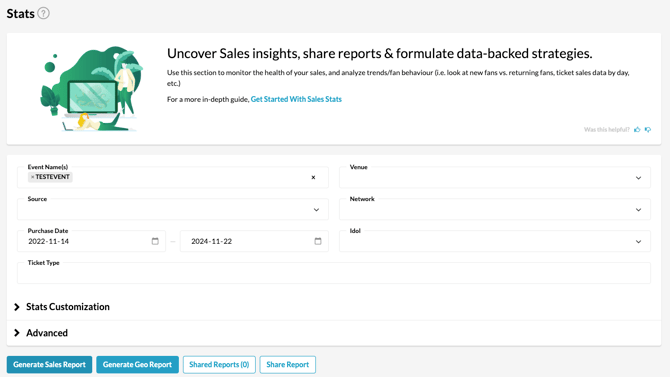
How to Search
- Set your date range (default is set to one week)
- Narrow your search by:
-
- Venue: Ensure that you are using a “clean” venue. To see all venue options, go to “venue cleanup”
- Event: Search by Event. For example, “XFest”
- Source
- Network: Which network you are pulling information from (i.e. FrontGate, Shopify etc)
- Season Name: Filter by season ticket purchases (useful for sporting codes)
Read your Stats
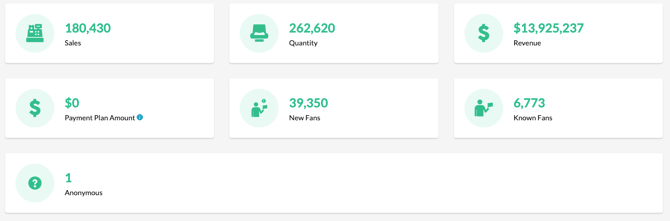
Once you have narrowed your search, hit Generate Sales Report, and you will see a dashboard that details the following:
-
Number of new fans
-
Number of purchases by returning fans
-
Number of purchases by anonymous fans (i.e. the fans not accurately imported into Tradable Bits)
-
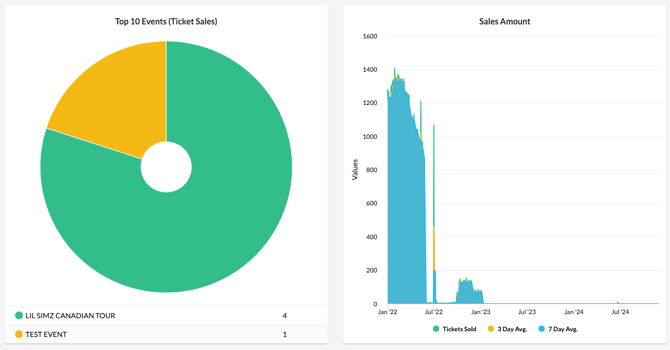
A “Sales Amount” Graph that gives a quick visual view of daily sales amounts vs. the three-day average
-
Total sales (total dollar amount in CAD)
-
Number of Sales (i.e. number of ‘orders’)
-
Quantity (i.e. #of “items” sold)
Note: For accurate revenue and inventory auditing, the sales data here reflects only primary active ticket sales. Secondary sales data, meaning tickets that have been transferred, resold, refunded, or cancelled, are excluded.
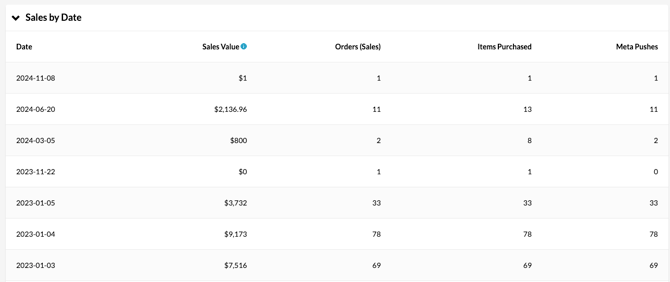
Sales By Date Table
Use this table to view all sales by date.
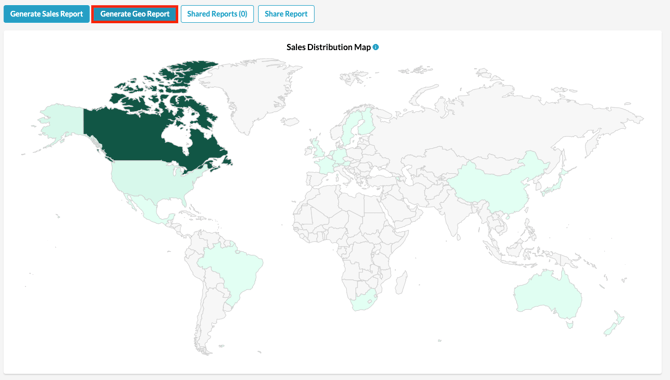
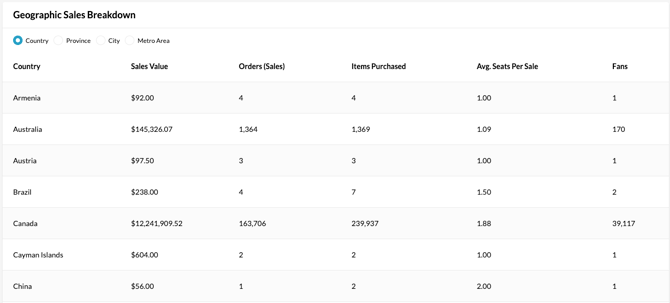
You can also view sales distribution by geography by toggling on the Geo Report. This report will also expand to show a detailed geographic sales breakdown by country, city, province or metro area.
Section 2: Registration Stats
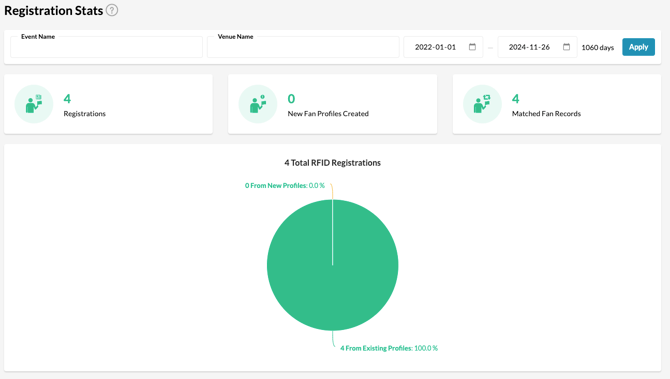
Use this section to generate reports for the total number of registrations within a given date range.
How to Search
- Set your date range (default is set to one week)
- Narrow your search by:
-
-
Event name: Search by Event. For example “XFest”
-
Venue name
- Custom date range
-
Section 3: Venue Stats
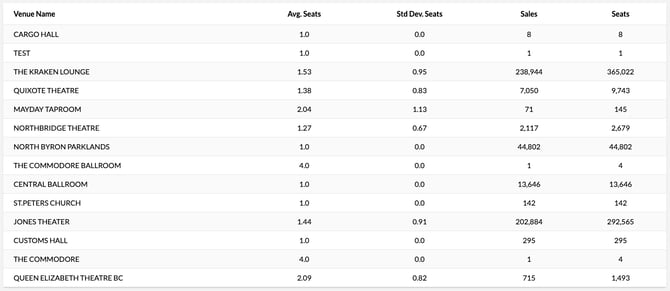
Use this section to analyze how your different venues perform, including the average number of seats you sell per fan at certain venues and lifetime totals.
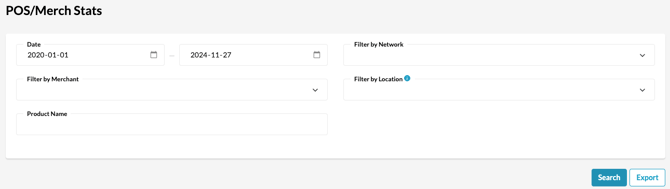
Section 4: POS/Merch Stats
Use this section to analyze your sales generated from the merch table or other points of sale at your event. Narrow your search by filtering by product, merchant, location or product name.
Section 5: Attendee Stats
This section is designed to provide real-time visibility into how many fans are scanning into your events. You will see a chart that breaks scans down by Group Set, Zones, and the number of successful and failed scans per section of your venue. This table will only populate once you have attendees imported into Tradable Bits.
Still need assistance? Please reach out to your Customer Success Team or contact support@tradablebits.com