![tradable-bits-long-logo-for-download.png]](https://resources.tradablebits.com/hs-fs/hubfs/tradable-bits-long-logo-for-download.png?height=40&name=tradable-bits-long-logo-for-download.png)
Are you putting a campaign QR code on the big screen to spur-in venue participation? Or are you printing out QR codes on signage across town to drive traffic to your ticketing page? Whatever way you share your QR codes, you now have the option to customize how they look so they’re better affiliated with your brand!
We will walk you through 2 scenarios to create branded QR codes:
- How to create a custom QR code for any URL
- How to create a custom QR code for one of your Tradable Bits engagement campaigns
How to create a custom QR code from scratch for any URL.
1. To begin, start in the Trackers > Landing Trackers section of the platform under “Analyze” in your Homepage navigation Bar
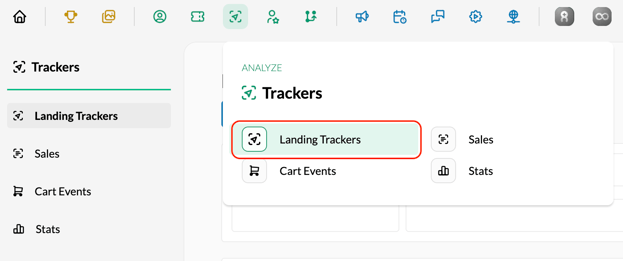
For more information on Trackers, check out this guide.
2. Click + Create New to build a new one
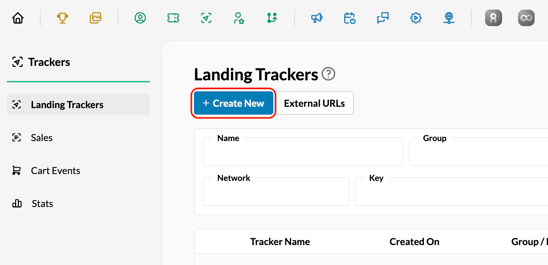
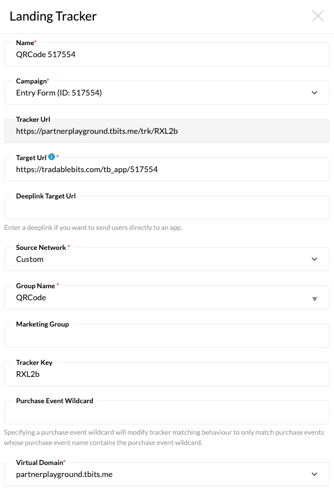
3. Fill out the tracker fields
-
Target URL: This is the URL where you want the fan to land.
-
Source Network: For a physical QR Code, select Custom.
-
Group Name: The group name will help you organize your Landing Trackers and group them, eg. QRCode. By doing this you will be able to compare the Landing Tracker stats for multiple networks in one area.
-
Tracker Key: This is how you can customize the tail end of your Landing Tracker. So if it's for a contest you can add the word 'contest' as the tracker key and that will be the end of the Landing Tracker URL that you create.
-
Virtual Domain: If you have set up a Virtual Domain and had it enabled in your TBits account you can select it from the dropdown menu here to fully brand your tracker URL.
- These are the fields that allow you to customize the look of your QR Code. Choose your desired colours and upload your centre image!
5. Click Save to apply your changes
6. To download your new QR code, click the Download QR-Code button and select the file type you would like

You can also quickly download it as a PNG at anytime by hitting the QR icon on the far right of the landing trackers page.

How to edit a custom QR code for one of your fan engagement campaigns:
Our system automatically generates a QR code tracker for every campaign you create. While you can download the QR code in the publish section of your campaign, we created a QR code tracker to help control the QR experience.
For example: using the tracker link for your QR code, you can easily switch out the target URL if there are last-minute changes to the campaign you want to show - meaning you don’t have to fuss about which QR code you’ve printed. And, you can see how many folks have clicked on your QR code tracker depending on where you’ve displayed it.
Please note: if you change the virtual domain or the Tracker key in the Trackers section, that will change the entire QR code image, so it's important not to change those fields if you've already printed out your QR Code.
To begin, start in the campaigns section of the platform
1. Scroll down to the campaign you would like to share by QR code and copy its campaign ID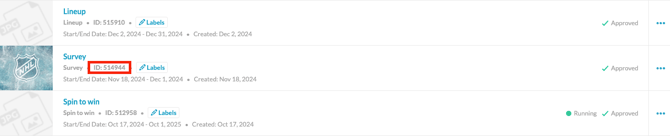
2. Click out of the Campaign section and go to Trackers > Landing Trackers section of the platform under “Analyze” in your Homepage navigation Bar
Tracker not appearing? If the campaign hasn't closed and the dates are correct, you may need to take one last step to prompt QR code generation. To do this, head back to the campaign and select the Publish tab from the left menu under Campaign Set Up. Opening this page generates a default QR code, so when you return to the Trackers section, it should now return a result.

4. Click on the pencil icon to begin editing
5. Make any necessary changes to the tracker, including Name, Network, Group Name, Marketing Name etc - all of which are meant to help with organizing and reporting on after-the-fact.
6. Scroll down to the fields that are labelled QR Code Background Color, QR Code Dots Color and Center Image. These are the fields that allow you to customize the look of your QR Code. Choose your desired colors and center image!
Pro Tip: If you are adding a center image to your QR code, we recommend the following:
1.Use a square image. For example, an icon that fits 1000px by 1000px
2. Make the background of your center image match the background of your QR code. This will help it pop.
7. Click Save.
8. To view your custom-branded QR Code click on the QR code icon beside the tracker short link. This will download your QR code as a png to view.
Still need assistance? Please reach out to your Customer Success Team or contact support@tradablebits.com