---
title: How to I set up a Calendar Quiz campaign?
description: Create engaging calendar quizzes with text or slider questions. Set time limits, schedule active dates, and customize content to challenge your fans daily or for key events.
---
[Skip to content](https://resources.tradablebits.com/support/how-to-i-set-up-a-calendar-quiz-campaign#main-content)
English
Show submenu for translations
![tradable-bits-long-logo-for-download.png\]](https://resources.tradablebits.com/hs-fs/hubfs/tradable-bits-long-logo-for-download.png?height=40&name=tradable-bits-long-logo-for-download.png)
Open main navigation
Close main navigation
- English
Show submenu for translations
How can we help?
- There are no suggestions because the search field is empty.
1. [Resources](https://resources.tradablebits.com/support?hsLang=en)
2. [Engagement Campaigns](https://resources.tradablebits.com/support/engagement-campaigns?hsLang=en)
3. [Creating Campaigns](https://resources.tradablebits.com/support/engagement-campaigns?hsLang=en#creating-campaigns)
# How to I set up a Calendar Quiz campaign?
## Here's a quick guide on how to create a calendar quiz.
Challenge fans with a calendar of mini-quizzes!
Schedule quizzes each day, month, or match to keep fans constantly engaged. Fans can track their performance across all quizzes in one simple view.
.png?width=670&height=736&name=Untitled%20design%20(10).png)
**We're outlining some campaign-specific details below. Follow [this guide](https://resources.tradablebits.com/support/getting-started-with-campaigns?hsLang=en) for more info on General Setup and other campaign basics.**
### Configuration
Under the Configuration tab, you can set the time limit per question. The minimum time is one second. To give participants unlimited time, leave the field blank.
### Content
Under the **Content** section, select **Add Question** and fill in the following details:
- **Title:** Enter the question you want to ask.
- **Question Image (Optional):** You can upload an optional image to accompany your question. The image scales to 1080px wide, while maintaining the aspect ratio.
- **Active Date:** Select the date you want the question to become active on.
- **Active Time:** Select the time range you want the question to be active for. The default time range is from 12 am to 11:59 pm.
- **Question Type:** Choose between **Text Choice** and **Slider**.
- - **Text Choice:** Set up the multiple-choice options for your question. Once your answers are listed, be sure to select the correct one using the Correct Answer toggle on the right.
- **Slider**: Input the slider range, step size and correct answer (optional).
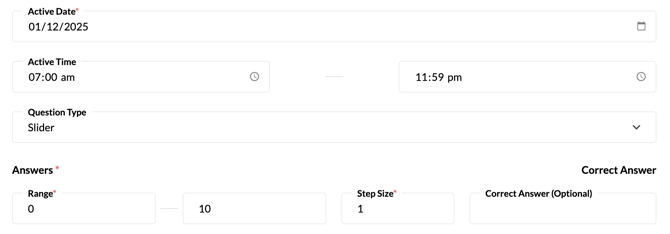
**And that's it!** You've successfully built your first Calendar Quiz. Fans can now return each day to complete new challenges, driving steady, repeat engagement throughout your campaign.
**Before publishing your campaign, be sure to review our[Campaign Publishing Checklist](https://resources.tradablebits.com/support/campaign-publishing-checklist?hsLang=en)for a smooth launch.**
**Still need assistance? Please reach out to your Customer Success Team or contact** [**support@tradablebits.com**](mailto:support@tradablebits.com)
- [Getting started](https://resources.tradablebits.com/support/getting-started?hsLang=en)
- [Account](https://resources.tradablebits.com/support/account?hsLang=en#main-content)
- [Security](https://resources.tradablebits.com/support/account?hsLang=en#security)
- [Integrations](https://resources.tradablebits.com/support/integrations?hsLang=en#main-content)
- [Outgoing Integrations](https://resources.tradablebits.com/support/integrations?hsLang=en#outgoing-integrations)
- [Incoming Integrations](https://resources.tradablebits.com/support/integrations?hsLang=en#incoming-integrations)
- [Salesforce Marketing Cloud](https://resources.tradablebits.com/support/integrations?hsLang=en#salesforce-marketing-cloud)
- [FAQs](https://resources.tradablebits.com/support/faqs?hsLang=en)
- [Troubleshooting](https://resources.tradablebits.com/support/troubleshooting?hsLang=en#main-content)
- [CSS/JS](https://resources.tradablebits.com/support/troubleshooting?hsLang=en#css-js)
- [Reports](https://resources.tradablebits.com/support/reports?hsLang=en)
- [Engagement Campaigns](https://resources.tradablebits.com/support/engagement-campaigns?hsLang=en#main-content)
- [Campaign Basics](https://resources.tradablebits.com/support/engagement-campaigns?hsLang=en#campaign-basics)
- [Campaign Management](https://resources.tradablebits.com/support/engagement-campaigns?hsLang=en#campaign-management)
- [Creating Campaigns](https://resources.tradablebits.com/support/engagement-campaigns?hsLang=en#creating-campaigns)
- [Best Practices and Troubleshooting](https://resources.tradablebits.com/support/engagement-campaigns?hsLang=en#best-practices-and-troubleshooting)
- [UGC](https://resources.tradablebits.com/support/ugc?hsLang=en)
- [Fan CRM](https://resources.tradablebits.com/support/fan-crm?hsLang=en)
- [Sales](https://resources.tradablebits.com/support/sales?hsLang=en)
- [Idols](https://resources.tradablebits.com/support/idols?hsLang=en)
- [Trackers](https://resources.tradablebits.com/support/trackers?hsLang=en)
- [Messaging](https://resources.tradablebits.com/support/messaging?hsLang=en#main-content)
- [SMS](https://resources.tradablebits.com/support/messaging?hsLang=en#sms)
- [Email](https://resources.tradablebits.com/support/messaging?hsLang=en#email)
- [Push Notifications](https://resources.tradablebits.com/support/messaging?hsLang=en#push-notifications)
- [Instagram](https://resources.tradablebits.com/support/messaging?hsLang=en#instagram)
- [Ads](https://resources.tradablebits.com/support/ads?hsLang=en)
- [Octane](https://resources.tradablebits.com/support/octane?hsLang=en)
- [Product Updates](https://resources.tradablebits.com/support/product-updates?hsLang=en)
[](https://tradablebits.com/)
Copyright © 2026, Tradable Bits