---
title: How to create an Audience in the Fan CRM
description: Learn how to build high-converting audiences by combining clear campaign goals with structured search formulas.
---
[Skip to content](https://resources.tradablebits.com/support/how-to-create-an-audience-in-the-fan-crm#main-content)
English
Show submenu for translations
![tradable-bits-long-logo-for-download.png\]](https://resources.tradablebits.com/hs-fs/hubfs/tradable-bits-long-logo-for-download.png?height=40&name=tradable-bits-long-logo-for-download.png)
Open main navigation
Close main navigation
- English
Show submenu for translations
How can we help?
- There are no suggestions because the search field is empty.
1. [Resources](https://resources.tradablebits.com/support?hsLang=en)
2. [Fan CRM](https://resources.tradablebits.com/support/fan-crm?hsLang=en)
# How to create an Audience in the Fan CRM
## Learn how to build high-converting audiences by combining clear campaign goals with structured search formulas.
### Step 1: Defining your goal
Before opening the search tool, determine your core objective. Most effective CRM audiences focus on one of five distinct goals:
- **Re-engaging inactive fans** (bringing back cold leads)
- **Rewarding loyal fans** (VIP perks, exclusive presales)
- **Activating sponsor-ready segments** (commercial partner deliverables)
- **Excluding recent buyers/winners** (preventing ad fatigue)
- **Nurturing first-time engagers** (onboarding new fans)
Of course, feel free to define your audience in whatever way is best suited to your business needs.
### Step 2: Add your filter parameters
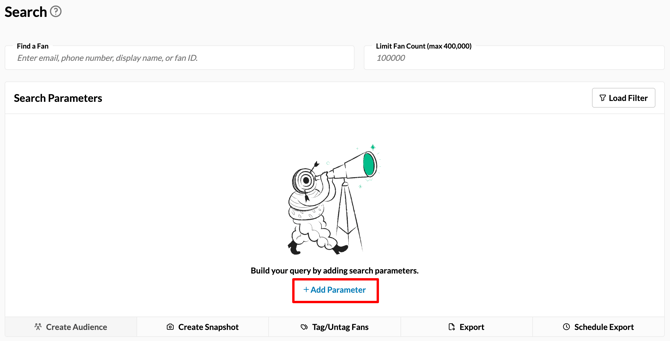
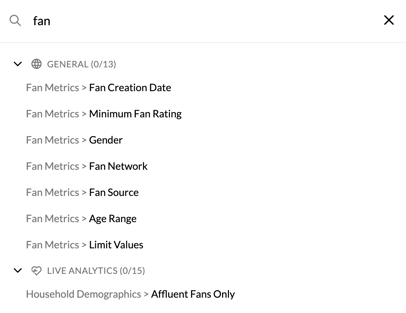
Navigate to Fan CRM \> Search and click "+ Add parameter"
Take a look at our [**Fan CRM Field Definitions**](https://resources.tradablebits.com/support/fancrm-field-definitions?hsLang=en)guide to review what a specific parameter does and how to use it safely.
Depending on what you're trying to achieve, you can approach your audience setup in a few different ways:
- **Build Custom:** Pick and choose any filters based entirely on your unique campaign needs.
- **Use a Standard Search**: Review our Common Audience Searches in our [Fan CRM Search](https://resources.tradablebits.com/support/fan-crm-playbook#:~:text=OTHER%20COMMON%20AUDIENCE%20SEARCHES%3A) help guide.
- **Use the Formula:** Follow our 4-part framework listed below to build a balanced query from scratch.
##### Audience = Who + Behaviour + Time + Exclusions
| Component | **Description** | **Example Parameters** |
| --- | --- | --- |
| **Who** | Demographics and core attributes defining the fan profile. | Location (city/radius), Age, Gender, Fan Rating, Fan Source, Custom Form Fields. |
| **Behaviour** | Specific actions taken (or not taken) by the fan. | Participated in a campaign, purchased tickets/merch, attended an event, clicked SMS/Email. |
| **Time** | Recency or date parameters attached to the behaviour. | Active in the last 30 days, created between specific dates, inactive for 90+ days. |
| **Exclusions** | Criteria used to filter out unwanted profiles. | Already purchased tickets, missing marketing consent, recently won a contest. |
### 
### 
### Step 3: Run your search & save your audience
Once your parameters are selected, click **"**Search**"** to render your segment results. From here, you have two options to utilize your audience:
- **Export:** Click "Export" to save your audience as a static CSV file or push it to an outgoing integration. Additionally, you can create a scheduled export according to the filter you just created.
- **Create an Audience:** Save the search as a Filter, then click "Create Audience". This dynamically updates daily as fans meet or drop out of your criteria.
- - Toggle on "Make Audience Dynamic" to ensure it updates in real time.
- Choose to sync to the following ad accounts: Meta, X, Google, TikTok, Snapchat, Hive.
> 
>
> 
>
> You’re all set! Use your new audience to deliver more relevant ads and boost your campaign performance.
**Still need assistance? Please reach out to your Customer Success Team or contact [support@tradablebits.com](mailto:support@tradablebits.com)**
- [Getting started](https://resources.tradablebits.com/support/getting-started?hsLang=en)
- [Account](https://resources.tradablebits.com/support/account?hsLang=en#main-content)
- [Account Admin](https://resources.tradablebits.com/support/account?hsLang=en#account-admin)
- [Security & Data Practices](https://resources.tradablebits.com/support/account?hsLang=en#security-data-practices)
- [Engagement Campaigns](https://resources.tradablebits.com/support/engagement-campaigns?hsLang=en#main-content)
- [Campaign Basics](https://resources.tradablebits.com/support/engagement-campaigns?hsLang=en#campaign-basics)
- [Campaign Setup & Configuration](https://resources.tradablebits.com/support/engagement-campaigns?hsLang=en#campaign-setup-configuration)
- [Campaign Styling & Design](https://resources.tradablebits.com/support/engagement-campaigns?hsLang=en#campaign-styling-design)
- [Lead Generation Campaigns](https://resources.tradablebits.com/support/engagement-campaigns?hsLang=en#lead-generation-campaigns)
- [User-Generated Content Campaigns](https://resources.tradablebits.com/support/engagement-campaigns?hsLang=en#user-generated-content-campaigns)
- [Music Campaigns](https://resources.tradablebits.com/support/engagement-campaigns?hsLang=en#music-campaigns)
- [Quiz Campaigns](https://resources.tradablebits.com/support/engagement-campaigns?hsLang=en#quiz-campaigns)
- [Events/Ticketing Campaigns](https://resources.tradablebits.com/support/engagement-campaigns?hsLang=en#events-ticketing-campaigns)
- [Game Campaigns](https://resources.tradablebits.com/support/engagement-campaigns?hsLang=en#game-campaigns)
- [Voting/Polling Campaigns](https://resources.tradablebits.com/support/engagement-campaigns?hsLang=en#voting-polling-campaigns)
- [Prize Giveaway Campaigns](https://resources.tradablebits.com/support/engagement-campaigns?hsLang=en#prize-giveaway-campaigns)
- [Incentivize Campaigns](https://resources.tradablebits.com/support/engagement-campaigns?hsLang=en#incentivize-campaigns)
- [Best Practices for Campaigns](https://resources.tradablebits.com/support/engagement-campaigns?hsLang=en#best-practices-for-campaigns)
- [Campaign Reporting](https://resources.tradablebits.com/support/engagement-campaigns?hsLang=en#campaign-reporting)
- [User-Generated Content (UGC)](https://resources.tradablebits.com/support/user-generated-content-ugc?hsLang=en)
- [Fan CRM](https://resources.tradablebits.com/support/fan-crm?hsLang=en#main-content)
- [Tags](https://resources.tradablebits.com/support/fan-crm?hsLang=en#tags)
- [Filters](https://resources.tradablebits.com/support/fan-crm?hsLang=en#filters)
- [Exports](https://resources.tradablebits.com/support/fan-crm?hsLang=en#exports)
- [Fan Profiles](https://resources.tradablebits.com/support/fan-crm?hsLang=en#fan-profiles)
- [Sales](https://resources.tradablebits.com/support/sales?hsLang=en#main-content)
- [Data Library](https://resources.tradablebits.com/support/sales?hsLang=en#data-library)
- [Trackers](https://resources.tradablebits.com/support/trackers?hsLang=en)
- [Idols](https://resources.tradablebits.com/support/idols?hsLang=en)
- [Integrations](https://resources.tradablebits.com/support/integrations?hsLang=en#main-content)
- [Outgoing Integrations](https://resources.tradablebits.com/support/integrations?hsLang=en#outgoing-integrations)
- [Incoming Integrations](https://resources.tradablebits.com/support/integrations?hsLang=en#incoming-integrations)
- [Salesforce Marketing Cloud](https://resources.tradablebits.com/support/integrations?hsLang=en#salesforce-marketing-cloud)
- [Ads](https://resources.tradablebits.com/support/ads?hsLang=en#main-content)
- [Meta (Facebook & Instagram)](https://resources.tradablebits.com/support/ads?hsLang=en#meta-facebook-instagram)
- [Google Ads](https://resources.tradablebits.com/support/ads?hsLang=en#google-ads)
- [Snapchat](https://resources.tradablebits.com/support/ads?hsLang=en#snapchat)
- [TikTok](https://resources.tradablebits.com/support/ads?hsLang=en#tiktok)
- [Spotify & Reddit](https://resources.tradablebits.com/support/ads?hsLang=en#spotify-reddit)
- [Messaging](https://resources.tradablebits.com/support/messaging?hsLang=en#main-content)
- [SMS](https://resources.tradablebits.com/support/messaging?hsLang=en#sms)
- [Email](https://resources.tradablebits.com/support/messaging?hsLang=en#email)
- [Push Notifications](https://resources.tradablebits.com/support/messaging?hsLang=en#push-notifications)
- [Instagram](https://resources.tradablebits.com/support/messaging?hsLang=en#instagram)
- [Automations](https://resources.tradablebits.com/support/messaging?hsLang=en#automations)
- [Custom Networks](https://resources.tradablebits.com/support/messaging?hsLang=en#custom-networks)
- [Octane](https://resources.tradablebits.com/support/octane?hsLang=en)
- [FAQs](https://resources.tradablebits.com/support/faqs?hsLang=en)
[](https://tradablebits.com/)
Copyright © 2026, Tradable Bits