---
title: How do I setup a Catalog campaign?
description: The following guide will walk you through how to set up the Catalog Campaign.
---
[Skip to content](https://resources.tradablebits.com/support/how-do-i-setup-a-catalog-campaign#main-content)
English
Show submenu for translations
![tradable-bits-long-logo-for-download.png\]](https://resources.tradablebits.com/hs-fs/hubfs/tradable-bits-long-logo-for-download.png?height=40&name=tradable-bits-long-logo-for-download.png)
Open main navigation
Close main navigation
- English
Show submenu for translations
How can we help?
- There are no suggestions because the search field is empty.
1. [Resources](https://resources.tradablebits.com/support?hsLang=en)
2. [Engagement Campaigns](https://resources.tradablebits.com/support/engagement-campaigns?hsLang=en)
3. [Creating Campaigns](https://resources.tradablebits.com/support/engagement-campaigns?hsLang=en#creating-campaigns)
# How do I setup a Catalog campaign?
## The following guide will walk you through how to set up the Catalog Campaign.
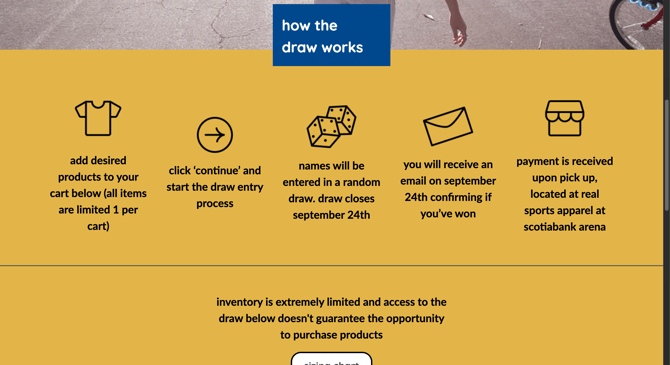
Build hype for your new collection by creating a stunning product catalogue for mobile, browser, or Facebook. Use Catalog campaigns to showcase your items, collect fan interest, and manage the allocation of limited inventory. With support for variable options like size and optional scheduling for pickups, you can easily manage the transition from fan interest to product assignment.
### 
### Configuration
#### **Fan Point Configuration**
- Enable fans to pay with fan points instead of real money
- Authentication and Points Awards configuration is required when enabling **Pay with fan points**. To set the **Points Category**, navigate to **Miscellaneous \> Point Awards** and select the corresponding **Point Name**. When point transactions are enabled, inventory is allocated immediately as fans complete orders.
#### **Purchase Behaviour**
- **Group Limit:** Catalog campaigns allow fans to reserve items when they create an order, and each item falls within an associated item group. The group limit set will define the maximum number of items that can be purchased in an item group.
- **Tax Rate:** Item tax rate that will be displayed.
- **Appointment Deadline:** Fans whose items have been approved must select an appointment time slot by this date. The available time slots will be sent via email.
Only add catalog items in the Content section after saving the setup configuration.
### Content
#### **Items**
For each item added, update the following fields:
- **Title**: Product title
- **Price**: Item price not including tax
- **Image**: Upload the product image
- **Variation**: Add alternative options for the product, such as different sizes (S, M, & L)
- **Inventory**: For each product variation, list the number of available units.
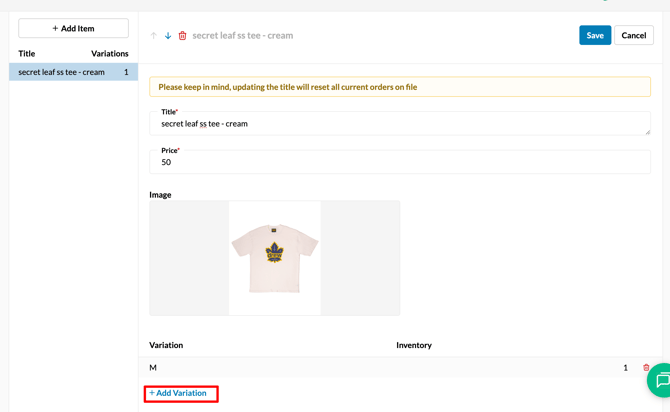
Note that updating the product title will reset all current orders on file
#### **Appointment Slots**
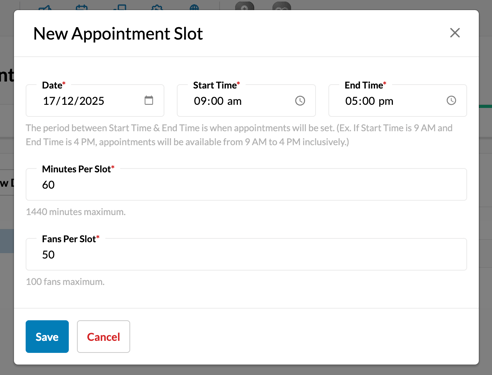
Click + Add New Date to add a new appointment slot. Then enter the following details:
- **Date**: Select a date for an appointment slot
- **Start Time & End Time**: Inclusive period when the appointments will be set
- **Minutes Per Slot**: Number of minutes per appointment slot (1440 minutes maximum)
- **Fans Per Slot**: Number of fans allowed to select one slot (100 fans maximum)
###  Messaging
#### **Email Configuration**
Once the campaign has finished, you can allocate item inventory and send emails from the Results section. However, you must update the following email details in the Email Configuration section first:
- **Reply-To Email:** Email address that informs email recipients where to send replies to.
- **Email Subject:** Title that summarises the email content.
- **From Name:** The name that recipients will see (identifying the sender), separate from the email address.
- **Email Header Image**: Upload image to be placed at the beginning of the email (1080px wide is recommended).
- **Winners Email Body Text**: Enter the text that will be sent to the campaign winners.
- **Losers Email Body Text**: Enter the text that will be sent to the non-winners.
- **Email Footer Image**: Upload image to be placed at the end of the email (1080px wide is recommended).
**Before publishing your campaign, be sure to review our[Campaign Publishing Checklist](https://resources.tradablebits.com/support/campaign-publishing-checklist?hsLang=en)for a smooth launch.**
**Still need assistance? Please reach out to your Customer Success Team or contact [support@tradablebits.com](mailto:support@tradablebits.com)**
- [Getting started](https://resources.tradablebits.com/support/getting-started?hsLang=en)
- [Account](https://resources.tradablebits.com/support/account?hsLang=en#main-content)
- [Security](https://resources.tradablebits.com/support/account?hsLang=en#security)
- [Integrations](https://resources.tradablebits.com/support/integrations?hsLang=en#main-content)
- [Outgoing Integrations](https://resources.tradablebits.com/support/integrations?hsLang=en#outgoing-integrations)
- [Incoming Integrations](https://resources.tradablebits.com/support/integrations?hsLang=en#incoming-integrations)
- [Salesforce Marketing Cloud](https://resources.tradablebits.com/support/integrations?hsLang=en#salesforce-marketing-cloud)
- [FAQs](https://resources.tradablebits.com/support/faqs?hsLang=en)
- [Troubleshooting](https://resources.tradablebits.com/support/troubleshooting?hsLang=en#main-content)
- [CSS/JS](https://resources.tradablebits.com/support/troubleshooting?hsLang=en#css-js)
- [Reports](https://resources.tradablebits.com/support/reports?hsLang=en)
- [Engagement Campaigns](https://resources.tradablebits.com/support/engagement-campaigns?hsLang=en#main-content)
- [Campaign Basics](https://resources.tradablebits.com/support/engagement-campaigns?hsLang=en#campaign-basics)
- [Campaign Management](https://resources.tradablebits.com/support/engagement-campaigns?hsLang=en#campaign-management)
- [Creating Campaigns](https://resources.tradablebits.com/support/engagement-campaigns?hsLang=en#creating-campaigns)
- [Best Practices and Troubleshooting](https://resources.tradablebits.com/support/engagement-campaigns?hsLang=en#best-practices-and-troubleshooting)
- [UGC](https://resources.tradablebits.com/support/ugc?hsLang=en)
- [Fan CRM](https://resources.tradablebits.com/support/fan-crm?hsLang=en)
- [Sales](https://resources.tradablebits.com/support/sales?hsLang=en)
- [Idols](https://resources.tradablebits.com/support/idols?hsLang=en)
- [Trackers](https://resources.tradablebits.com/support/trackers?hsLang=en)
- [Messaging](https://resources.tradablebits.com/support/messaging?hsLang=en#main-content)
- [SMS](https://resources.tradablebits.com/support/messaging?hsLang=en#sms)
- [Email](https://resources.tradablebits.com/support/messaging?hsLang=en#email)
- [Push Notifications](https://resources.tradablebits.com/support/messaging?hsLang=en#push-notifications)
- [Instagram](https://resources.tradablebits.com/support/messaging?hsLang=en#instagram)
- [Ads](https://resources.tradablebits.com/support/ads?hsLang=en)
- [Octane](https://resources.tradablebits.com/support/octane?hsLang=en)
- [Product Updates](https://resources.tradablebits.com/support/product-updates?hsLang=en)
[](https://tradablebits.com/)
Copyright © 2026, Tradable Bits