---
title: How do I set up a Tradable Bits Sales Tracker with Google Tag Manager
description: This guide walks you through the process of setting up the Tradable Bits Sales Tracker using Google Tag Manager (GTM).
---
[Skip to content](https://resources.tradablebits.com/support/how-do-i-set-up-a-tradable-bits-sales-tracker-with-google-tag-manager#main-content)
English
Show submenu for translations
![tradable-bits-long-logo-for-download.png\]](https://resources.tradablebits.com/hs-fs/hubfs/tradable-bits-long-logo-for-download.png?height=40&name=tradable-bits-long-logo-for-download.png)
Open main navigation
Close main navigation
- English
Show submenu for translations
How can we help?
- There are no suggestions because the search field is empty.
1. [Resources](https://resources.tradablebits.com/support?hsLang=en)
2. [Trackers](https://resources.tradablebits.com/support/trackers?hsLang=en)
# How do I set up a Tradable Bits Sales Tracker with Google Tag Manager
## This guide walks you through the process of setting up the Tradable Bits Sales Tracker using Google Tag Manager (GTM). By following these steps, you can implement the tracker on your website without needing to edit your site’s code every time.
Before you begin, make sure you've already created and configured your Tradable Bits Sales Tracker. This guide assumes you have completed the initial setup as outlined in the [Getting Started with Trackers guide](https://resources.tradablebits.com/support/getting-started-with-trackers?hsLang=en)
### Step 1: Understand the Data Layer
Before you begin in GTM, your website needs to be set up to send the right information. This is done using a Data Layer, which you can think of as a shared digital storage between your website and Google’s Tag Manager.
The data layer is a temporary holding spot for information about a user's actions on your website, like a purchase. Once a transaction is complete, your website needs to store the information to the data layer such as the total price, order number, and currency. This is a crucial step that usually requires a developer. A sample code that the developer may implement may look like:
**HTML:**
```
```
***Note:** The variable names (*`ecommerce.transaction_id`*,* `ecommerce.value`*, etc.) will depend on your e-commerce platform. Your developer or platform's support team can provide the correct names.*
### Step 2: Create a Custom HTML Tag in GTM
The next step is to log into your GTM account and create the tag that will send data to Tradable Bits.
1. **Log in to GTM** and select the correct container for your website.
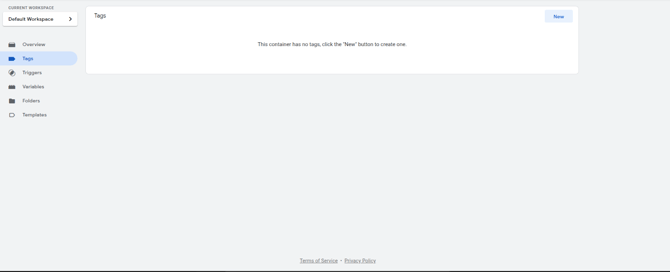
2. Go to the **Tags** tab and click **New** to create and name your tag (e.g., “Tradable Bits - Sales Tracker”).
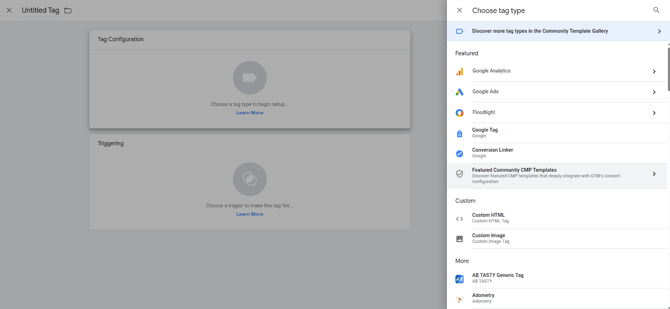
3. Click **Tag Configuration** and choose the **Custom HTML** tag type.
### Step 3: Populate the Tag with Tradable Bits Code
Now, you will paste the Tradable Bits code and use GTM's variables (more in this later) to pull in the dynamic data from the data layer that was set up in Step 1.
1. Paste the Tradable Bits code snippet into the HTML editor.
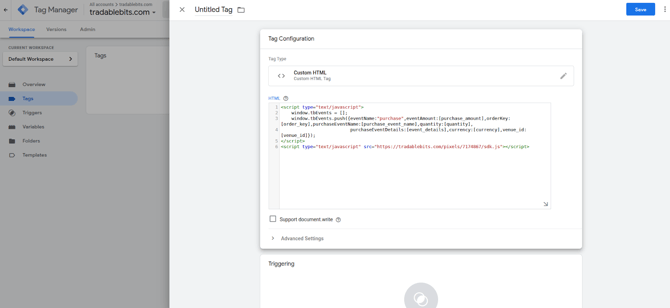
2. **Replace the bracketed placeholders** in the code (`[purchase_amount]`, etc.) with the GTM Data Layer Variables you will create in the next step.
Your code within GTM should look like this:
```
```
***Note:** The double curly braces `{{ }}`tell GTM to automatically fill in the value from the specified variable.*
### Step 4: Create GTM Variables
Before the tag can work, you need to create the variables it references. These variables tell GTM where to find the data you pushed to the data layer.
1. Go to the **Variables** section in GTM.
2. Under "User-Defined Variables," click **New**.
3. Choose the **Data Layer Variable** type.
4. For the **Data Layer Variable Name**, enter the exact name from your website's data layer, for example, `ecommerce.value`.
5. Set a user-friendly name, such as `dlv - purchase value`.
6. Repeat this process for each piece of data you need to track: `ecommerce.transaction_id`, `ecommerce.currency`, and any others.
### Step 5: Configure the Trigger
The final step is to tell your new tag exactly when to fire. The most reliable method is to use a **Custom Event** that corresponds to the event name in your data layer. This approach is more robust than other methods because it's directly tied to a confirmed action, not just a page URL.
**1. Create a Custom Event Trigger (Recommended Method)**
- Go back to your new tag and click the **Triggering** section.
- Create a **New Trigger** and choose the **Custom Event** type.
- In the "Event name" field, enter the name of your data layer event, which in this example is `purchase`.
- Save the trigger and then save your new tag.
This method ensures the Tradable Bits tracker fires only after a successful purchase event has occurred, guaranteeing accurate conversion tracking. It's the best option because an event signals a specific, successful action, whereas a page view might happen for other reasons (like a page refresh or a user bookmarking the page).
**2. Other Trigger Methods (Less Reliable)**
While using a custom event is best, there are alternative triggers you might encounter or consider, though they can be less accurate.
- **Page View Trigger:** This trigger fires when a user loads a specific page. You can set it to fire only when the **Page URL** contains a unique string like `/thank-you` or `/order-complete`. However, this is less reliable because the page could load due to a refresh or a user visiting the page directly, which would result in a false conversion.
- **Form Submission Trigger:** This trigger fires when a user submits a form. While useful for lead generation, it's not ideal for e-commerce purchases as it may not capture all the necessary transaction details like order value and quantity.
By understanding the differences, you can see why linking your tag to a specific `purchase` event in the data layer is the most accurate and dependable way to track sales.
- [Getting started](https://resources.tradablebits.com/support/getting-started?hsLang=en)
- [Account](https://resources.tradablebits.com/support/account?hsLang=en#main-content)
- [Security](https://resources.tradablebits.com/support/account?hsLang=en#security)
- [Integrations](https://resources.tradablebits.com/support/integrations?hsLang=en#main-content)
- [Outgoing Integrations](https://resources.tradablebits.com/support/integrations?hsLang=en#outgoing-integrations)
- [Incoming Integrations](https://resources.tradablebits.com/support/integrations?hsLang=en#incoming-integrations)
- [Salesforce Marketing Cloud](https://resources.tradablebits.com/support/integrations?hsLang=en#salesforce-marketing-cloud)
- [FAQs](https://resources.tradablebits.com/support/faqs?hsLang=en)
- [Troubleshooting](https://resources.tradablebits.com/support/troubleshooting?hsLang=en#main-content)
- [CSS/JS](https://resources.tradablebits.com/support/troubleshooting?hsLang=en#css-js)
- [Reports](https://resources.tradablebits.com/support/reports?hsLang=en)
- [Engagement Campaigns](https://resources.tradablebits.com/support/engagement-campaigns?hsLang=en#main-content)
- [Campaign Basics](https://resources.tradablebits.com/support/engagement-campaigns?hsLang=en#campaign-basics)
- [Campaign Management](https://resources.tradablebits.com/support/engagement-campaigns?hsLang=en#campaign-management)
- [Creating Campaigns](https://resources.tradablebits.com/support/engagement-campaigns?hsLang=en#creating-campaigns)
- [Best Practices and Troubleshooting](https://resources.tradablebits.com/support/engagement-campaigns?hsLang=en#best-practices-and-troubleshooting)
- [UGC](https://resources.tradablebits.com/support/ugc?hsLang=en)
- [Fan CRM](https://resources.tradablebits.com/support/fan-crm?hsLang=en)
- [Sales](https://resources.tradablebits.com/support/sales?hsLang=en)
- [Idols](https://resources.tradablebits.com/support/idols?hsLang=en)
- [Trackers](https://resources.tradablebits.com/support/trackers?hsLang=en)
- [Messaging](https://resources.tradablebits.com/support/messaging?hsLang=en#main-content)
- [SMS](https://resources.tradablebits.com/support/messaging?hsLang=en#sms)
- [Email](https://resources.tradablebits.com/support/messaging?hsLang=en#email)
- [Push Notifications](https://resources.tradablebits.com/support/messaging?hsLang=en#push-notifications)
- [Instagram](https://resources.tradablebits.com/support/messaging?hsLang=en#instagram)
- [Ads](https://resources.tradablebits.com/support/ads?hsLang=en)
- [Octane](https://resources.tradablebits.com/support/octane?hsLang=en)
- [Product Updates](https://resources.tradablebits.com/support/product-updates?hsLang=en)
[](https://tradablebits.com/)
Copyright © 2026, Tradable Bits