---
title: How do I set up a Landing Page campaign?
description: Here's a quick guide on how to set up a Homepage campaign.
---
[Skip to content](https://resources.tradablebits.com/support/how-do-i-set-up-a-homepage-campaign#main-content)
English
Show submenu for translations
![tradable-bits-long-logo-for-download.png\]](https://resources.tradablebits.com/hs-fs/hubfs/tradable-bits-long-logo-for-download.png?height=40&name=tradable-bits-long-logo-for-download.png)
Open main navigation
Close main navigation
- English
Show submenu for translations
How can we help?
- There are no suggestions because the search field is empty.
1. [Resources](https://resources.tradablebits.com/support?hsLang=en)
2. [Engagement Campaigns](https://resources.tradablebits.com/support/engagement-campaigns?hsLang=en)
3. [Creating Campaigns](https://resources.tradablebits.com/support/engagement-campaigns?hsLang=en#creating-campaigns)
# How do I set up a Landing Page campaign?
## Here's a quick guide on how to set up a Landing Page campaign.
Landing Page campaigns can be used to display an image, video, URL or custom HTML as a microsite or tab on Facebook. This campaign type is intended for showcasing content or redirecting fans, rather than capturing data.
### Configuration
Choose between the following page templates:
- Single Template
- Simple Template
- Youtube Template
- Link Page Template
- CTA Link Page
- HTML Template
- HTTPS Template
Complete the required fields according to your chosen template:
- Single Template
- Upload an image or input a URL to be the main page display
- Simple Template
- **Title:** Enter an engaging title to be displayed at the top of your campaign.
- **Top Image:** Upload an image file or provide a URL to feature as the main image at the top of your page.
- **Bottom Image**: Upload an image file or provide a URL to appear next on the page (directly underneath the top image).
- Choose whether to have image links open in a new window
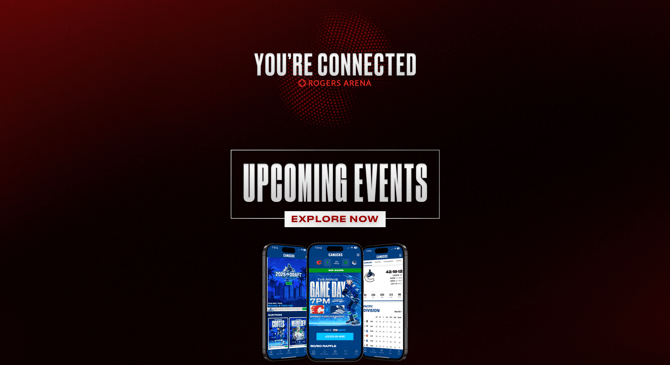
- Youtube Template
- **Title:** Enter an engaging title to be displayed at the top of your campaign.
- **Top Image:** Upload an image file or provide a URL to feature as the main image at the top of your page.
- **YouTube Video ID**: Enter the video ID for your intended YouTube video.
- **Bottom Image**: Upload an image file or provide a URL to appear next on the page.
- Choose whether to have image links open in a new window
- Link Page Template
- **Top Image:** Upload an image file to feature as the main image at the top of your page (we recommend **810 x 200 px**).
- **Top Logo Image:** Upload an image file to appear underneath the Top Image (1:1 aspect ratio).
- **Description**: Enter your text and change the formatting using the rich text editor.
- To embed a link, click **+ Add Link**:
- **Link Text**: Enter the title text of the link button
- **URL**: Input the URL of the intended link destination.
- Select **Generate Tracker** to add a landing tracker to the link.
- CTA Link Page
- **Top Image:** Upload an image file to feature as the main image at the top of your page (we recommend **810 x 200 px**).
- **Top Logo Image:** Upload an image file to appear underneath the Top Image (1:1 aspect ratio).
- **Description**: Enter your text and change the formatting using the rich text editor.
- To embed a link, click **+ Add Link**:
- **Title**: Enter the title text of the CTA
- **Column 1, 2 & 3:** Enter text to appear underneath the title.
- **Primary & Secondary Button Text**: Enter text to appear on CTA button.
- **URL:** Input relevant URL
- Select **Generate Tracker** to add a landing tracker to the link.
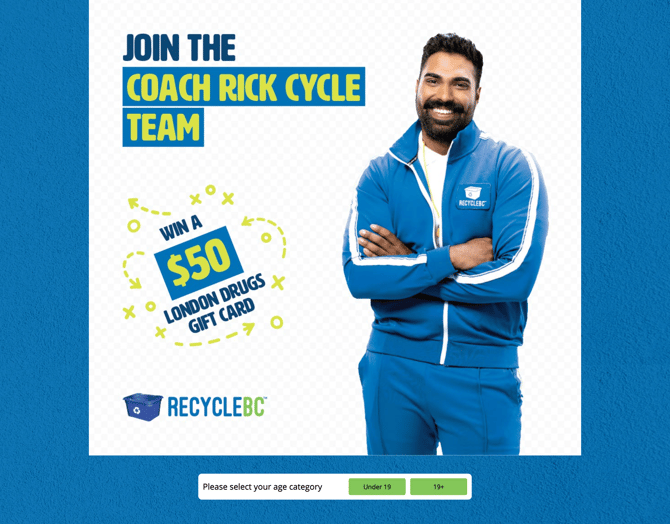
- HTML Template
- **iFrame Height**: Input the desired height of the HTML embed.
- **HTML Content**: Enter the HTML you wish to display (remember you can upload/embed images into the code).
- **Embedded Image 1, 2 & 3**: Upload up to three image files to be referenced in the code.
Once uploaded, reference images by special tags: **#image1#**, **#image2#** or **#image3#** and corresponding image will be injected instead of the tag.
- HTTPS Template
- - **iFrame Height**: Input the desired height of the website embed.
- **Content URL**: Enter the URL of your desired website to embed its content.
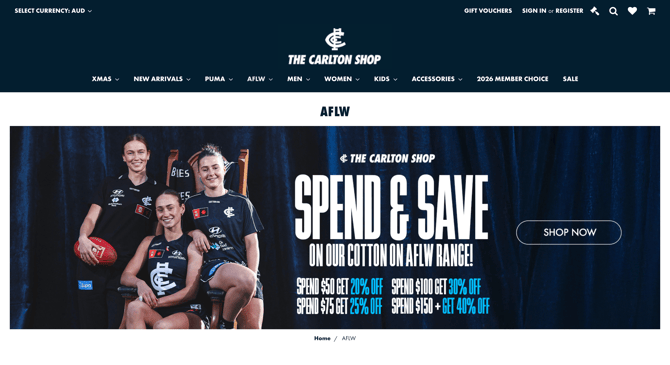
**Before publishing your campaign, be sure to review our[Campaign Publishing Checklist](https://resources.tradablebits.com/support/campaign-publishing-checklist?hsLang=en)for a smooth launch.**
**Still need assistance? Please reach out to your Customer Success Team or contact** [**support@tradablebits.com**](mailto:support@tradablebits.com)
- [Getting started](https://resources.tradablebits.com/support/getting-started?hsLang=en)
- [Account](https://resources.tradablebits.com/support/account?hsLang=en#main-content)
- [Security](https://resources.tradablebits.com/support/account?hsLang=en#security)
- [Integrations](https://resources.tradablebits.com/support/integrations?hsLang=en#main-content)
- [Outgoing Integrations](https://resources.tradablebits.com/support/integrations?hsLang=en#outgoing-integrations)
- [Incoming Integrations](https://resources.tradablebits.com/support/integrations?hsLang=en#incoming-integrations)
- [Salesforce Marketing Cloud](https://resources.tradablebits.com/support/integrations?hsLang=en#salesforce-marketing-cloud)
- [FAQs](https://resources.tradablebits.com/support/faqs?hsLang=en)
- [Troubleshooting](https://resources.tradablebits.com/support/troubleshooting?hsLang=en#main-content)
- [CSS/JS](https://resources.tradablebits.com/support/troubleshooting?hsLang=en#css-js)
- [Reports](https://resources.tradablebits.com/support/reports?hsLang=en)
- [Engagement Campaigns](https://resources.tradablebits.com/support/engagement-campaigns?hsLang=en#main-content)
- [Campaign Basics](https://resources.tradablebits.com/support/engagement-campaigns?hsLang=en#campaign-basics)
- [Campaign Management](https://resources.tradablebits.com/support/engagement-campaigns?hsLang=en#campaign-management)
- [Creating Campaigns](https://resources.tradablebits.com/support/engagement-campaigns?hsLang=en#creating-campaigns)
- [Best Practices and Troubleshooting](https://resources.tradablebits.com/support/engagement-campaigns?hsLang=en#best-practices-and-troubleshooting)
- [UGC](https://resources.tradablebits.com/support/ugc?hsLang=en)
- [Fan CRM](https://resources.tradablebits.com/support/fan-crm?hsLang=en)
- [Sales](https://resources.tradablebits.com/support/sales?hsLang=en)
- [Idols](https://resources.tradablebits.com/support/idols?hsLang=en)
- [Trackers](https://resources.tradablebits.com/support/trackers?hsLang=en)
- [Messaging](https://resources.tradablebits.com/support/messaging?hsLang=en#main-content)
- [SMS](https://resources.tradablebits.com/support/messaging?hsLang=en#sms)
- [Email](https://resources.tradablebits.com/support/messaging?hsLang=en#email)
- [Push Notifications](https://resources.tradablebits.com/support/messaging?hsLang=en#push-notifications)
- [Instagram](https://resources.tradablebits.com/support/messaging?hsLang=en#instagram)
- [Ads](https://resources.tradablebits.com/support/ads?hsLang=en)
- [Octane](https://resources.tradablebits.com/support/octane?hsLang=en)
- [Product Updates](https://resources.tradablebits.com/support/product-updates?hsLang=en)
[](https://tradablebits.com/)
Copyright © 2026, Tradable Bits