![tradable-bits-long-logo-for-download.png]](https://resources.tradablebits.com/hs-fs/hubfs/tradable-bits-long-logo-for-download.png?height=40&name=tradable-bits-long-logo-for-download.png)
Prerequisites:
For this integration you will need the following from Google Cloud/BigQuery:
- A service account with proper permissions for managing BigQuery entities
- A BigQuery table with columns matching any included core/custom field mappings, along with the following:
source (STRING, will always be "Tradable Bits"),source_id (INTEGER, fan_id from our platform),created_at (DATETIME),exported_at (DATETIME),campaign_ids (INTEGER REPEATED),tags (STRING REPEATED)
Set Up Steps:
We will begin on the BigQuery side then finish the set up on the Tradable Bits side!
BigQuery Setup Steps:
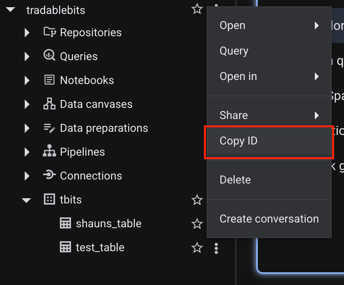
To get your Full table path:
- Go to the BigQuery page in the Google Cloud console.
- In the left Explorer pane, expand your project, then your dataset.
- The list of tables will be displayed under the dataset name.
- Click the ellipses next to your dataset name and select Copy ID to get your full table path
To get your Service Account Key File:
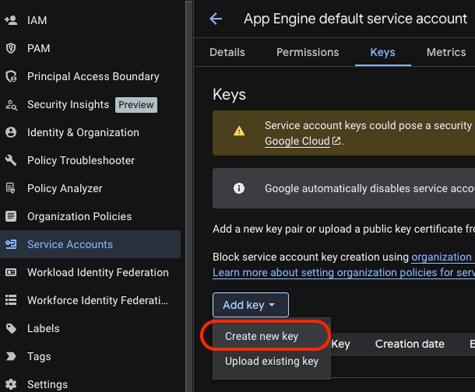
- Navigate to the Service accounts page in the Google Cloud Console.
- Select your project from the top menu.
- Click the email address of the desired service account.
- Go to the Keys tab.
- Click the Add Key dropdown menu, then select Create new key.
- Select JSON as the key type and click Create to download the key file.
Tradable Bits Setup Steps:
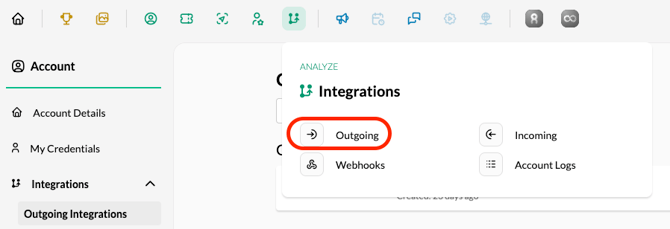
1. Login to your Tradable Bits account and go to the Top Navigation Bar
2. Select Integrations from the dropdown menu
3. Select Outgoing Integrations
4. Hit the +New button and select Google BigQuery from the dropdown menu
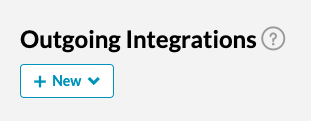
5. Give your integration a name and input the name of the BigQuery table to insert fan data into (Must be full table path i.e. dataset.table_name), as well as your Service Account Key info (Please ensure the service account has proper permissions for managing BigQuery entities.)
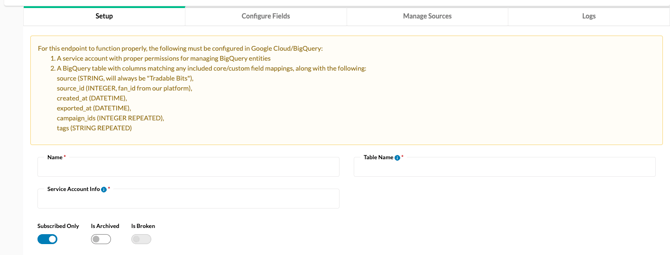
6. Test your integration to ensure proper connection

Still need assistance? Please reach out to your Customer Success Manager or contact support@tradablebits.com