![tradable-bits-long-logo-for-download.png]](https://resources.tradablebits.com/hs-fs/hubfs/tradable-bits-long-logo-for-download.png?height=40&name=tradable-bits-long-logo-for-download.png)
Basic emails are a simple transactional email that lets you send a batch of emails to your fans using a custom filter or snapshot of your choice. Use the Fan CRM to search and segment your desired audience of fans, and save them as a snapshot or filter. From there, you can set up a basic email template that will send to this audience, which includes a header image, body text and a CTA.
Every Tradable Bits subscription includes up to 100K email sends "out-of-the-box". Basic emails are one of two "out-of-the-box" transactional campaign options that you can create in Tradable Bits.
From your Tradable Bits Homepage, hover over the Top Navigation Bar and head to Messaging > Email Campaigns to begin.
1. Click the + New Campaign button at the top right of the page
2. Select Basic Campaign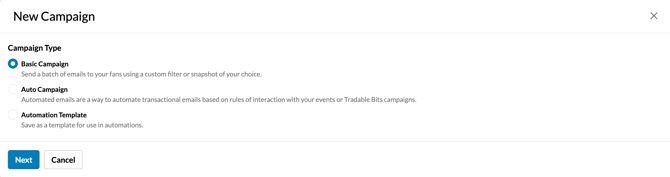
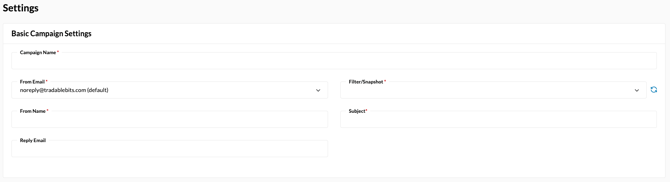
3. Build your email campaign from Settings:
-
Choose a Campaign Name
- Set your From Name and From Email
- Set your Reply Email
-
Choose your audience: You will be prompted to choose a Filter or Snapshot in a drop-down menu. The menu will display ALL of your saved filters or snapshots to choose from. Select your preferred audience.
-
Input your Subject Line: This is the subject line that your fans will see in their email inbox.
-
Filter Type: There are two audience segmentation types to choose from
Then, choose Email Editor from the left menu to customize your email and add your content:
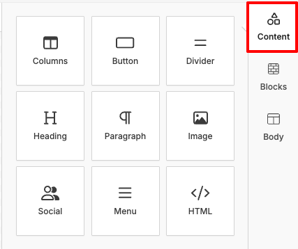
- Drag and drop the elements you wish to include in your email from the Content tab at the top right.
-
Dynamic Personalization: Add personalized fan details directly into any text element (headings, paragraphs, etc.):
- Simply type { while editing text to open a prompt with First Name and Last Name options.
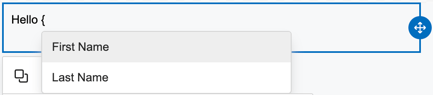
- Selecting an option will automatically insert merge variables (e.g., [First_Name]) that dynamically populate with the recipient's CRM data upon sending.
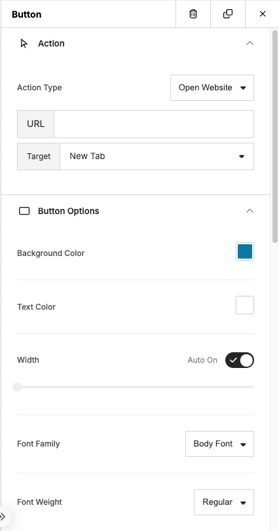
- Click on the Content item you've dragged onto the page to edit it directly.
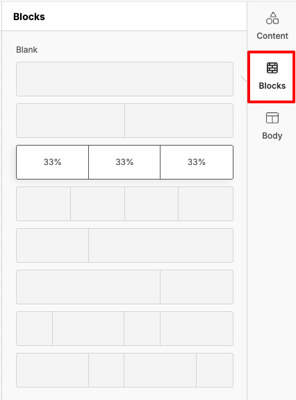
- Use one of the pre-created block formatting options from the Block tab.
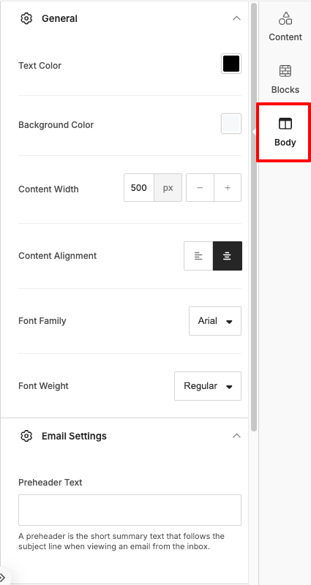
- Choose your colours, fonts, accessibility settings, and design from the Body tab.
4. Hit Save
Note: You can't save a campaign as a template, but you can reuse your design by clicking Copy to duplicate any existing campaign from the dashboard.
5. Then, from the Email Campaigns dashboard, expand the Auto Campaigns menu to find your new campaign. Here, you can refresh (re-sync) your audience, send a test or activate your campaign.
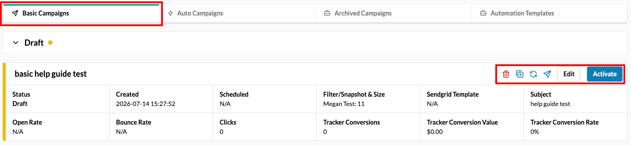
6. To continue editing, hit the pencil icon or the trash icon to delete your campaign.
That's it! You've now created your basic email campaign.
Still need assistance? Please reach out to your Customer Success Team or contact support@tradablebits.com