---
title: How do I pull an Attendee Stats Report?
description: Monitor entry flow and venue capacity in real time. Learn how to track ticket scans, analyze gate traffic, and generate reports with Attendee Stats.
---
[Skip to content](https://resources.tradablebits.com/support/how-do-i-pull-an-attendee-stats-report-#main-content)
English
Show submenu for translations
![tradable-bits-long-logo-for-download.png\]](https://resources.tradablebits.com/hs-fs/hubfs/tradable-bits-long-logo-for-download.png?height=40&name=tradable-bits-long-logo-for-download.png)
Open main navigation
Close main navigation
- English
Show submenu for translations
How can we help?
- There are no suggestions because the search field is empty.
1. [Resources](https://resources.tradablebits.com/support?hsLang=en)
2. [Sales](https://resources.tradablebits.com/support/sales?hsLang=en)
# How do I pull an Attendee Stats Report?
## Here's a quick guide to walk you through creating and interpreting a Attendee Stats Report.
The **Attendee Stats** reporting tool provides a comprehensive breakdown of ticket scans and fan attendance data within a specific timeframe. This section is essential for monitoring entry flow, tracking venue capacity, and evaluating scanning operations across your venue based on verified attendance records.
**Use Case Example:** Filter by "Zones" during an active event to identify which venue entrances are experiencing the highest traffic, or review scan failure rates at specific gates to optimise crowd safety and future logistical planning.
From your Tradable Bits Homepage, hover over the top navigation bar and head to **Sales** \> **Stats** \> **Attendee Stats**.
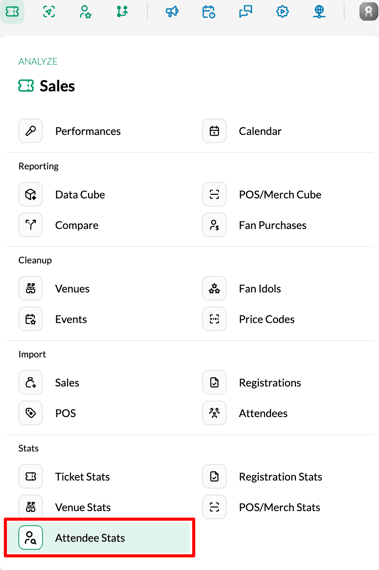
#### Step 1: Set your desired results parameters
To narrow down your results and see exactly which activations are driving the highest fan acquisition, configure your parameters:
- **Date Range:** Select the specific window of time you want to analyse for attendance.
- **Group set**: An identifier used for grouping sets of related scans (primarily utilised for Ticketmaster integrations).
- **Event Name:** Filter by specific registration events or activations to isolate their performance.
- **Venue Name:** Limit your results to registrations tied to specific physical venues or stadiums.
#### Step 2: Generate your Report
Once your parameters are set, click the **Apply** button to generate your registration stats.
The report provides visibility into the following metrics through a table view:
- **Group Set**: Set of related scans (often categorising an entrance, eg, Gate 7)
- **Zone**: A specific zone/section inside the event venue (eg, GA)
- **Successful Scans**: The total number of successfully validated tickets.
- **Failed Scans**: The number of rejected or invalid scan attempts.
- **Total Scans**: Number of successful and failed scans combined.
**Tip:** If you have external scanning data, you can upload it manually using the **Attendees Import** feature to keep all your venue metrics centralised. Find it under **Sales \> Import \> Attendees**.
**Still need assistance? Please reach out to your Customer Success Team or contact [support@tradablebits.com](mailto:support@tradablebits.com)**
- [Getting started](https://resources.tradablebits.com/support/getting-started?hsLang=en)
- [Account](https://resources.tradablebits.com/support/account?hsLang=en#main-content)
- [Security](https://resources.tradablebits.com/support/account?hsLang=en#security)
- [Integrations](https://resources.tradablebits.com/support/integrations?hsLang=en#main-content)
- [Outgoing Integrations](https://resources.tradablebits.com/support/integrations?hsLang=en#outgoing-integrations)
- [Incoming Integrations](https://resources.tradablebits.com/support/integrations?hsLang=en#incoming-integrations)
- [Salesforce Marketing Cloud](https://resources.tradablebits.com/support/integrations?hsLang=en#salesforce-marketing-cloud)
- [FAQs](https://resources.tradablebits.com/support/faqs?hsLang=en)
- [Troubleshooting](https://resources.tradablebits.com/support/troubleshooting?hsLang=en#main-content)
- [CSS/JS](https://resources.tradablebits.com/support/troubleshooting?hsLang=en#css-js)
- [Reports](https://resources.tradablebits.com/support/reports?hsLang=en)
- [Engagement Campaigns](https://resources.tradablebits.com/support/engagement-campaigns?hsLang=en#main-content)
- [Campaign Basics](https://resources.tradablebits.com/support/engagement-campaigns?hsLang=en#campaign-basics)
- [Campaign Management](https://resources.tradablebits.com/support/engagement-campaigns?hsLang=en#campaign-management)
- [Creating Campaigns](https://resources.tradablebits.com/support/engagement-campaigns?hsLang=en#creating-campaigns)
- [Best Practices and Troubleshooting](https://resources.tradablebits.com/support/engagement-campaigns?hsLang=en#best-practices-and-troubleshooting)
- [UGC](https://resources.tradablebits.com/support/ugc?hsLang=en)
- [Fan CRM](https://resources.tradablebits.com/support/fan-crm?hsLang=en)
- [Sales](https://resources.tradablebits.com/support/sales?hsLang=en)
- [Idols](https://resources.tradablebits.com/support/idols?hsLang=en)
- [Trackers](https://resources.tradablebits.com/support/trackers?hsLang=en)
- [Messaging](https://resources.tradablebits.com/support/messaging?hsLang=en#main-content)
- [SMS](https://resources.tradablebits.com/support/messaging?hsLang=en#sms)
- [Email](https://resources.tradablebits.com/support/messaging?hsLang=en#email)
- [Push Notifications](https://resources.tradablebits.com/support/messaging?hsLang=en#push-notifications)
- [Instagram](https://resources.tradablebits.com/support/messaging?hsLang=en#instagram)
- [Ads](https://resources.tradablebits.com/support/ads?hsLang=en)
- [Octane](https://resources.tradablebits.com/support/octane?hsLang=en)
- [Product Updates](https://resources.tradablebits.com/support/product-updates?hsLang=en)
[](https://tradablebits.com/)
Copyright © 2026, Tradable Bits