---
title: How do I pull a Registration Stats Report?
description: Learn how to use the Tradable Bits Registration Stats tool to track database growth, analyze campaign registrations, and export core metric reports.
---
[Skip to content](https://resources.tradablebits.com/support/how-do-i-pull-a-registration-stats-report#main-content)
English
Show submenu for translations
![tradable-bits-long-logo-for-download.png\]](https://resources.tradablebits.com/hs-fs/hubfs/tradable-bits-long-logo-for-download.png?height=40&name=tradable-bits-long-logo-for-download.png)
Open main navigation
Close main navigation
- English
Show submenu for translations
How can we help?
- There are no suggestions because the search field is empty.
1. [Resources](https://resources.tradablebits.com/support?hsLang=en)
2. [Sales](https://resources.tradablebits.com/support/sales?hsLang=en)
# How do I pull a Registration Stats Report?
## Here's a quick guide to walk you through creating and interpreting a Registration Stats Report.
The Registration Stats reporting tool provides a focused view of fan sign-ups and non-purchase entries within a specific timeframe. This section is essential for measuring the growth of your database and tracking the success of your registration-based campaigns. Follow this step-by-step guide to configure, analyse, and share your data reports.
**Use Case Example:** Want to see the exact impact of a promotional push? You can generate a report for a campaign to see the total number of new registrations gathered during the critical week leading up to the event.
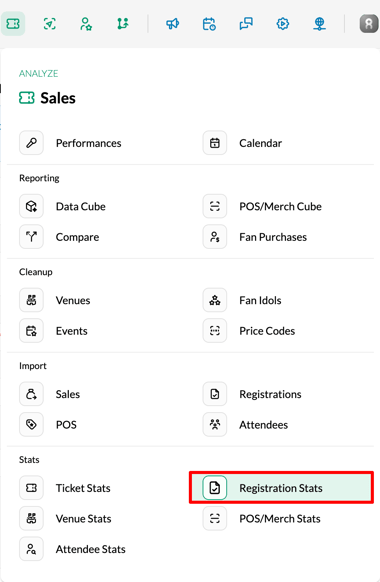
From your Tradable Bits Homepage, hover over the top navigation bar and head to **Sales** \> **Stats** \> **Registration Stats**.
### Step 1: Set your desired results parameters
To narrow down your results and see exactly which activations are driving the highest fan acquisition, configure your parameters:
- **Event Name:** Filter by specific registration events or activations to isolate their performance.
- **Venue:** Limit your results to registrations tied to specific physical venues or stadiums.
- **Date Range:** Select the specific window of time you want to analyse for sign-ups.
### Step 2: Generate your Report
Once your parameters are set, click the **Apply** button to generate your registration stats.
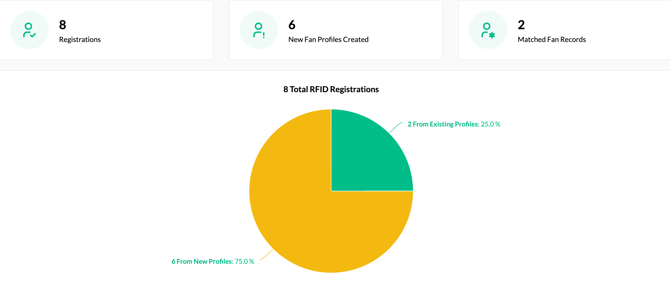
The report provides visibility into the following core metrics:
- Registrations
- New Fan Profiles Created
- Matched Fan Records
### Visual & Data Breakdowns
- **Total Registrations:** A pie chart comparing the RFID Registrations from existing versus New Profiles.
- **Past Registrations**: A table view breaking down monthly performance, highlighted by *Registrations, New Fan Profiles Created,* and *Matched Fan Records.*
**Still need assistance? Please reach out to your Customer Success Team or contact [support@tradablebits.com](mailto:support@tradablebits.com)**
- [Getting started](https://resources.tradablebits.com/support/getting-started?hsLang=en)
- [Account](https://resources.tradablebits.com/support/account?hsLang=en#main-content)
- [Security](https://resources.tradablebits.com/support/account?hsLang=en#security)
- [Integrations](https://resources.tradablebits.com/support/integrations?hsLang=en#main-content)
- [Outgoing Integrations](https://resources.tradablebits.com/support/integrations?hsLang=en#outgoing-integrations)
- [Incoming Integrations](https://resources.tradablebits.com/support/integrations?hsLang=en#incoming-integrations)
- [Salesforce Marketing Cloud](https://resources.tradablebits.com/support/integrations?hsLang=en#salesforce-marketing-cloud)
- [FAQs](https://resources.tradablebits.com/support/faqs?hsLang=en)
- [Troubleshooting](https://resources.tradablebits.com/support/troubleshooting?hsLang=en#main-content)
- [CSS/JS](https://resources.tradablebits.com/support/troubleshooting?hsLang=en#css-js)
- [Reports](https://resources.tradablebits.com/support/reports?hsLang=en)
- [Engagement Campaigns](https://resources.tradablebits.com/support/engagement-campaigns?hsLang=en#main-content)
- [Campaign Basics](https://resources.tradablebits.com/support/engagement-campaigns?hsLang=en#campaign-basics)
- [Campaign Management](https://resources.tradablebits.com/support/engagement-campaigns?hsLang=en#campaign-management)
- [Creating Campaigns](https://resources.tradablebits.com/support/engagement-campaigns?hsLang=en#creating-campaigns)
- [Best Practices and Troubleshooting](https://resources.tradablebits.com/support/engagement-campaigns?hsLang=en#best-practices-and-troubleshooting)
- [UGC](https://resources.tradablebits.com/support/ugc?hsLang=en)
- [Fan CRM](https://resources.tradablebits.com/support/fan-crm?hsLang=en)
- [Sales](https://resources.tradablebits.com/support/sales?hsLang=en)
- [Idols](https://resources.tradablebits.com/support/idols?hsLang=en)
- [Trackers](https://resources.tradablebits.com/support/trackers?hsLang=en)
- [Messaging](https://resources.tradablebits.com/support/messaging?hsLang=en#main-content)
- [SMS](https://resources.tradablebits.com/support/messaging?hsLang=en#sms)
- [Email](https://resources.tradablebits.com/support/messaging?hsLang=en#email)
- [Push Notifications](https://resources.tradablebits.com/support/messaging?hsLang=en#push-notifications)
- [Instagram](https://resources.tradablebits.com/support/messaging?hsLang=en#instagram)
- [Ads](https://resources.tradablebits.com/support/ads?hsLang=en)
- [Octane](https://resources.tradablebits.com/support/octane?hsLang=en)
- [Product Updates](https://resources.tradablebits.com/support/product-updates?hsLang=en)
[](https://tradablebits.com/)
Copyright © 2026, Tradable Bits