![tradable-bits-long-logo-for-download.png]](https://resources.tradablebits.com/hs-fs/hubfs/tradable-bits-long-logo-for-download.png?height=40&name=tradable-bits-long-logo-for-download.png)
To set up a TikTok Conversions API (CAPI) Pixel, you will create a unified data source in TikTok Ads Manager that combines standard browser-side tracking with server-to-server data transmission.
1. Initialise the Web Data Source
Start by creating a new pixel that supports both methods.
- Log in to TikTok Ads Manager.
- Navigate to Tools > Events Manager.
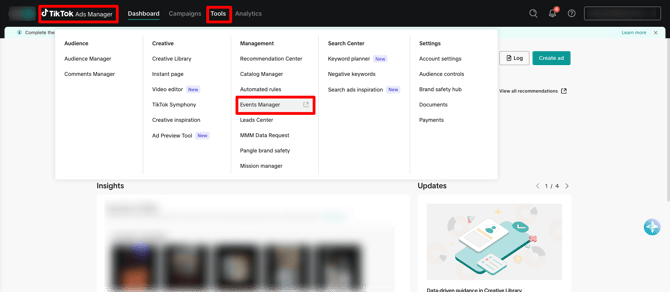
- Click Connect Data Source and select Web.
- Skip the URL setup and select Manual Setup.
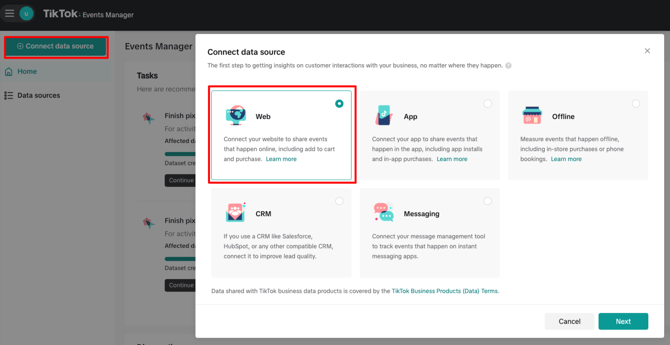
2. Configure for Pixel + Events API
This step ensures your pixel is ready for the CAPI connection.
- Select TikTok Pixel + Events API as your connection method.
- Name your Pixel: Use a descriptive name like "Brand - Main Site - CAPI".
- Click Next on Base Code page
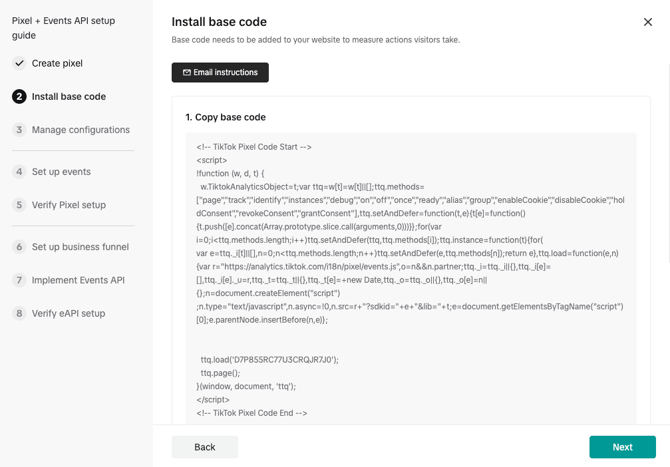
- Enable Advanced Matching on the Manage configurations page
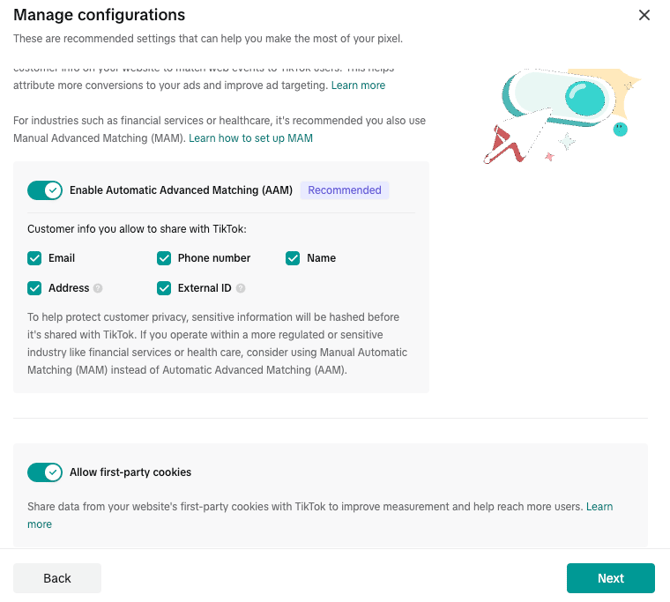
3. Generate the API Access Token
Click Next until you get to ‘Implement Events API’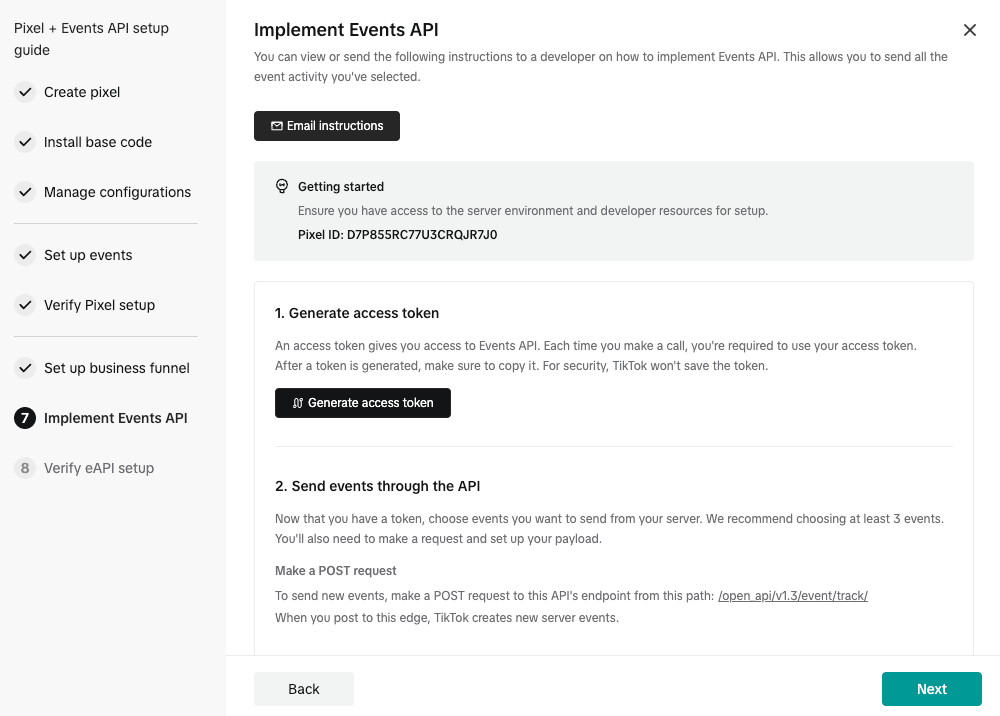
- Click Generate access token
- Copy and save this token immediately, as it may not be visible again.
You can then click next and finish the setup of the CAPI Pixel.
4. Implement on Tradable Bits
Use your Pixel ID and Access Token to link your TBs Data Feed to TikTok:
- Go to QAA > Pixels (Datasets) and select New Pixel
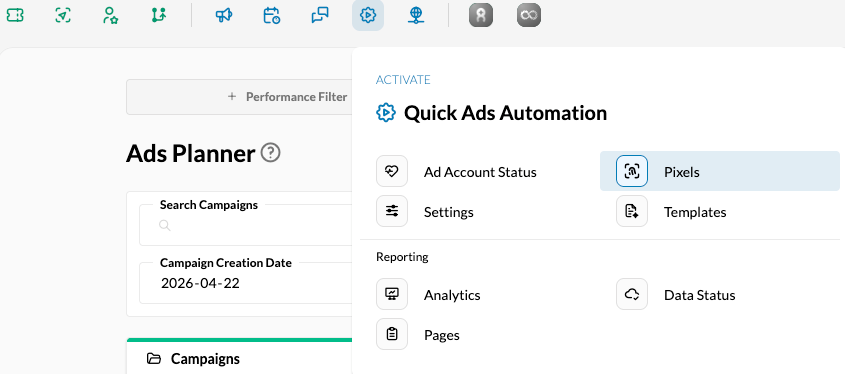
- Select new Pixel, then add the Pixel ID, Pixel Name and Access Token from the TikTok Ads Platform
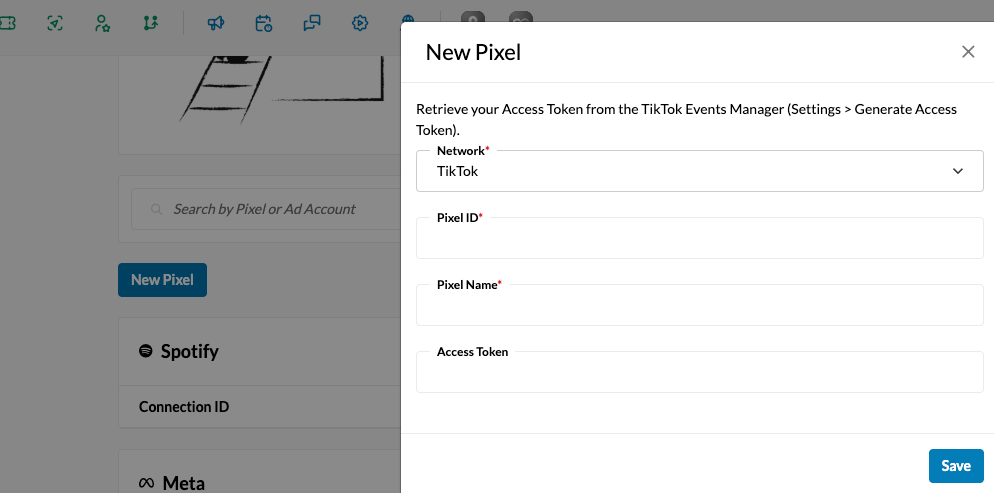
- Hit save then hit the checkbox to enable TB CAPI to start sending data from your data feed to TikTok.
5. Verify the Connection
Before going live, ensure data is flowing from both sources.
- Go to the Data Sources tab in TikTok Events Manager.
- Check that your CAPI Pixel is receiving events.
- This can take a few hours to populate from enabling CAPI in TB.