![tradable-bits-long-logo-for-download.png]](https://resources.tradablebits.com/hs-fs/hubfs/tradable-bits-long-logo-for-download.png?height=40&name=tradable-bits-long-logo-for-download.png)
Things to check prior to setup:
- Check if the Ticketing/Membership/POS integration is working within TBits
STEP 1: Create a new dataset natively in Meta Events Manager
Go to Events Manager > Connect Data > Web
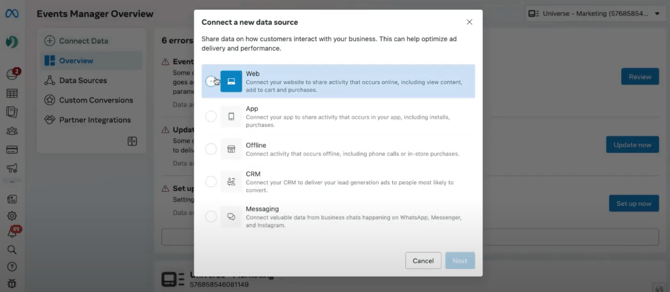
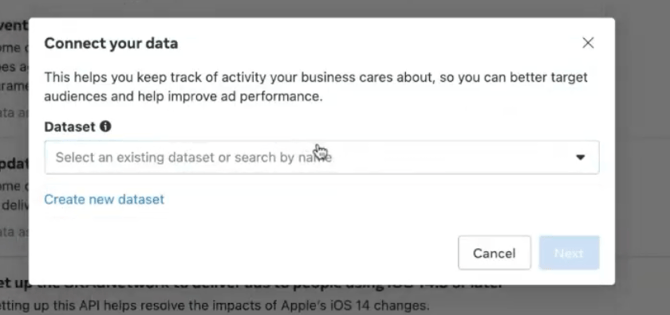
Create a new dataset
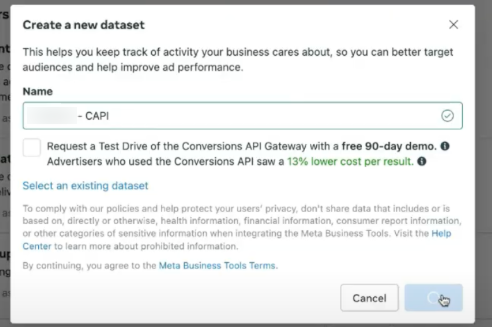
We recommend adding “CAPI” to the name for better identification afterwards
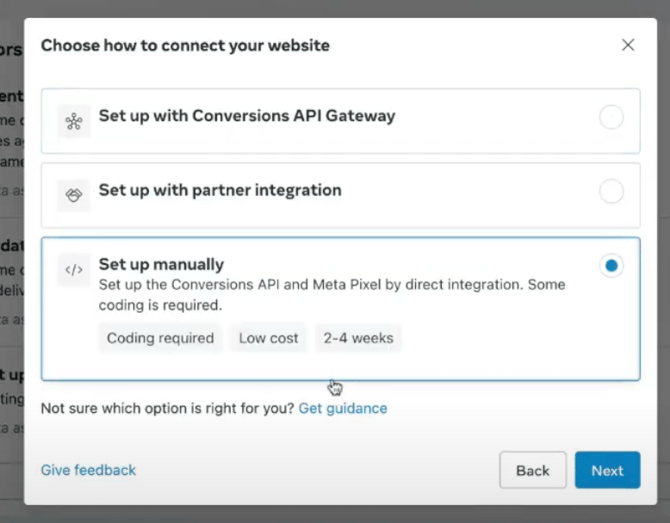
Choose -> Set up manually
Select Conversions API
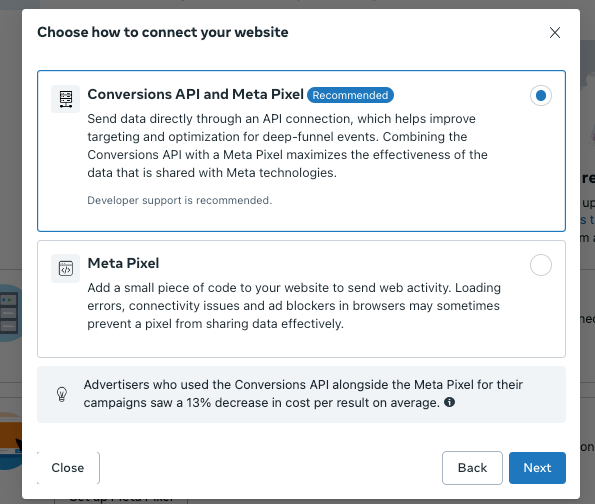
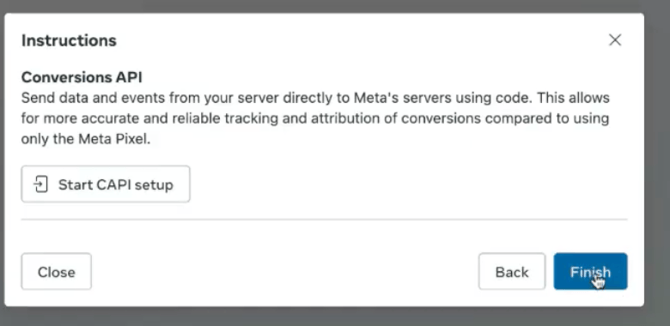
Press Finish
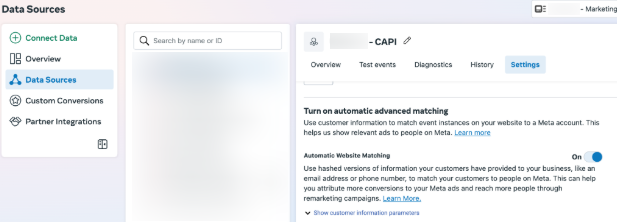
STEP 2: Turn on Automatic Website Matching on the new pixel
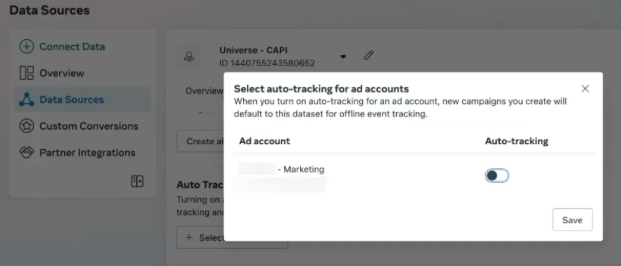
STEP 3: Turn off auto-tracking for ad accounts
Now the New Pixel/Dataset is good to go!!
TBits QAA > Pixels (Datasets), the new pixel might not show up yet, so we will have to go to the Meta ad account > Conversions > Pixels to load it first (CAPI is there):
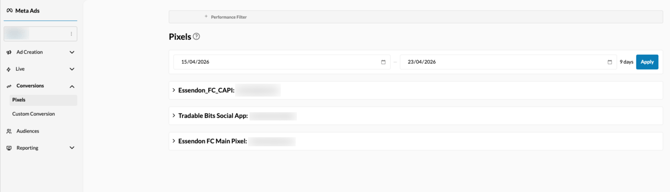
Now, the CAPI pixel should show up in QAA > Pixels (Datasets).
STEP 4: Enable CAPI by clicking the checkbox
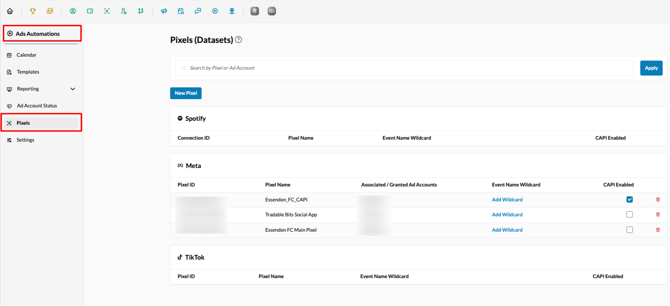
The CAPI Pixel is now enabled and events will start sending to Meta.
STEP 5: Check CAPI is working properly in Events Manager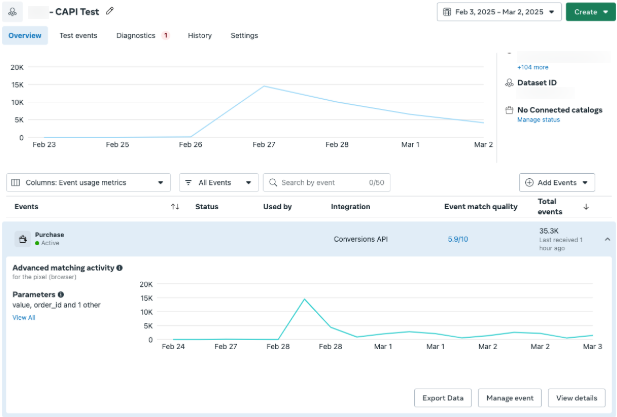
Check to see if events are properly being sent from TBits to Meta for CAPI - only the Purchase event should be there.
STEP 6: Verify the functionality of the CAPI Pixel
In Meta Events Manager, go to the CAPI Pixel > Purchase > View Details > Sampled activities > hover over Event Parameters to see what’s being sent
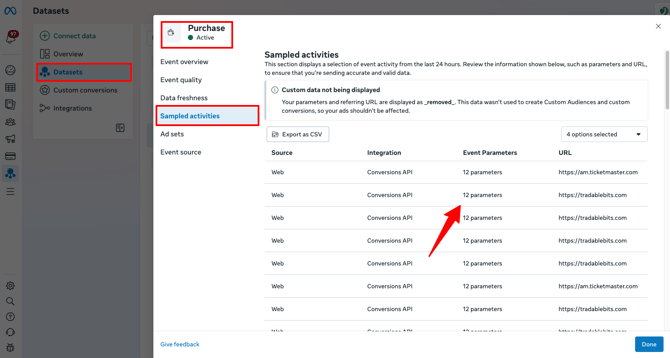
Parameters should match ticketing/membership/merchandise within TBits since it’s being pushed from TBits.
The URL indicates where the Information is coming from and also what kind of Data comes into the Pixel
- The TB CAPI connection will try to identify the URL where the Purchase is made, if we are able to match it in our system you will see the ticketing platform domain.
- There will also be use cases where the URL will be www.tradablebits.com, this is due to not being able to match the purchase to our TB Pixel and if the ticketing site doesn’t give us the URL in our data feed.