![tradable-bits-long-logo-for-download.png]](https://resources.tradablebits.com/hs-fs/hubfs/tradable-bits-long-logo-for-download.png?height=40&name=tradable-bits-long-logo-for-download.png)
Adding Hyperlinks in custom fields allows you to link your entry forms to external resources and documentation.
From your campaign setup page, navigate to Design > Localize Language, and select the field section you want to edit from the right-hand menu (e.g., Entry Form Field or Custom Fields).
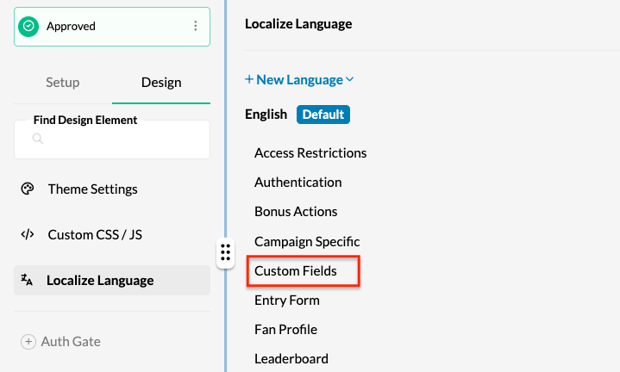
To add a hyperlink to your chosen field, copy and paste the following tag into the text body of the custom field:
<a target="_blank" href="https://www.websitename.com">Hyperlink Text</a>
Replace "Hyperlink Text" in the code snippet with the word you want hyperlinked and "https://www.websitename.com" with the full URL of where you would like the link to direct to.

Your entry form will now display the custom field as a hyperlink like the example below.
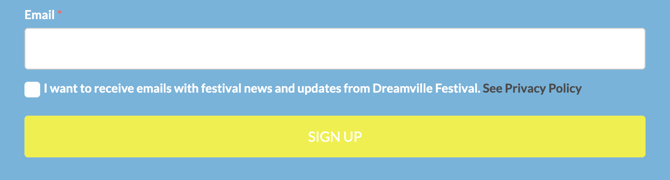
*Hyperlinks are only supported in Localize Language fields that appear as static text, and cannot be added to fields that are formatted as a button or a notification overlay.