![tradable-bits-long-logo-for-download.png]](https://resources.tradablebits.com/hs-fs/hubfs/tradable-bits-long-logo-for-download.png?height=40&name=tradable-bits-long-logo-for-download.png)
Introducing: SMS CAMPAIGNS
Get your fans to take notice, immediately.
The What
SMS Planner is a convenient way to build and schedule SMS campaigns using Tradable Bits’ hyper-targeted audience segments. Using SMS Campaigns you can pre-define your audience, set your campaign date & budget, define your media & SMS message and report on the success of your campaign.
The Why
To make “direct-to-fan-marketing” more effective and more manageable for your teams. SMS Planner is built directly into the Tradable Bits ecosystem so that when your team is ready to build and launch an SMS campaign, they can target your most valuable fans with the click of a button. Use SMS Planner to build an efficient workflow for your organization, and diversify your communication channels without overloading your team.
The Where
On your Tradable Bits Homepage, using the Top Navigation Bar, hover over the Messaging Icon. Using the dropdown, select Incoming SMS.
The How:
Section 1: Create a New Campaign
1. Click on the + New Campaign button in the top right corner of the page
2. Select the Campaign Type (Audience Based or Trigger Based)
3. Fill in Campaign Details
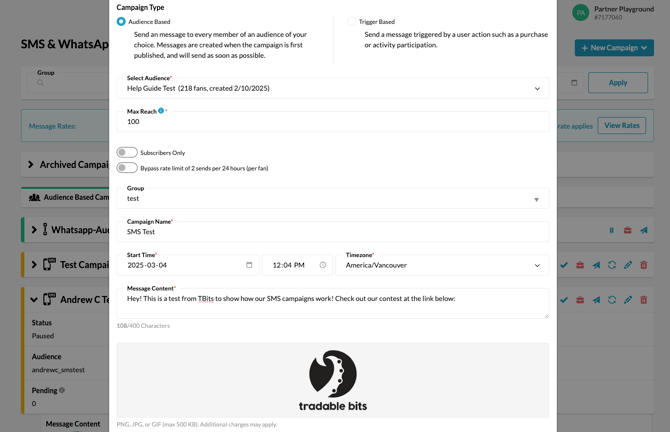
Audience: The Audience drop-down tab will display all of your existing filters, categorized by group name. To see all of your existing filters, go to FanCRM > Filters > Manage. To create a new filter for your SMS campaign, go to FanCRM>Search, define all necessary search parameters and then click “Save Filter”
Max Reach: This field allows you to define the total limit of messages sent out
To get a clear understanding of your budgeting, we recommend forecasting auto-replies & inbound SMS messages from your fans, so you can accurately estimate an appropriate spend limit.
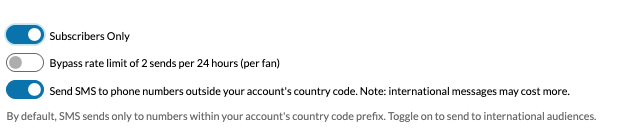
Subscribers Only: This toggle allows you to send your SMS messages only to the fans that have explicitly opted into receive SMS communication and are marked as 'phone subscribed' in Tradable Bits. We highly recommend only sending SMS messages to the fans that have subscribed, or opted-in to receiving SMS messages as there could be legal implications for not doing so.
ByPass Rate Limit: By default, our system will only send 2 text messages (max) out to phone numbers every 24 hours to reduce spamming fans. If you would like to bypass this, you can toggle this on, but we recommend only reserving this for important announcements or emergenices.
Send SMS to Phone Numbers outside your account's Country code: By default, our system will only send to phone numbers that match the country prefix of your Account (ie- if you are an American company, SMS messages will only be sent to +1 prefix phone numbers based in the USA and Canada). If you want to ensure that messages also go out to international phone numbers, you can toggle this feature on, but please note that there will be additional costs associated with doing so. Be sure to view the message rates at the top of the SMS Campaigns Planner.

Group: This field allows you to organize all of your SMS campaigns into categories for easier maintenance. For example, if you’re running multiple SMS campaigns for your upcoming on-sale, you can use the group name “X on-sale 2021”
Campaign Name: This field defines your campaign name. We recommend creating appropriate naming conventions for your campaigns
Start Time: The Date and Time you would like your campaign to start sending to your fans
SMS Content: This field is where you enter your SMS content. You can add additional media with the “+Add Media” button, including images or GIFS.
URL Link: End your SMS with a powerful CTA, and use this field to enter the URL you would like fans to visit.
Auto Reply Content: Chances are your SMS messages are just so personal that a fan can’t help but reply. To prevent a fan from shouting “into the void” just to feel like they’ve been abandoned, use this field to craft an auto-reply message.
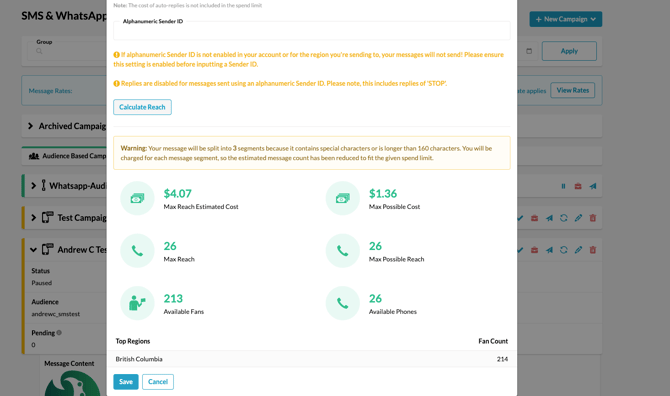
Calculate Reach: Once you’ve input all of your parameters, you can click this button at the bottom of the campaign set up modal to get a sense of your spend and reach. You will see:
- Estimated Messages
- Total Fans
- # of Phone Numbers your SMS will be sent to
- How many of your fans are subscribers
- The Top Regions your fans are in, and how many are in each region
Section 2: Quick Campaign Overview
Once your SMS Campaign is active, you can see a quick summary of its performance by clicking into each campaign.
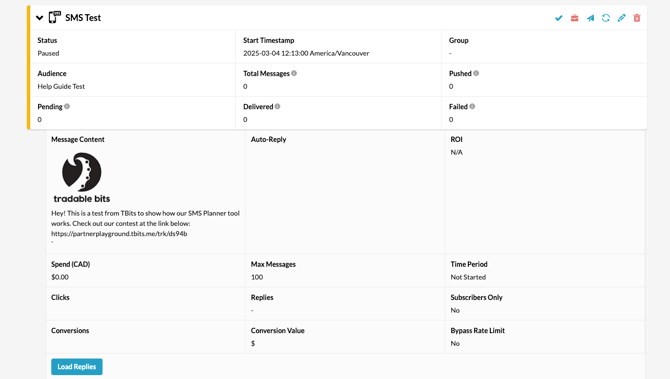
View your spend, clicks, conversions, replies, conversion amount and more.
Still need assistance? Please reach out to your Customer Success Team or contact support@tradablebits.com