![tradable-bits-long-logo-for-download.png]](https://resources.tradablebits.com/hs-fs/hubfs/tradable-bits-long-logo-for-download.png?height=40&name=tradable-bits-long-logo-for-download.png)
Custom conversions are rules that you can set up to track specific events related to your campaigns. For example, you can filter all purchases tied to a specific artist. You can also use custom conversions to optimize your ad delivery and reach people who are most likely to take the actions you care about. These conversions are matched against the people that your ads were delivered to, to determine the performance of the Ad Campaign.
Creating Custom Conversions
Meta Custom conversions can be created in three different ways
- Through the Tradable Bits Website, separately for each event
- Through a bulk upload sheet via Import
- Directly within the Meta Ads Manager
How do I create the Custom Conversion for each event via the Tradable Bits Homepage?
Follow the steps outlined below to create custom conversions. Note: Only 100 Custom Conversions can be set up at a time for a particular Meta Ads Account.
-
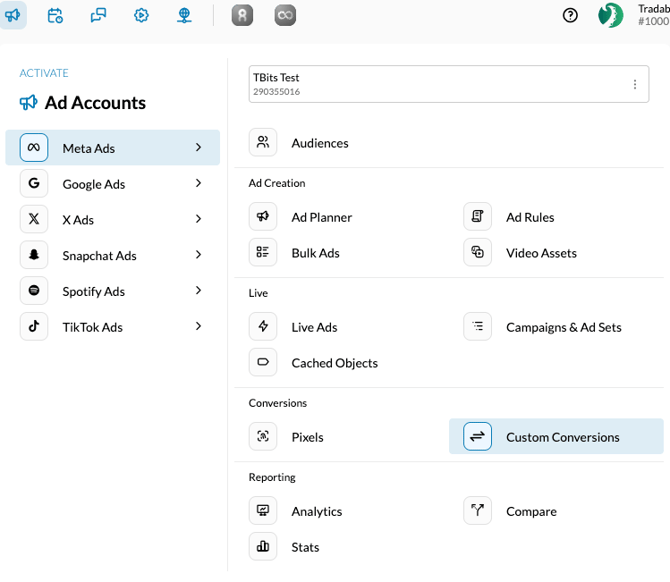
In the Tradable Bits Homepage, hover over the Ad Accounts section in the Top Navigation Bar, click Meta Ads, select your desired ad account, and click Custom Conversions.
- Click on "Custom Conversions"
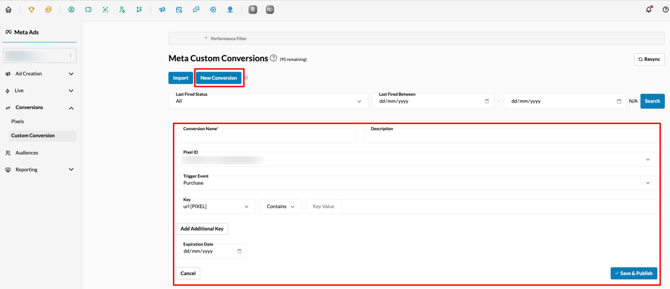
- Click on "New Conversion"
Creating New Custom Conversion
Enter the following details to create a new conversion
- Conversion Name: A name to help you identify the custom conversion for reporting or future use.
- CAPI Pixel ID: The CAPI pixel that is capturing user events like registrations or purchases on the pages that you desire to track.
- Trigger Event: The event that you would like to track.
- Key: Any additional parameters that you would like to track in addition to the trigger event listed. Click "Add Additional Key" to add multiple keys.
Optional:
- Description: Describe what the Custom Conversion is tracking
- Expiration Date: On this date, Tradable Bits will delete the custom conversion from Meta. It will then be shown in reporting as ‘Conversion Name - Deleted’
Click "Save & Publish" once filled.
How do I create the Custom Conversion with the Bulk Upload Sheet via Import within the Tradable Bits Homepage?
This process allows you to create multiple Meta custom conversions simultaneously to manage the 100-conversion limit per ad account.
1. Prepare the Bulk Conversion Sheet
Fill out the provided Google Sheet template (or a similar CSV file) with the required information for each custom conversion you want to create.
The sheet must include the following fields:
- Conversion Name: A clear name (We recommend a naming convention, possibly including the creation date, for easy management and reporting).
- Pixel ID: The CAPI Pixel ID that is placed on your campaign.
- Trigger Event: Set this to "Complete Registration" for sign-up tracking or “Purchase” for Sales
- Key: Use the "content_name" variable for "Complete Registration". This is the only variable available currently from TB Engagement Campaigns. For “Purchase” you can filter by any variable that is available from the list in the Data Cube.
- Operator: Use "contains"
- Value (Tracking Logic): This defines what the conversion tracks
- Expiration Date (Optional): Setting an expiration date automatically archives the custom conversion in the Tradable Bits system and on the Meta side, freeing up space under the 100-conversion limit.
- Description: Describe what the Custom Conversion is tracking
To ensure your first bulk implementation is seamless, your Customer Success Manager and Digital Marketing Manager are available to review your file and provide expert guidance before you upload.
2. Save and Import the File
- Save the completed spreadsheet as a CSV file.
- In the Tradable Bits platform, navigate to the Meta Ads section, select the correct ad account, and then click on Custom Conversions.
- Click the Import button (instead of "New Conversion").

- If your CSV file includes headers, ensure the box to ignore the first line is ticked.
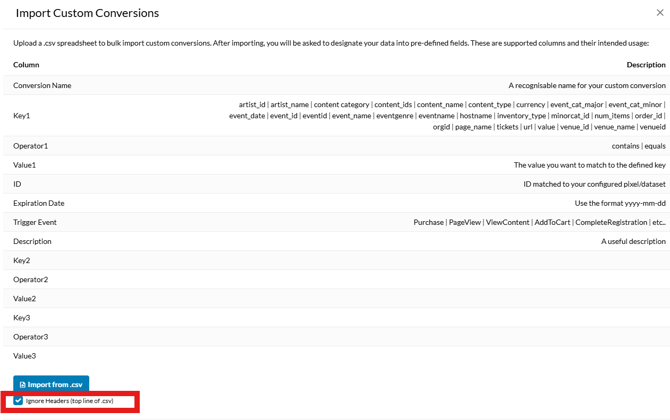
- Click Import and upload your CSV file
3. Review and Publish
- The system will present a mapping view. Check that the conversion name and other headers match the fields correctly.
- Click Confirm. If the sheet is correct, the system will report "successful".
- The conversions will appear in the Drafts tab.
- Review the drafts, then click Publish all drafts to create and activate all custom conversions in your Meta ad account
Still need assistance? Please reach out to your Customer Success Team or contact support@tradablebits.com