---
title: Getting Started With Ad Projects
description: Here's a quick guide to get you familiar with the Ads Projects section of the Tradable Bits platform.
---
[Skip to content](https://resources.tradablebits.com/support/ad-projects#main-content)
English
Show submenu for translations
![tradable-bits-long-logo-for-download.png\]](https://resources.tradablebits.com/hs-fs/hubfs/tradable-bits-long-logo-for-download.png?height=40&name=tradable-bits-long-logo-for-download.png)
Open main navigation
Close main navigation
- English
Show submenu for translations
How can we help?
- There are no suggestions because the search field is empty.
1. [Resources](https://resources.tradablebits.com/support?hsLang=en)
2. [Ads](https://resources.tradablebits.com/support/ads?hsLang=en)
# Getting Started With Ad Projects
## Here's a quick guide to get you familiar with the Ads Projects section of the Tradable Bits platform.
### Introduction to Ad Projects
*Your high-level overview to manage performance:*
Welcome to Ad Projects, your hub to view and analyze the performance of your ads across your chosen platforms (i.e. Facebook, Google, Snapchat, Spotify, TikTok). This hub consists of 3 main sections:
- **Summary:** A month-by-month overview of your ads performance
- **Projects:** An overview of your active ad projects across your account
- **Performance Matching**: Match campaigns with performance goals for more targeted results
- **Reports:** A way to generate robust reports on ad performance & spend
### **Summary**
***Ads at a Glance***
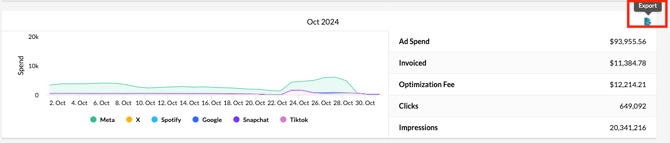
This section of the platform highlights the month-by-month performance of your ads across the different platforms you have set up & used within Tradable Bits. For each month, you will see aggregated information about the invoiced amount, optimization fee and the number of clicks and impressions across your ad campaigns.
**Note:** Optimization fee is the Tradable Bits advertising fee
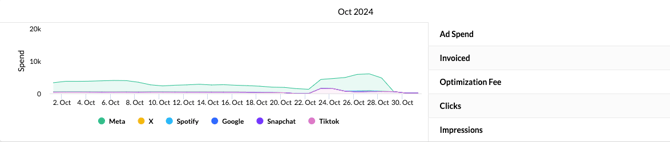
Using the graph on the left, you can drill down on ad spend per platform. To do this you can either:
- Use the legend at the bottom of the graph to identify which colour represents each platform, then hover over the colour that corresponds to your platform of choice to view spend/day
Or
- Use the legend at the bottom of the graph to clear away every platform except the one you want to drill down on. To do this, click on the name of each platform that you would like to “hide” from the graph, then hover over the options you have left to see the spend/day over the month.
Finally, you can use this section to export a more in-depth view of the specific ad campaigns from each platform for the month, and their respective monthly ad spends, clicks, impressions and optimization fees. To do this, click on the blue **Export** icon on the right side of each monthly section.
### **Projects**
#### **Project Dashboard**
*Breaking Down Your Active Ad Projects*
This section of the platform is a quick overview of all active ad projects that are being run through the Tradable Bits Ads section. Here, you can view total active spend, your **total budget remaining and the total optimization fee across active projects.**
You can click into any active or inactive ad project to see a more detailed breakdown of spend across the account.
#### 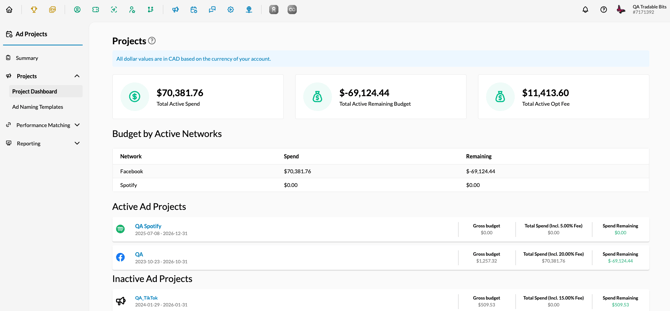
##### Under **Projects \> Project Dashboard**, you will see:
- **Summary Section:** Total Active Spend, Total Active Remaining Budget, Total Active Opt Fee
- **Budget by Active Networks:** Your current ad networks, their spend, and remaining budget
- **Active Ad Projects**: Running projects, gross budget, amount spent, and spend remaining
- **Inactive Ad Projects**: Projects past their run date, along with their final budget and spend
#### Ad Naming Templates
This section of the platform allows you to set up consistent naming conventions across your ad accounts. Creating standardised templates ensures your campaign data, ad sets, and creatives remain organised and easy to analyze across all platforms.
- **Campaign Naming Template:** Sets the structure for high-level campaign names using global variables like reference name, run dates, phase, objective, and promoter.
- **Adset Naming Template:** Standardises target groups by combining campaign tags with specific audience details, age ranges, and target locations.
- **Ad Naming Template:** Defines individual creative names by pairing the ad set name with creative descriptions.
##### **Building Your Naming String**
- **Campaign Name Preview:** Use the Preview fields at the top of each section to view how your variables will assemble the final name in real time.
- **Syntax & Formatting**: Use square brackets \[ \] around input tokens, and place any desired prefixes or separators (such as | or -) before and between the brackets.
- **Copying Tokens**: Under the Input sections, click any available token (e.g., \[campaign\_name\], \[creative\_description\]) to copy it to your clipboard and paste it directly into your template field.
**Application**: Once configured, these naming templates automatically apply to all new campaign elements created across your account.
Now, when creating a new ad campaign, ad set, or ad, toggle on **Auto Generate Campaign Name** to use your pre-configured default naming format.
### ****
### **Performance Matching**
#### **Networks**
##### **Filters**
- #### **Search by Campaign Name or ID:** Enter a specific campaign title or ID to narrow down your results.
- **Date:** Set a start and end date to review campaign performance and matching data for a specific timeframe.
- **Filter by Network:** Narrow your results to a single ad or affiliate network (e.g., *All Networks*, *Facebook*, *Google*).
- **Unmatched Campaigns Only:** Toggle on to isolate campaigns that need manual event key alignment.
- **Pending System Matches:** Toggle on to review auto-generated matches waiting for confirmation.
##### **Metrics**
- **Results:** Total number of campaign records matching your selected search criteria and date range.
- **Matched Campaigns:** Campaigns where the system successfully auto-matched performance data by detecting the **event key** within the campaign name.
- **Unmatched Campaigns:** Campaigns where performance data could not be automatically linked due to a missing or mismatched event key.
- **Pending System Matches:** Automated matches flagged by the system that are awaiting final processing or manual review.
Each card in the results list lets you view and update campaign mapping:
- **Campaign Details:** View the ad network, campaign name, run dates, ad account, and total spend.
- **Budget Line:** Select the budget line item from the dropdown.
- **Performance & Event Key:** View or select the performance type, venue, and linked Campaign Event Key.
- **Edit/Save:** Click **Edit** to update the drop-downs, then click **Save** to apply your changes.
#### **Trackers**
Use **Tracker Performance Matching** to link your tracking links, tracker groups, or marketing groups with performance data, venues, and campaign keys.
##### **Filters**
- **Search:** Look up items by tracker, tracker group, or marketing group name.
- **Date Range:** Filter trackers by their activity or creation dates.
- **Filter by Network:** Narrows down results by ad or affiliate network (e.g., *All Networks*).
- **Unmatched Campaigns Only:** Check this toggle to display only trackers that require setup.
##### **Metrics**
- **Total Trackers:** Total tracker records matching your selected date range and filters.
- **Matched Trackers:** Tracking links successfully linked to performance metrics.
- **Unmatched Trackers:** Tracking links that still need manual performance assignment.
Each tracker entry card displays details and customizable mapping options:
- **Tracker Details:** View the Tracker ID, name/slug, and creation date.
- **Marketing Group:** Shows the associated marketing group (if assigned).
- **Performances & Mapping:** Use the drop-downs on the right to select **Choose Performances**, assign a **Venue**, or link a **Campaign Key**.
### **Reporting**
#### Generating a New Report
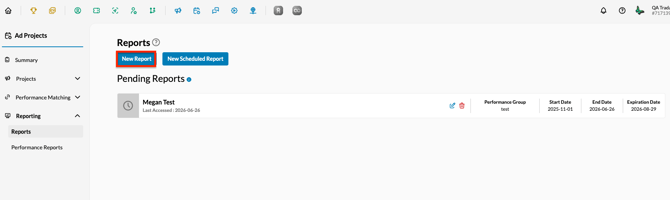
Click **New Report** and complete the following fields:
- **Ad Report Name:** The name assigned to the report (for your reference)
- **Report Theme:** Choose a report theme that suits your business, either Sales or Promo. Promo reports will remove purchase conversion-based metrics.
- **Search Expression:** Use this field to hone in on advertising activities done on particular campaigns, such as Retargeting or Drip Prospecting campaigns. To do this, enter RTG or DRIP, respectively. If you wish to pull **all** campaign data, leave this field blank.
- **Negative Search Expression:** Use this field to **exclude** advertising activities done on certain campaigns. To do this, enter the campaigns you wish to exclude (i.e. if you wish to exclude retargeting campaigns, enter RTG).
- **Performance Group:** Enter a particular performance group into this field if you want to highlight only the ads included in that group. Performance Groups are tied to events. You can choose the performance group you wish to target from the dropdown menu.
- **Performance Name:** Choose a particular performance name if you want to highlight only the performance of that particular Facebook Ads Automation campaign. Leave this blank if you would like the report to analyze all campaign data
- **Ticket Event Name:** This name is associated with the event name(s) that are being pulled in from your ticketing integration for the event. To view event names, you can:
- Go to Data Cube \> select event name as one of your fields, and click search. All of your previous event names will be visible to choose from. Copy and paste everything **after the date**
- **Ticket Venue Name:** This name is associated with the event name that you have set up in performances. To view event names, you can:
- Go to Data Cube \> select venue name as one of your fields, and click search. All of your previous venue names will be visible to choose from. Copy and paste
- **Opt. Fee:** Choose how you would like the Tradable Bits Opt Fee to be represented in your final report (Exclude, Include, Combine with Ad Spend)
- **Start Date & End Date:** Use these fields to narrow down which period is analyzed for the report. Only the ads set up during this period will be represented in the report.
- **Expiration Date:** This expiration date is tied to the shareable link that is generated to view the report. Once past the date, the link will no longer be valid.
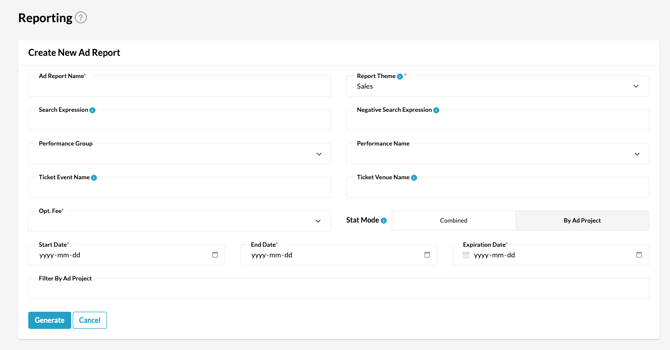
- Click **Generate** to create and view your new report
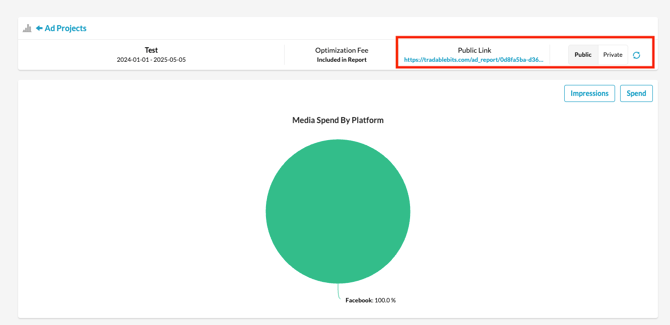
View your report in private mode or toggle on public mode to generate a shareable link for your team or stakeholders:
### Viewing a report
You can view Media Spend vs. Impressions by platform for a high-level overview of your ad performance.
- **Executive Summary**: Total Spend, Opt Fee, Clicks, Impressions.
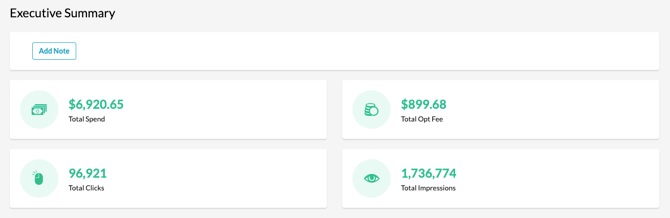
Depending on the events you configured in your ad project, different metrics will be displayed, eg, X, Google, etc...
#### Platform Insights
- **Meta Insights**
- **Summary Metrics:** Total Spend, ROAS, Total Impressions
- **Key Performance Indicators:** CPM, CTR, Conversions
- **Breakdowns:** Spend by Age & Gender, Spend by Location, Conversions by Location
- **Details:** Meta Ad Account KPIs, Campaign Details

- **X Insights**
- **Summary Metrics:** Total Spend, Total Impressions, Total Clicks
- **Key Performance Indicators:** CPM, CTR
- **Details:** X Campaign Details
- **Google Insights**
- **Summary Metrics:** Total Spend, ROI, Total Impressions
- **Key Performance Indicators:** CTR, CPC, CPA, Conversions
- **Details:** Google Campaign Performance
- **Snapchat Insights**
- **Summary Metrics:** Total Spend, Total Impressions, Swipes, Video Completions
- **Key Performance Indicators:** CPM, Conversions
- **Details:** Snapchat Account Performance
- **Spotify Insights**
- **Summary Metrics:** Total Spend, Total Impressions
- **Key Performance Indicators:** Account KPIs, CTR/Listen-Through Rates
- **Details:** Spotify Campaign Details
#### **Conversion & Ticket Insights**
- **Fan Audience Breakdown:** New Fans, Purchases from Known Fans, Anonymous Fans
- **Sales Summary:** Total Revenue, Sales Transactions, Quantity Sold
- **Pacing & Trends:** Sales by Date, Daily Sale $, 3-Day Moving Average $
Each section includes a dedicated field to record qualitative insights, campaign notes, and strategic recommendations for stakeholders.
### Performance Reporting
All dollar values in this section are calculated in the native currency of the individual ad.
- **Date Range**: Select your reporting window using pre-set options (Last 7 Days, Last 14 Days, Last 30 Days, Last 3 Months, Last 6 Months, Last Year, Current Calendar Month, Last Calendar Month) or choose Custom.
- **Start Date & End Date**: Set specific date boundaries when using a Custom date range.
- **Analysis Template**: Filter data across ad networks using pre-built/saved templates.
- **Networks**: Choose which active ad platforms to include in your performance aggregation.
- **Enable Benchmark Colour Codes**: Toggle color-coded visual styling to easily identify metrics above or below target thresholds.
- **Edit Benchmarks**: Adjust and set your custom baseline target values for key performance indicators.
- **Breakdowns (6 max)**: Select up to 6 custom data dimensions to segment your ad campaign results.
- **Values**: Choose the specific performance metrics and values displayed within your reporting tables.
- **Template Controls**: Use **Manage Templates** or **Save Template** to store your custom report configurations for future use.
**Still need assistance? Please reach out to your Customer Success Team or contact [support@tradablebits.com](mailto:support@tradablebits.com)**
- [Getting started](https://resources.tradablebits.com/support/getting-started?hsLang=en)
- [Account](https://resources.tradablebits.com/support/account?hsLang=en#main-content)
- [Account Admin](https://resources.tradablebits.com/support/account?hsLang=en#account-admin)
- [Security & Data Practices](https://resources.tradablebits.com/support/account?hsLang=en#security-data-practices)
- [Engagement Campaigns](https://resources.tradablebits.com/support/engagement-campaigns?hsLang=en#main-content)
- [Campaign Basics](https://resources.tradablebits.com/support/engagement-campaigns?hsLang=en#campaign-basics)
- [Campaign Setup & Configuration](https://resources.tradablebits.com/support/engagement-campaigns?hsLang=en#campaign-setup-configuration)
- [Campaign Styling & Design](https://resources.tradablebits.com/support/engagement-campaigns?hsLang=en#campaign-styling-design)
- [Lead Generation Campaigns](https://resources.tradablebits.com/support/engagement-campaigns?hsLang=en#lead-generation-campaigns)
- [User-Generated Content Campaigns](https://resources.tradablebits.com/support/engagement-campaigns?hsLang=en#user-generated-content-campaigns)
- [Music Campaigns](https://resources.tradablebits.com/support/engagement-campaigns?hsLang=en#music-campaigns)
- [Quiz Campaigns](https://resources.tradablebits.com/support/engagement-campaigns?hsLang=en#quiz-campaigns)
- [Events/Ticketing Campaigns](https://resources.tradablebits.com/support/engagement-campaigns?hsLang=en#events-ticketing-campaigns)
- [Game Campaigns](https://resources.tradablebits.com/support/engagement-campaigns?hsLang=en#game-campaigns)
- [Voting/Polling Campaigns](https://resources.tradablebits.com/support/engagement-campaigns?hsLang=en#voting-polling-campaigns)
- [Prize Giveaway Campaigns](https://resources.tradablebits.com/support/engagement-campaigns?hsLang=en#prize-giveaway-campaigns)
- [Incentivize Campaigns](https://resources.tradablebits.com/support/engagement-campaigns?hsLang=en#incentivize-campaigns)
- [Best Practices for Campaigns](https://resources.tradablebits.com/support/engagement-campaigns?hsLang=en#best-practices-for-campaigns)
- [Campaign Reporting](https://resources.tradablebits.com/support/engagement-campaigns?hsLang=en#campaign-reporting)
- [User-Generated Content (UGC)](https://resources.tradablebits.com/support/user-generated-content-ugc?hsLang=en)
- [Fan CRM](https://resources.tradablebits.com/support/fan-crm?hsLang=en#main-content)
- [Tags](https://resources.tradablebits.com/support/fan-crm?hsLang=en#tags)
- [Filters](https://resources.tradablebits.com/support/fan-crm?hsLang=en#filters)
- [Exports](https://resources.tradablebits.com/support/fan-crm?hsLang=en#exports)
- [Fan Profiles](https://resources.tradablebits.com/support/fan-crm?hsLang=en#fan-profiles)
- [Sales](https://resources.tradablebits.com/support/sales?hsLang=en#main-content)
- [Data Library](https://resources.tradablebits.com/support/sales?hsLang=en#data-library)
- [Trackers](https://resources.tradablebits.com/support/trackers?hsLang=en)
- [Idols](https://resources.tradablebits.com/support/idols?hsLang=en)
- [Integrations](https://resources.tradablebits.com/support/integrations?hsLang=en#main-content)
- [Outgoing Integrations](https://resources.tradablebits.com/support/integrations?hsLang=en#outgoing-integrations)
- [Incoming Integrations](https://resources.tradablebits.com/support/integrations?hsLang=en#incoming-integrations)
- [Salesforce Marketing Cloud](https://resources.tradablebits.com/support/integrations?hsLang=en#salesforce-marketing-cloud)
- [Ads](https://resources.tradablebits.com/support/ads?hsLang=en#main-content)
- [Meta (Facebook & Instagram)](https://resources.tradablebits.com/support/ads?hsLang=en#meta-facebook-instagram)
- [Google Ads](https://resources.tradablebits.com/support/ads?hsLang=en#google-ads)
- [Snapchat](https://resources.tradablebits.com/support/ads?hsLang=en#snapchat)
- [TikTok](https://resources.tradablebits.com/support/ads?hsLang=en#tiktok)
- [Spotify & Reddit](https://resources.tradablebits.com/support/ads?hsLang=en#spotify-reddit)
- [Messaging](https://resources.tradablebits.com/support/messaging?hsLang=en#main-content)
- [SMS](https://resources.tradablebits.com/support/messaging?hsLang=en#sms)
- [Email](https://resources.tradablebits.com/support/messaging?hsLang=en#email)
- [Push Notifications](https://resources.tradablebits.com/support/messaging?hsLang=en#push-notifications)
- [Instagram](https://resources.tradablebits.com/support/messaging?hsLang=en#instagram)
- [Automations](https://resources.tradablebits.com/support/messaging?hsLang=en#automations)
- [Custom Networks](https://resources.tradablebits.com/support/messaging?hsLang=en#custom-networks)
- [Octane](https://resources.tradablebits.com/support/octane?hsLang=en)
- [FAQs](https://resources.tradablebits.com/support/faqs?hsLang=en)
[](https://tradablebits.com/)
Copyright © 2026, Tradable Bits